
Connecting to the Web UI
The DMX Core 100 includes a built-in Web UI that provides full access to all features from any browser on the same network. The Web UI offers advanced capabilities beyond what is available on the touchscreen, including fixture control, effects, timelines, input triggers, user management, and more.
Finding the Device IP Address
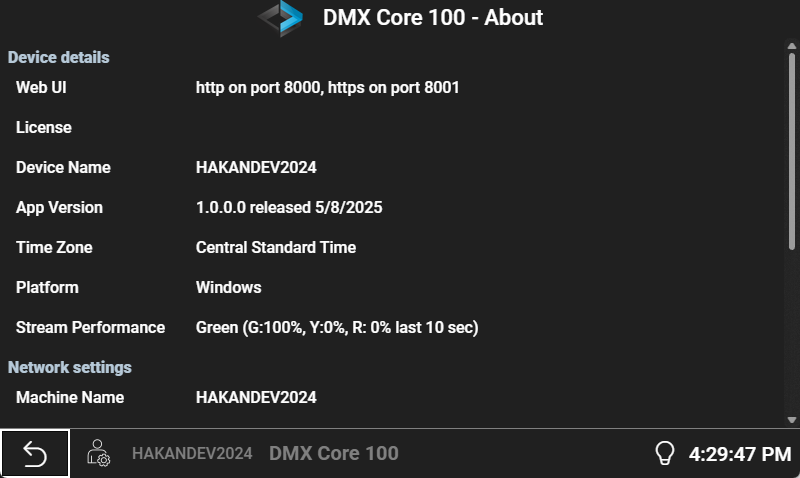
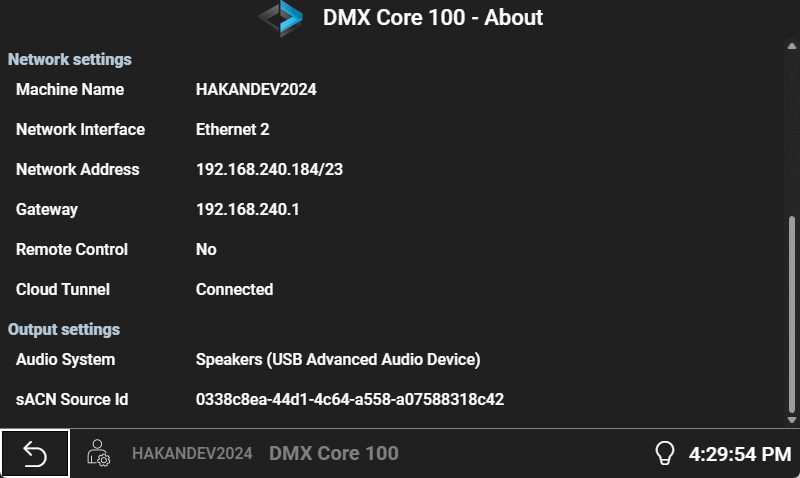
To connect to the Web UI, you need the device’s IP address. You can find it on the touchscreen:
- Navigate to Main Menu > About on the touchscreen
- Network Address shows the IP with netmask, for example
192.168.1.50/24. Use the address part (before the/) in the browser.
On an Appliance there is no Web UI port row on About (the ports are always 8000 / 8001). A default PIN row appears only when the database is empty.
Opening the Web UI
- Open a web browser on any device connected to the same network
- Enter the device IP address in the address bar:
- HTTP:
http://<device-ip>(port 80) - HTTPS:
https://<device-ip>(port 443, recommended)
- HTTP:
- If using HTTPS, your browser will show a certificate warning for the unit’s self-signed certificate - this is expected. Accept the warning to continue.
Logging In
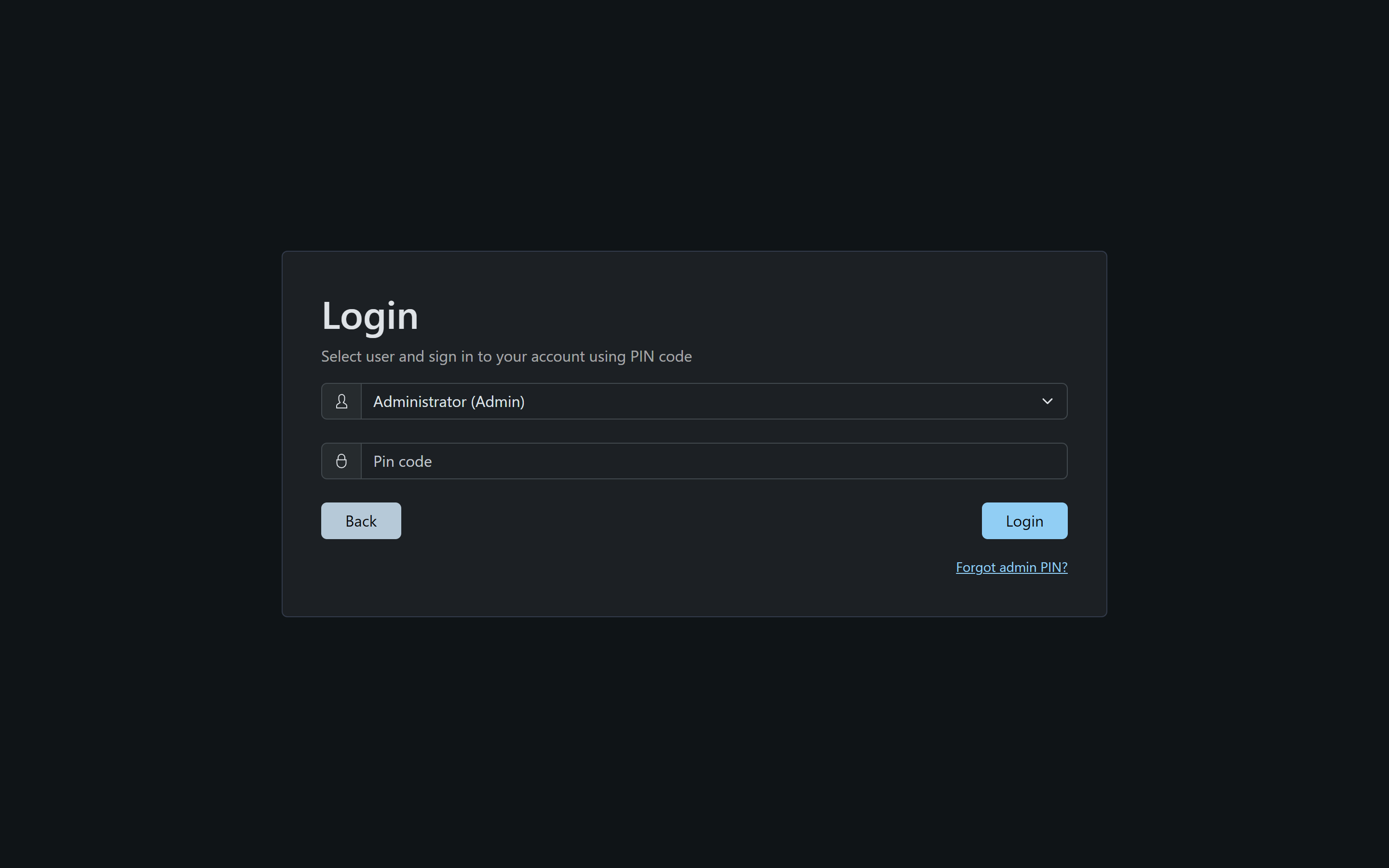
- Select your user (a fresh device has just the Administrator)
- Enter your PIN (the default admin PIN is
1111) - or your password, if your account uses password login - Click Login
After logging in, you’ll see the Web UI Dashboard.
Auto Log-off
For security, the Web UI automatically logs you out after a period of inactivity. The timeout is configurable per user under User Management.