
Scripting
Scripts let advanced users automate the DMX Core 100 with JavaScript - conditions, sequencing, state, and custom payload parsing that go beyond what a single trigger action can express. A script can play cues, apply presets, set fixture colors, drive Control Values, publish MQTT and OSC messages, and more, through the built-in dmx API.
// Motion sensor: full show after dark, subtle accent during the dayconst sunset = dmx.sunset();if (sunset === null || ctx.now.minutesSinceMidnight >= sunset.minutesSinceMidnight) { dmx.playCue("CUE2", { fadeIn: 1000 }); dmx.sleep(15 * 60 * 1000); dmx.fadeToPreset("P1", 5000);} else { dmx.fadeToPreset("P2", 2000);}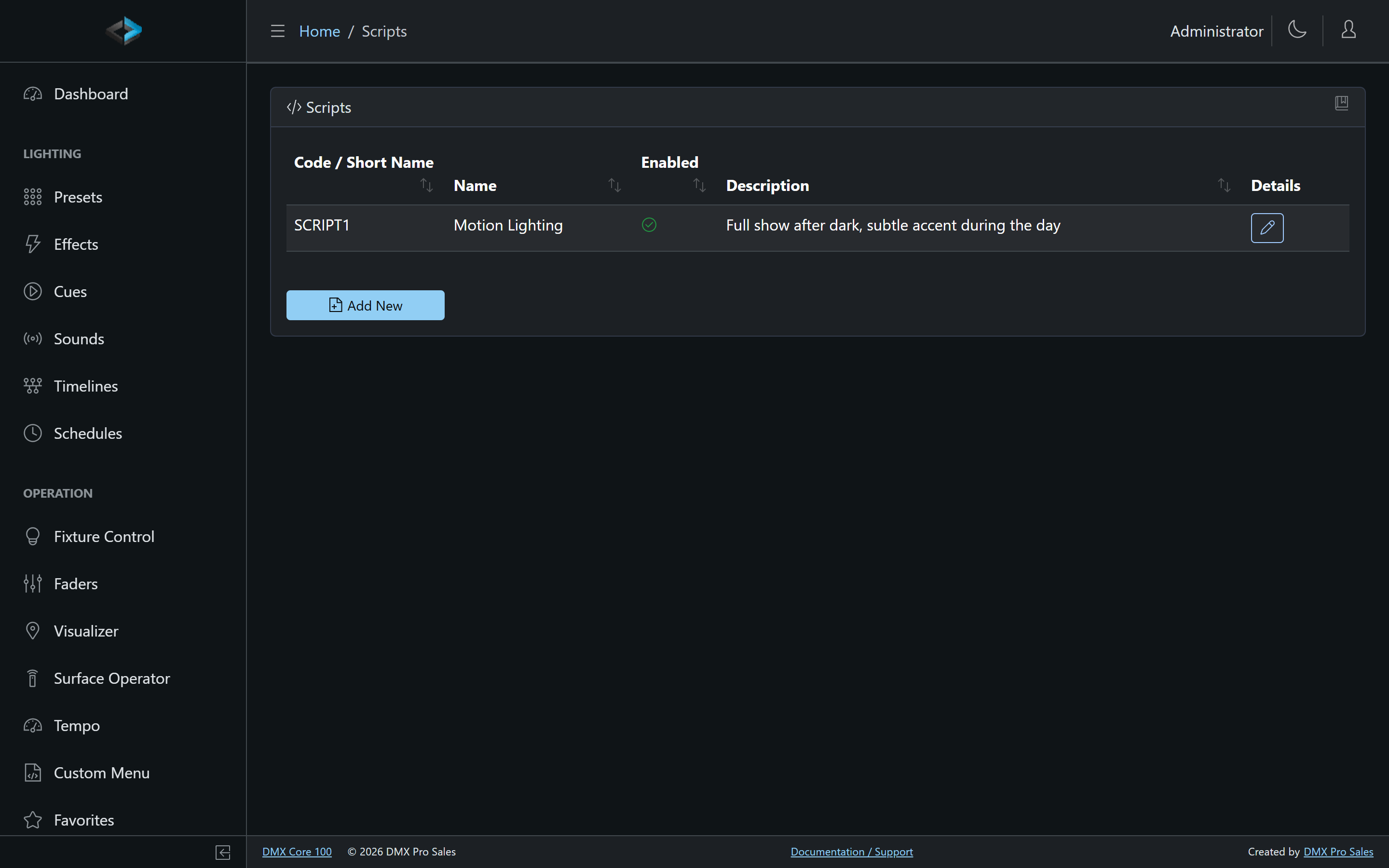
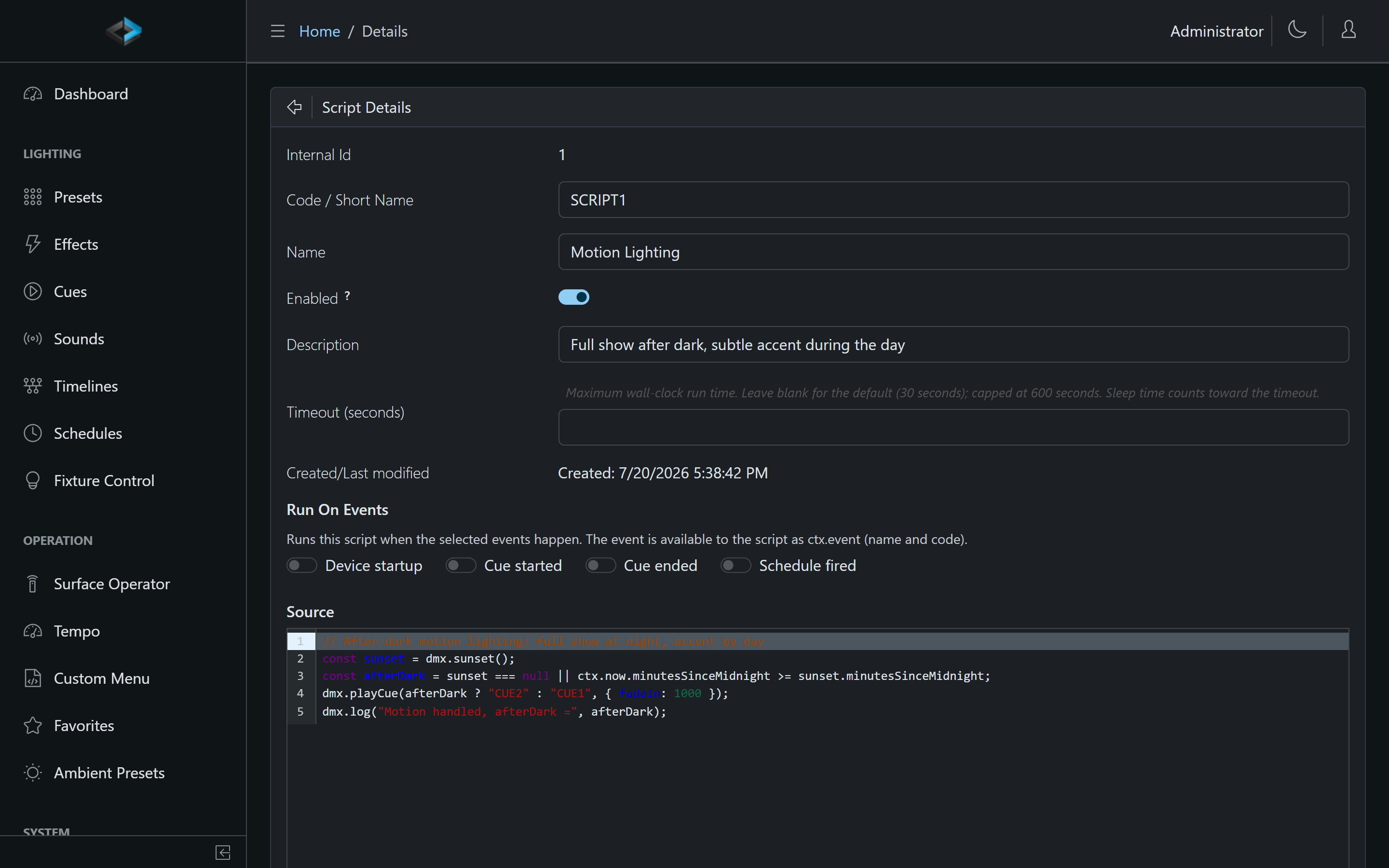
Creating a Script
- In the Web UI, go to Control & Integrations > Scripts
- Click Add New
- Write the JavaScript in the Source editor
- Click Save, then Run to test it
The Last Run panel below the buttons shows whether the run succeeded, any error with its line number, and everything the script logged with dmx.log(). Use the Test Payload field to simulate a trigger payload - its text arrives in the script as ctx.payload.
Running Scripts
A saved script can be started from almost anywhere in the system using the Run Script action:
- Input Triggers - run a script when a UDP, TCP, HTTP, OSC, MQTT, DMX, or digital-input signal arrives. The raw payload is available as
ctx.payload. - Schedules - a schedule with action Run Script runs the script at its start time, at a time of day, sunrise, or sunset. The run sees
ctx.trigger.sourceasSCHEDULEand the schedule’s code inctx.trigger.code. For something to run when the schedule ends, use a second script’s Run On Events › Schedule ended switch. - Custom Menus, Stream Deck keys, and keypads - run a script at the press of a button.
- Timelines - a Script event runs a script at an exact timestamp during timeline playback.
- Lifecycle events - the Run On Events switches on the script itself run it at device startup, when a cue starts or ends, or when a schedule fires or ends. The event details arrive as
ctx.event.
How Scripts Run
- One run at a time per script. If a script is triggered while a previous run is still executing, the new invocation is dropped.
- Each run starts fresh. Variables do not survive between runs. Use
dmx.storefor persistent state - it survives runs and reboots. - Hard limits. A run is stopped when it exceeds its wall-clock timeout (30 seconds by default, configurable per script up to 600 - time spent in
dmx.sleep()counts), or its statement and memory caps. Playback is never affected by a runaway script. - Errors are catchable. Host errors such as “MQTT client is not connected” can be handled with a normal
try/catch. The timeout and a manual Stop cannot be caught. - Sandboxed. Scripts can only reach the
dmxAPI - no file system, network sockets, or other device internals.
Transform Scripts
Value-mode Input Triggers (where the payload is a level, like a wall fader) can name a Transform Script that reshapes the normalized 0–1 value before it drives its target - for response curves, dead zones, or thresholds.
Transform scripts are a special, minimal kind of script: they see only the globals value (0–1) and payload (the raw message), and the value of their last expression becomes the result, clamped to 0–1:
// Dead zone below 5%, then a squared curve for finer low-end controlvalue < 0.05 ? 0 : value * value;There is no dmx or ctx in a transform, the execution budget is much tighter, and a failing transform skips the update entirely rather than passing the raw value through. The transform script must be Enabled; otherwise every update is silently skipped.
Examples
Ready-to-use, commented example scripts - motion lighting after dark, occupancy timeouts, MQTT bridging, lifecycle-event publishing, and more - are available in the samples repository.
For the complete list of functions and the ctx object, see the Scripting API reference.