
Q-SYS & Symetrix
The DMX Core 100 integrates two ways with the two most common DSP platforms - the Q-SYS system from QSC and the Symetrix line of cores:
- As a wall controller for the DSP - the touchscreen displays buttons and faders wired to named controls on the DSP, giving an integrator an inexpensive UI for building automation: change audio inputs, ride levels, toggle power.
- As a lighting controller driven by the DSP - a button, fader, or selector on the DSP (or anything that talks to it) selects presets, triggers cues, and rides lighting levels on the DMX Core 100 via Control Value input triggers.
Both platforms use the DSP’s built-in control interface - no scripting or extra licenses required on the DSP side.
Configuration
The integrations are plugins, installed from the plugin registry:
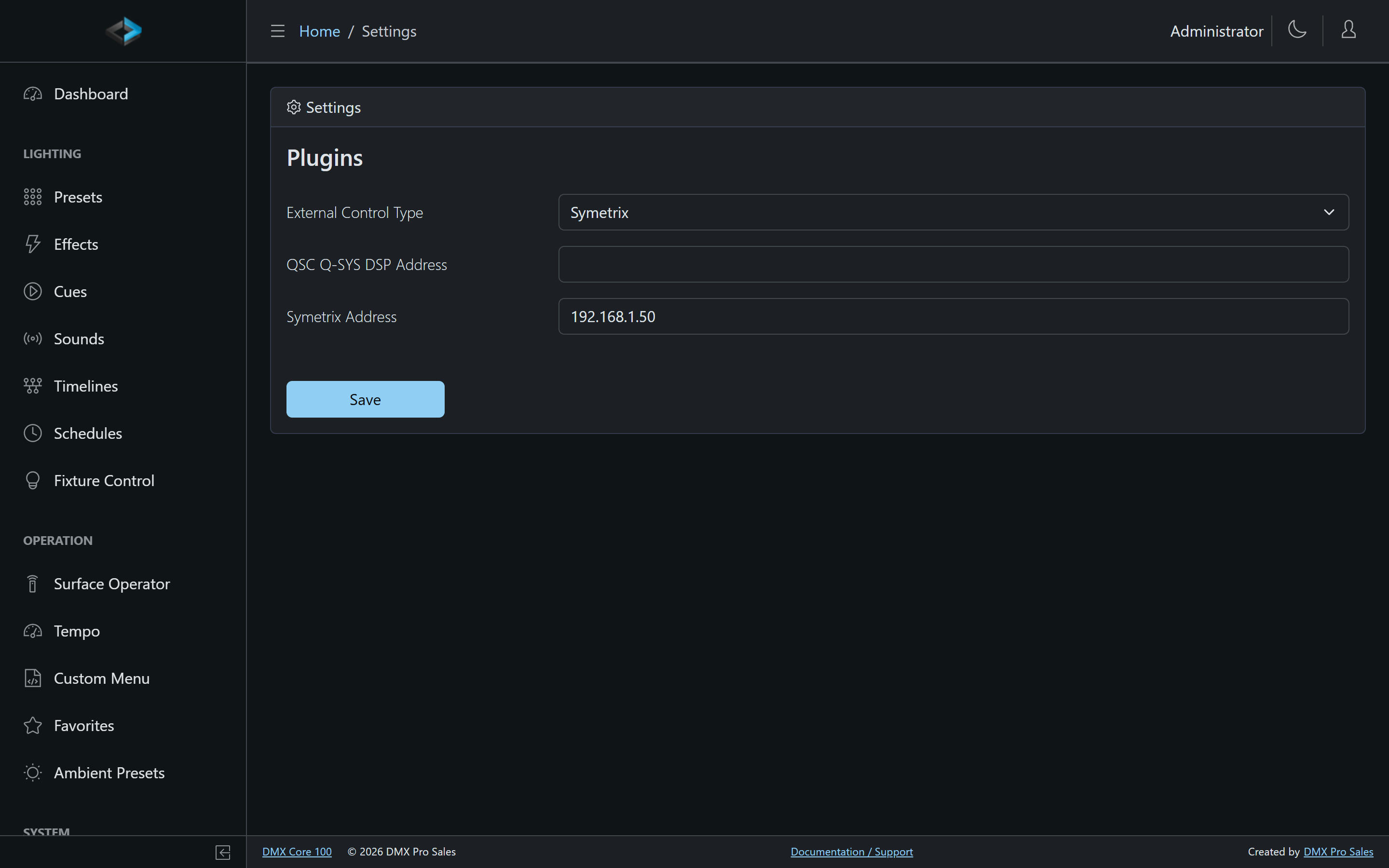
- In the Web UI, go to Control & Integrations > Plugins and install the Symetrix DSP or QSys DSP plugin from the Browse tab.
- Open the plugin’s settings and enter the Server address of your core. The port only needs changing if it differs from the platform default (Symetrix 48631, Q-SYS 1702).
- Save Settings. The plugin connects immediately - no restart needed.
Connectivity is indicated by the link icon next to the plugin’s state on the Plugins page, and in the touchscreen status bar - red means disconnected, white means connected.
Control Values
For levels, selectors, and mutes, define Control Values that map to the DSP’s controller numbers (Symetrix) or named controls (Q-SYS). They can then be bound anywhere - custom menu sliders, control surface knobs, input triggers, timelines, and scripts - with two-way state sync against the DSP. This is the way to bridge DSP audio controls into the system.
The same Control Values also carry the reverse direction: a Control Value input trigger fires DMX Core actions when a control changes on the DSP side - no command strings or extra wiring, just the controller numbers you already mapped.
Building a Wall Controller
To turn the touchscreen into a DSP remote, build a custom menu from the Control Values you defined:
- Sliders bound to Level Control Values ride audio levels, with live two-way updates - move a fader on the DSP (or any other surface) and the menu follows
- Buttons set Toggle or Selector Control Values: source select, mute, power
- Up/Down buttons step a level by its configured step size
- Mix in lighting controls freely - the same menu can play presets and cues next to the audio controls
Custom menus support multiple pages, custom colors and icons, and saved changes appear on the touchscreen immediately - completely remotely.
Lock-Down Deployments
Combine a custom menu with lock-down mode so a wall-mounted unit only exposes the DSP controls - a dedicated room controller in a 2-gang box.