
Advatek Lighting
Advatek Lighting builds high-performance LED pixel controllers - the PixLite series. The DMX Core 100 integrates with them natively: it discovers them on your network, creates Art-Net or sACN outputs to drive them, and reads live health data (temperature, voltage, and per-output current) straight from the hardware.
Supported Devices
The integration works with Advatek PixLite pixel controllers that support the standard Advatek discovery protocol and JSON configuration API. Both pixel ports and auxiliary (DMX) ports are supported.
How It Works
The DMX Core 100 talks to your Advatek controller in two ways:
- Discovery - A network scan finds Advatek controllers automatically. No manual IP entry is required. The DMX Core 100 reads each device’s identity (model, firmware, IP, MAC, nickname).
- Live readout - When you open a device, the DMX Core 100 queries it directly for its current port configuration (universe, pixel type, pixel count, color order per port) and its electrical health (board temperature, supply voltage, per-output current and fuse status).
Discovering Your Controller
- Make sure the Advatek controller is powered on and connected to the same network as the DMX Core 100.
- In the Web UI, go to Utilities > Device Monitor.
- The DMX Core 100 scans the network and lists any Advatek controllers it finds, along with their model, firmware version, and IP address.
- Click a device to open its detail view.

Authenticating (Password-Protected Devices)
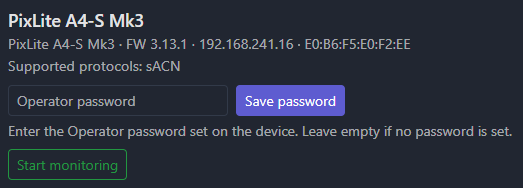
If your Advatek controller has an operator password set, the DMX Core 100 needs it to read configuration and statistics.
- Open the device in Device Status.
- Enter the operator password in the password field.
- Click Save password.
The password is stored securely and used automatically for all future reads from that device, so you only enter it once.
Creating an Output
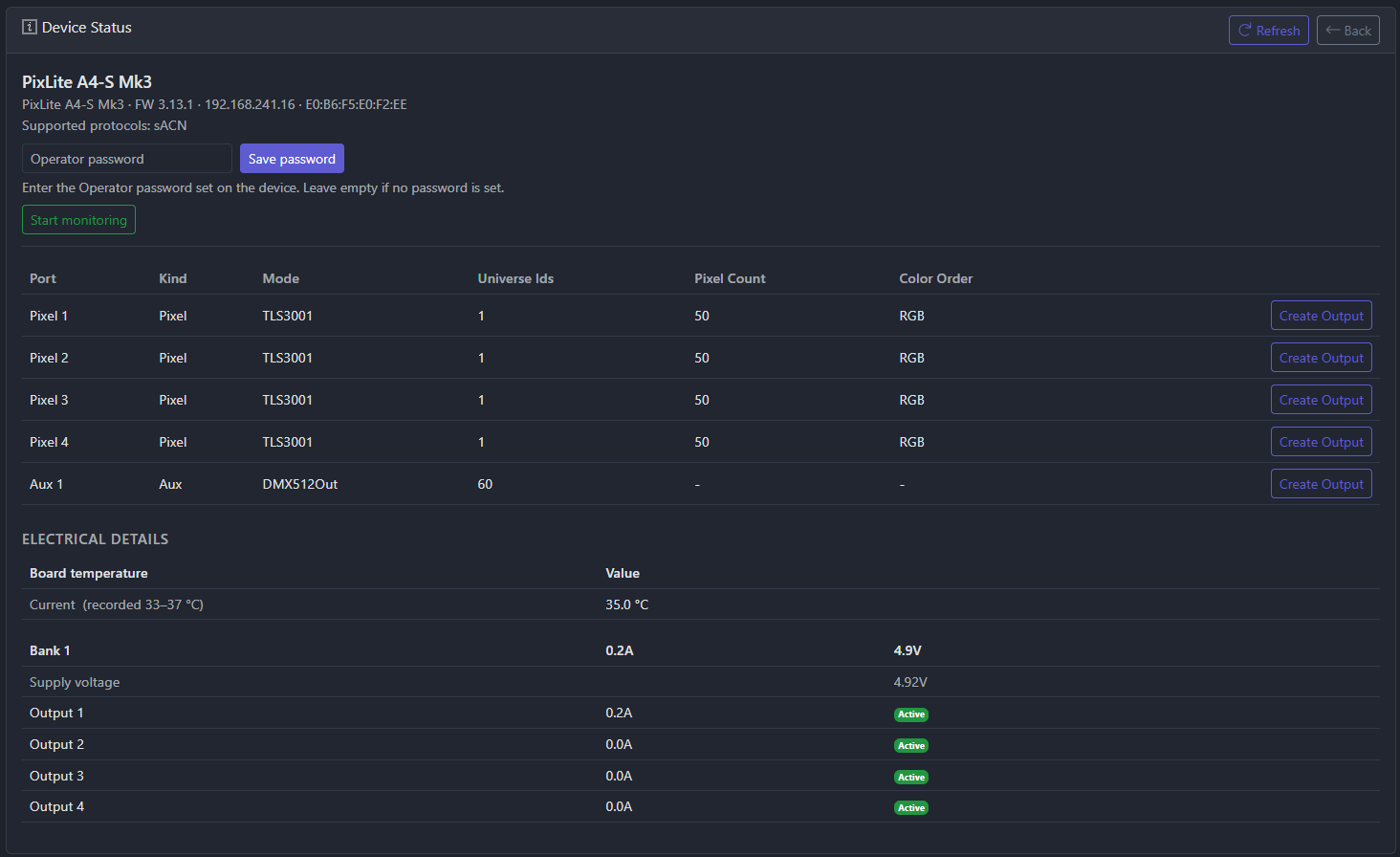
Each pixel and auxiliary port on the controller is listed in the device’s port table. To stream lighting data to a port:
- Open the device in Device Status and locate the port you want to drive in the port table. Each row shows the port’s kind, protocol, and start universe, with pixel ports also showing pixel count and color order.
- Click Create Output on that port.
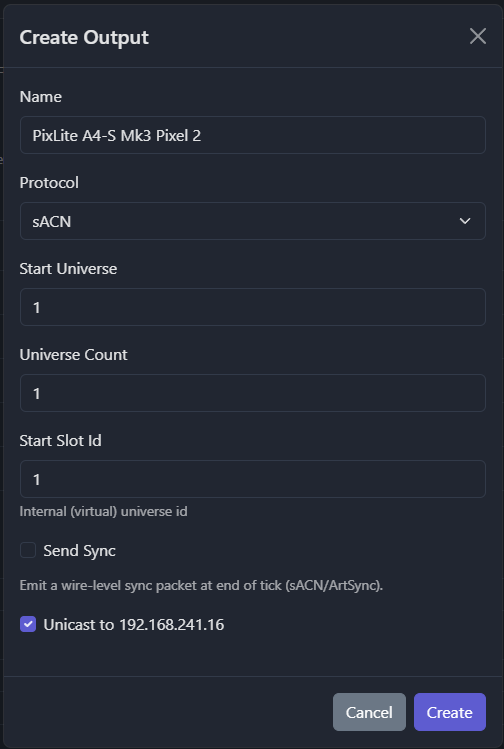
- In the dialog, confirm the settings:
- Protocol - Art-Net or sACN, matching how the port is configured on the device.
- Destination - Defaults to the controller’s IP address (unicast).
- Start Universe - Pre-filled from the port’s configuration.
- Universe Count - How many universes this output spans.
- Click Save.
The DMX Core 100 now streams DMX data to that port over the chosen protocol. Repeat for each port you want to drive. See Output Config for how outputs map to your zones and fixtures.
Monitoring Device Health
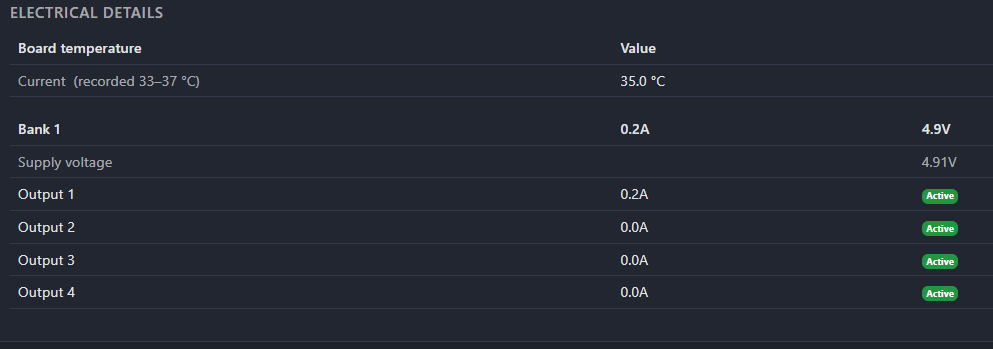
Beyond sending data, the DMX Core 100 reads live health information from Advatek controllers so you can spot problems before they take down a show.
- Board temperature - Current reading plus the recorded minimum and maximum.
- Supply voltage - Per power bank, read directly from the device.
- Per-output current and fuse status - Current draw on each pixel power output, along with fuse and status indicators, to catch overcurrent conditions or disconnected runs.
Drift Detection
To be alerted when a device changes unexpectedly, enable monitoring on the device:
- Firmware pinning - Pin the current firmware version so you are notified if it changes (for example, after an unplanned update).
- Port configuration pinning - Snapshot the port settings (universe, pixel count, color order) so you are notified if someone reconfigures the controller.
Monitored devices are checked periodically for reachability, and events flow into the system for alerting and history - see Device Monitor. For real-time inspection of the DMX data itself, see the Output Monitor.
Use Cases
- Pixel installations - Drive large pixel arrays on Advatek PixLite controllers from recorded cues, presets, and timelines, triggered by schedule, touchscreen, or external protocol.
- Unattended venues - Monitor controller temperature and power health remotely and get alerted if a fuse blows or a run is disconnected.
- Commissioning and handover - Pin firmware and port configuration so accidental changes on site are caught immediately.
Troubleshooting
- Device not found - Confirm the controller and the DMX Core 100 are on the same subnet and that the controller is powered on. Discovery uses network multicast; some managed switches block it, so check IGMP snooping settings.
- Authentication failed - Re-enter the operator password under Device Status and save it again. An empty password is valid only if the device has no password set.
- No output - Verify the port’s protocol (Art-Net vs sACN) and start universe match the output you created, and that the output’s destination IP is the controller.