
Config Utility
Download
Download the latest version of the Config Utility from GitHub releases. The utility is a text-based menu in Terminal. Builds are portable (no installer, no auto-update) and signed by DMX Pro Sales.
| Platform | File |
|---|---|
| Windows 64-bit | DmxRemapperConfig.exe |
| Windows 32-bit | DmxRemapperConfig-win-x86.exe |
| macOS Apple silicon (M1 or later) | DmxRemapperConfig-osx-arm64.dmg |
| macOS Intel | DmxRemapperConfig-osx-x64.dmg |
Plug the Pico 2 Re-Mapper in over USB before launching.
Start the application
The Config Utility is a text-based, menu-driven application that interacts directly with the Pico 2 Re-Mapper. When launched it will iterate through all serial ports on your computer and query for the Re-Mapper firmware. Once found it will say: Found Pico device, serial ******** on port COM**.
Windows
Double-click DmxRemapperConfig.exe (or the 32-bit DmxRemapperConfig-win-x86.exe). Windows SmartScreen should show the publisher as DMX Pro Sales.
macOS
- Download the matching disk image (
osx-arm64on Apple silicon,osx-x64on Intel). - Open the
.dmg. - Double-click DmxRemapperConfig (the application). You can also drag it to Applications.
- Terminal opens with the text menus.
Do not open files inside the application package, and do not use an older .zip that contains a raw Unix executable or a .command file. macOS Gatekeeper blocks those.
The first time you launch, macOS may ask whether Pico 2 Re-Mapper Config can control Terminal. Choose Allow.
If macOS offers Move to Trash instead of Open, you have an old unsigned download. Get a current .dmg from GitHub releases.
The menu options are:
- Read DMX
- Get Mapping
- Modify Mapping
- Revert Mapping
- Write Mapping to Flash
- Write Mapping to local file
- Read Mapping from local file
- Reset Mapping
- Read Status
- Quit
Menu options
Read DMX
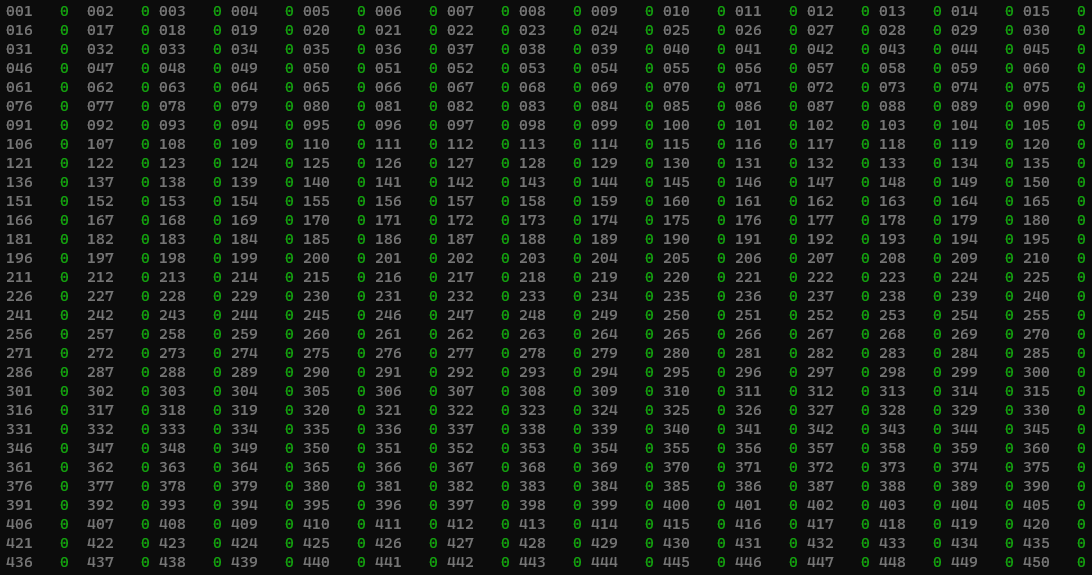
Reads the last received DMX frame from DMX port A and outputs it on the screen. The channel number (1–512) is shown in gray and the current value (0–255) in green.
Get Mapping
Reads the current running mapping from the Re-Mapper. Note that this doesn’t necessarily match what is stored in flash memory - as you modify the mapping it’s only in volatile RAM until you write it to flash. Get Mapping reads what is currently in RAM.
Modify Mapping
Modify the mapping one channel at a time. Select the output channel you want to modify (1–512), then choose to map it to one of the input channels (1–512) or set it to a fixed value (0–255). Once completed the mapping is immediately sent to the device. It is only written to RAM; write to flash if you want it to be permanent.
Revert Mapping
Re-reads what is in flash memory into RAM - the same as a power cycle. Any mapping modified in RAM will be lost.
Write Mapping to Flash
Writes the current mapping (in RAM) to the device flash memory, making it permanent across power cycles.
Write Mapping to local file
Writes the current mapping to a file named Mapping_*******.yaml in the current directory (the * part is the device serial number). When you launch from the macOS application, that directory is your home folder. The file can be opened with any text editor for bulk changes. The format is a list of output channels, each mapped to either input-*** or fixed-***.
Example:
configVersion: 1.0output: 1: input-1 2: input-2 3: input-3 4: input-4 5: fixed-5 6: input-6 ...Read Mapping from local file
Lists all *.yaml files in the current directory and lets you select one. The selected mapping is loaded into the device RAM immediately. Remember to write to flash if you want it to be permanent.
Reset Mapping
Resets the mapping in RAM to a straight 1:1 pass-through from input to output.
Read Status
Displays details about the current DMX input stream: how many frames have been received since power-up, and the current frame rate (based on the last second).
Quit
Quits the application. You can also close the window or unplug the device.