
Faders
The Faders page (Web UI: Operation > Faders) is a lighting-desk-style view of your fixtures: one vertical fader per dimmable fixture, built for setting brightness levels quickly during live operation. Color, effects, and other fixture functions stay one tap away in a per-fixture dialog, while the page itself remains a clean row of faders. A second view, Controls, does the same for your Control Values.
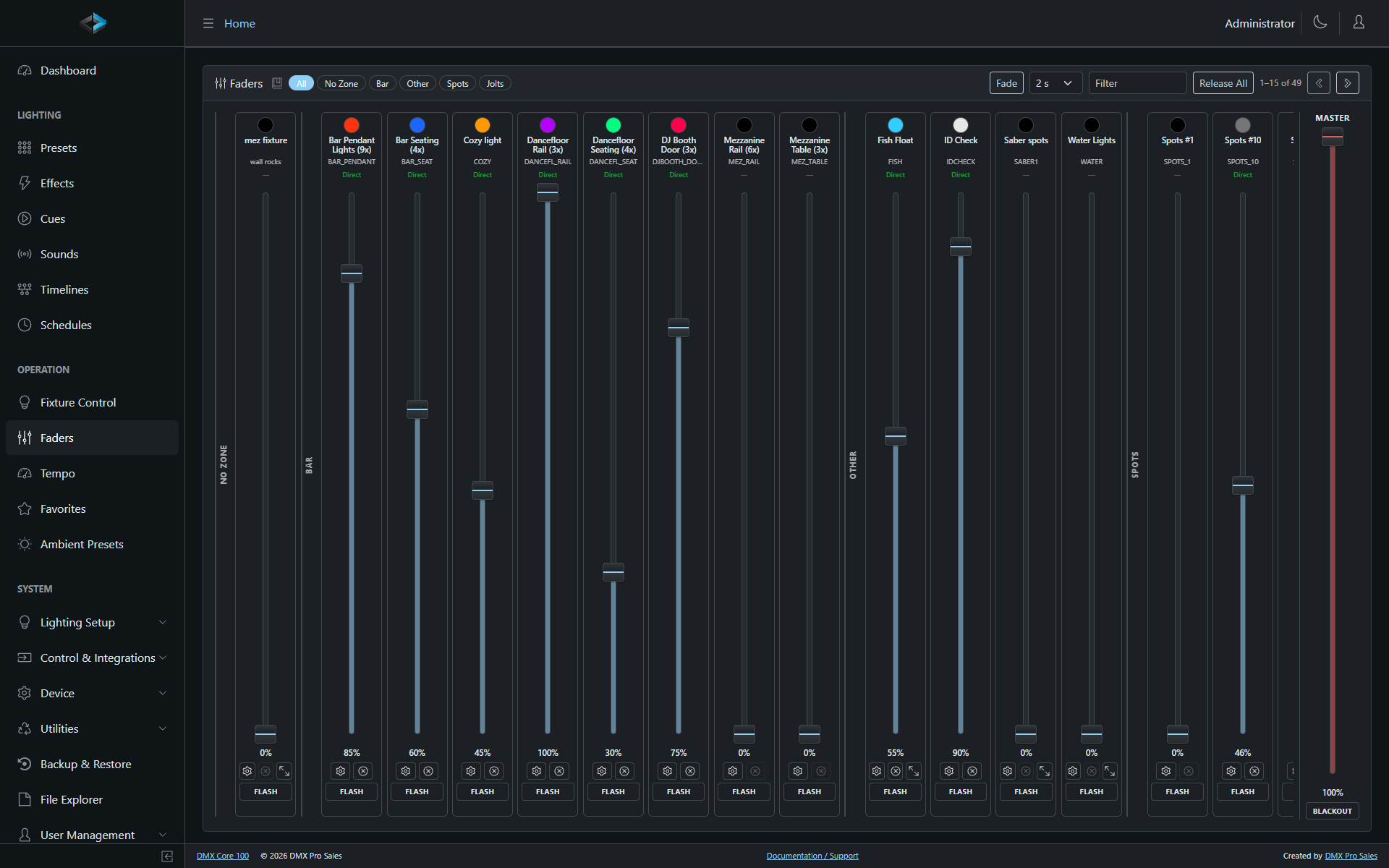
Faders drives the same fixture engine as Fixture Control - both pages show the same live state, and changes made on one appear on the other immediately. Fixtures without a dimmer are not shown here (a note below the faders tells you how many are hidden); use Fixture Control for those.
For end users who need only a few faders - a bar’s lights and its music volume, on the touchscreen or a guest tablet - add a Faders page item to a custom menu instead.
Channel Strips
Each fixture gets a channel strip showing its current color, name and code, and control status (Direct, preset code, or Ambient - plus an FX badge when an effect is running; tap the badge to open the fixture’s dialog). Below the fader:
- The percent readout shows the current intensity.
- ⚙ opens the fixture dialog with the full color picker, custom channels, and effect controls.
- ⊗ releases control of that fixture (enabled only while it is under direct or temporary-preset control).
- ⤢ appears on multi-copy fixtures and fans out per-copy trim faders (see below).
- FLASH - hold for full intensity, release to return to the previous level.
Dragging a fader sideways first and then vertically switches to fine mode: vertical movement adjusts the value at a quarter of the normal rate for precise levels.
Fading to a Level
Faders normally follow your finger - the value changes the moment you press and drag. Fade mode turns a press into a smooth transition instead: enable Fade in the header, pick a duration next to it (0.5–30 s), and pressing a fader shows a ghost cap at the target level rather than jumping there. Slide the ghost to adjust it (fine mode works here too), then release - the DMX Core 100 fades the fixture to the target over the selected duration while the real cap glides along. On a desktop browser, holding Shift while clicking a fader does the same thing without turning fade mode on.
- Fades run on the DMX Core 100 itself, so they continue even if you navigate away or close the browser.
- Grabbing a fader mid-fade (a normal press) stops the fade and gives you live control again.
- The gesture works on the fixture faders, the Master, and zone submasters. FLASH and the per-copy trim faders always act instantly.
- The fade mode toggle and duration are remembered per browser and shared with Fixture Control.
Banks and Paging
Fixtures are grouped by Zone - each zone is a bank. Chips at the top switch between All (with zone separators between groups) and a single zone. With more fixtures than fit on screen, swipe or use the paging arrows; the indicator shows which strips are visible (“13–24 of 61”). The Filter box narrows the strips by fixture name or code.
The selected bank is remembered per browser.
Controls
When at least one Level Control Value exists, a Fixtures | Controls switch appears ahead of the zone chips. Controls turns the page into a desk of Control Values: one strip per Level Control Value - a bar volume on a Symetrix, an internal house dimmer - with its name and code, a fader, the percent, and a caption naming what it drives (→ F1) or not driving for one that only feeds a DSP.
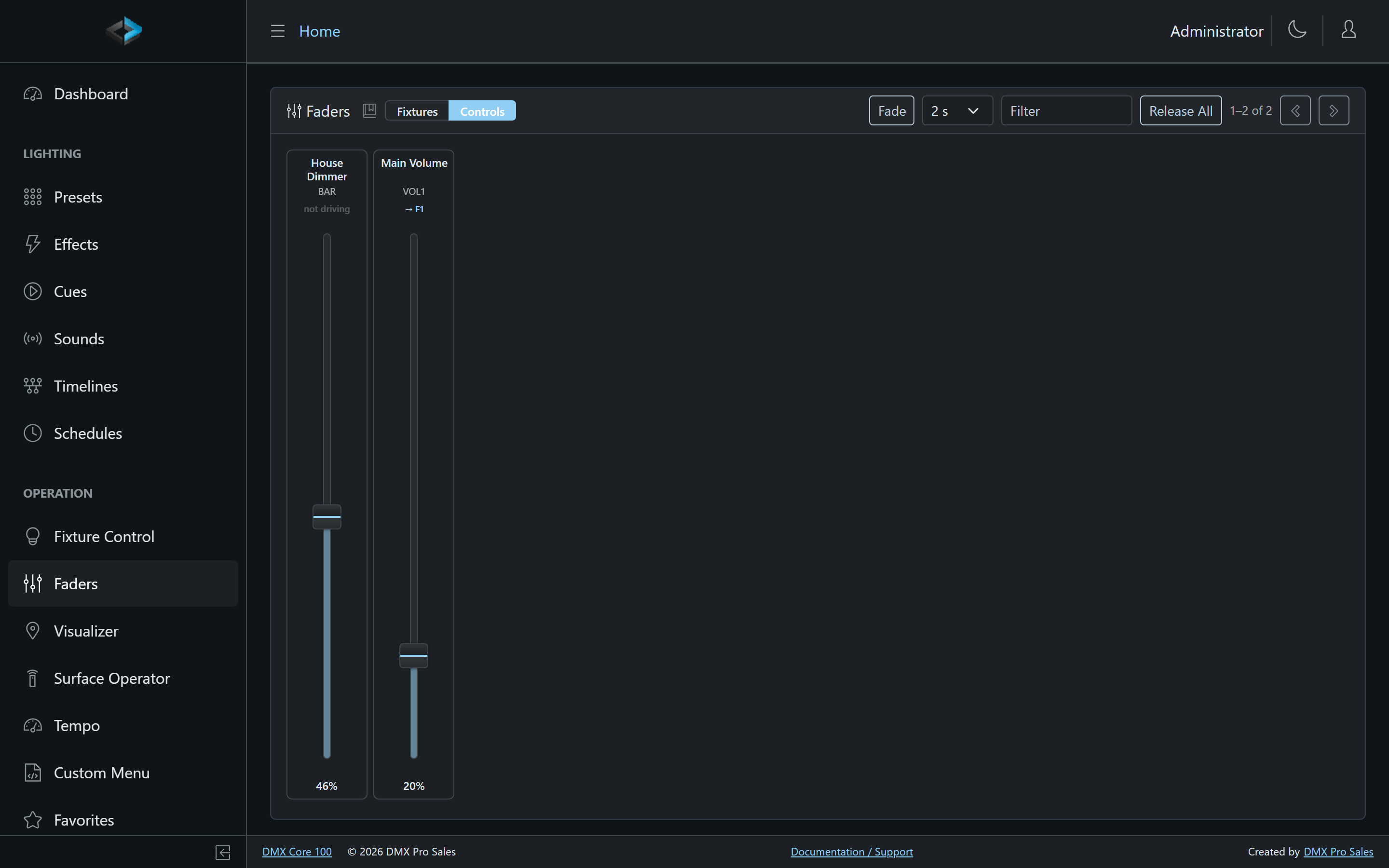
- Dragging a strip writes the Control Value, exactly like a knob bound to it: whatever it drives moves, a DSP-backed value reaches the DSP, and every other surface follows.
- The strips follow changes from anywhere - a DSP wall knob, a schedule, a script - except the one you are holding.
- Fade mode works here too: a fade-armed press ramps the Control Value over the selected duration on the device.
- Paging and the Filter box apply to the control strips as they do to fixtures.
The Controls view is not a lighting view - its values are volumes, sources and the like - so the Master fader and BLACKOUT are not shown there; switch back to Fixtures for those. Which view you were on is remembered per browser, along with the fixture bank you left.
Master and Zone Dimmers
The Master fader on the right edge is the master dimmer - it scales the brightness of everything the fixture engine outputs, and is the same master dimmer that Custom Menu sliders and OSC can control; changes from anywhere show up here live.
When a single zone bank is selected, that zone’s submaster fader appears next to the Master. It scales only that zone’s fixtures and multiplies with the master dimmer.
BLACKOUT, below the Master fader, switches the blackout on and off: every channel goes to 0% (fade-masked channels hold), audio is muted, and everything keeps running underneath. The master dimmer is not touched. The button lights while the blackout is on, whichever client, surface or protocol switched it on.
Fixture Dialog
Tapping a strip’s name, color chip, or ⚙ opens the fixture’s dialog: the same color wheel, extra color channels, custom channels, and multi-function selectors as Fixture Control, plus the fixture’s effect selection and effect dimmer. Release Control returns the fixture to whatever would otherwise drive it (an ambient preset, or nothing).
Copies Fan-Out
For a fixture with multiple copies, ⤢ expands the strip into one narrow amber fader per copy. These are the fixture’s per-copy intensity trims - the same persisted trims as the Copy Trims card on Fixture Control, styled differently from the main faders because they behave differently:
- Dragging previews the trim on the physical fixture immediately; releasing saves it on the fixture.
- S (Solo) lights only that copy so you can identify the physical unit; solo is temporary and never saved.
- A TRIM tag under a strip means some of its copies are trimmed below 100 %.
Editing trims requires the Edit Fixtures permission.
Building a Preset
To save the look you’ve built on the faders as a Preset, click Build Preset in the header. Each strip gets a checkbox, and the fixtures you are controlling directly from the page are already checked. A bar above the strips shows how many fixtures are checked, with:
- Check Shown - checks every strip the current bank and Filter show; fixtures checked elsewhere stay checked.
- Clear - unchecks everything.
- Cancel - leaves Build Preset without saving.
- Save Preset - saves the checked fixtures as a new preset, one entry per fixture with its current values and running effect, then leaves Build Preset. A link to the new preset appears in the header.
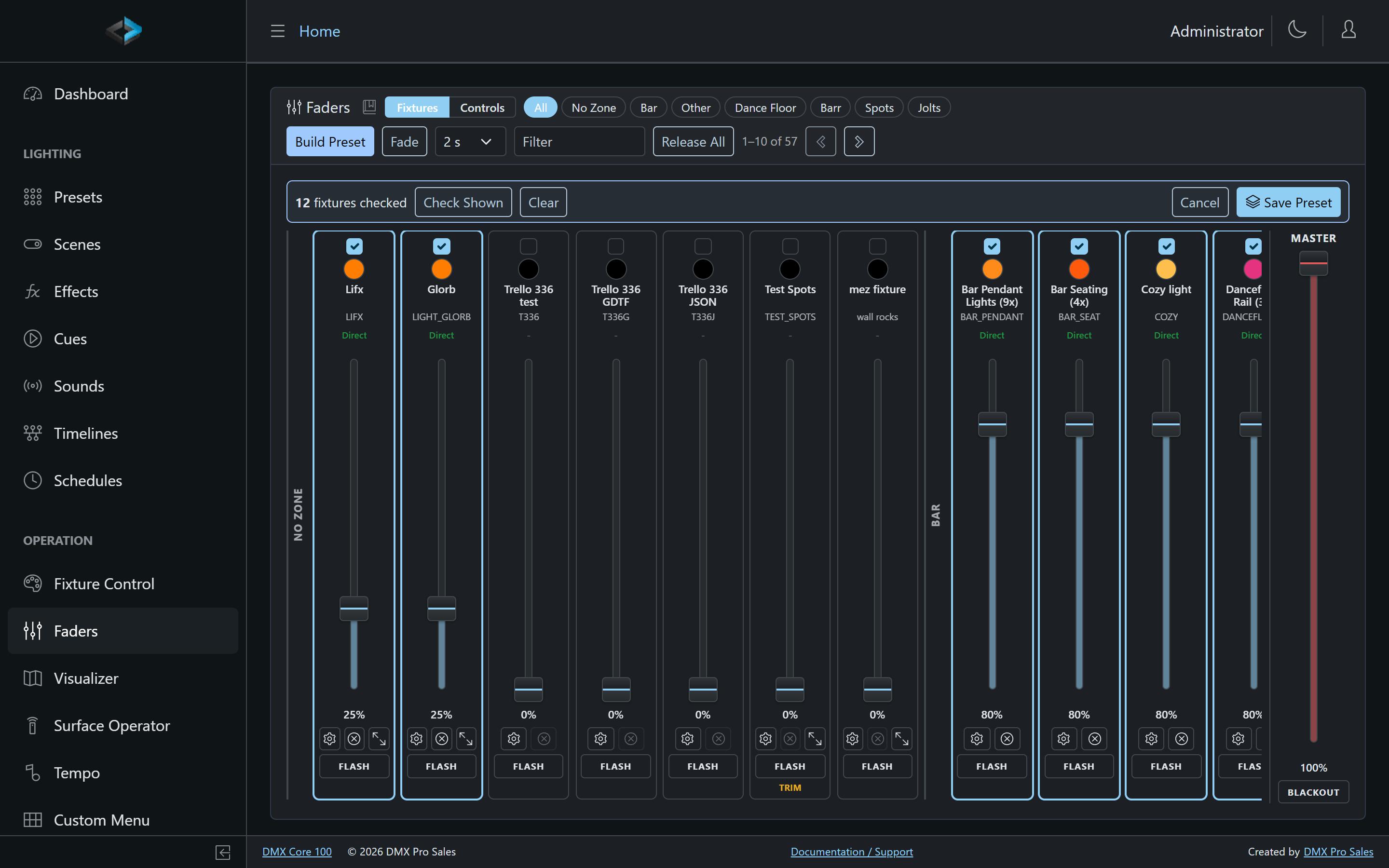
The faders keep working while you build, so you can still adjust levels, open a fixture’s dialog or switch banks before saving. Fixture Control saves presets the same way, from its own checkboxes.
Releasing Control
Fixtures touched from this page (or Fixture Control) are under Direct control until released. Release a single fixture with its strip’s ⊗ or the dialog’s Release Control button, or use Release All in the header - after confirmation, it releases direct control and temporary presets on every fixture at once.