
Scenes
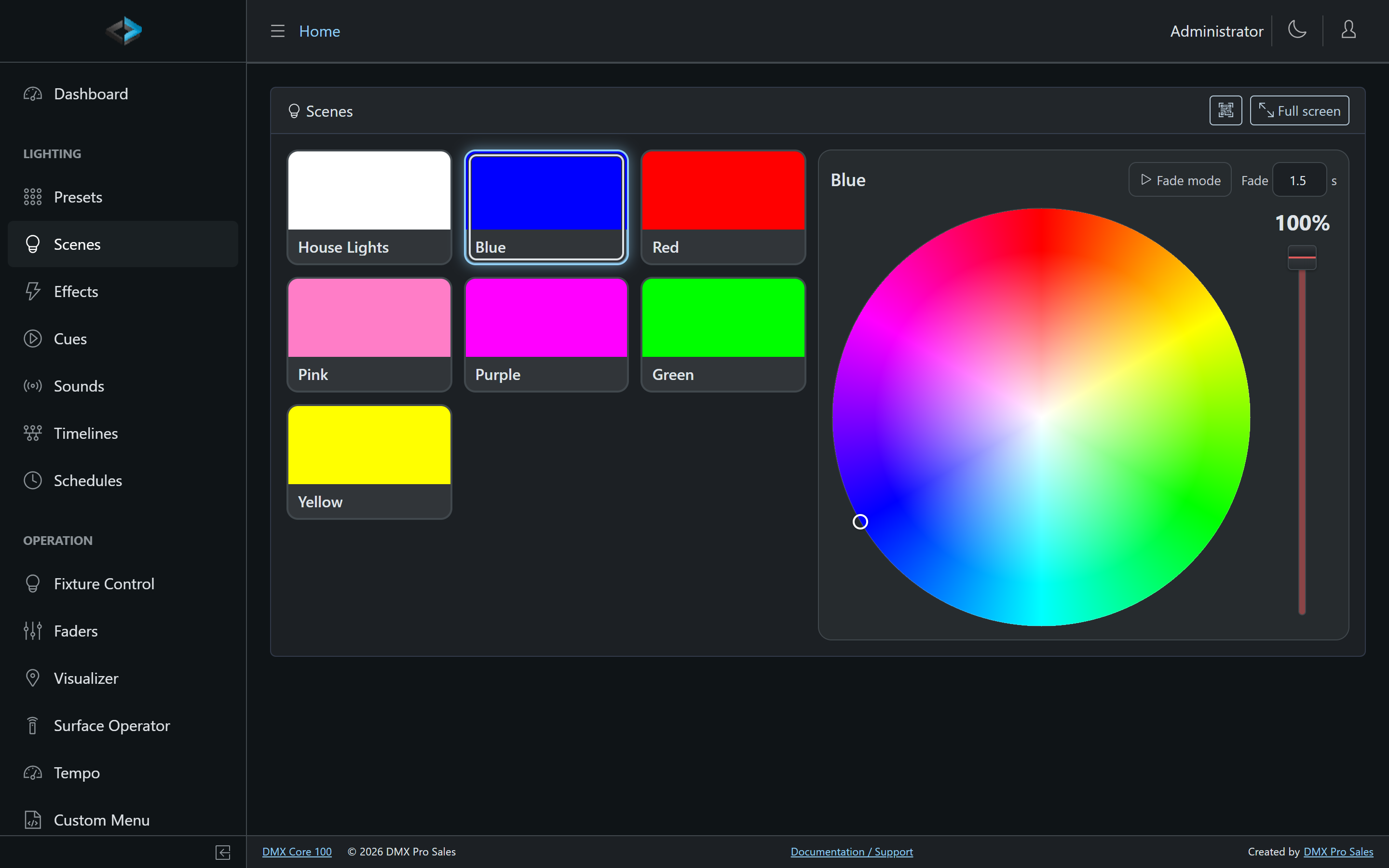
The Scenes page (Web UI: Lighting > Scenes) shows your looks as big tiles. Tap a tile to apply the look, tap it again to stop it, and use the dock next to the tiles to change the color and brightness of everything that look drives, in one move. It is built for a wall-mounted tablet or a phone rather than a mouse, and it can be opened by guests without a login.
A scene is a preset. There is nothing new to program: any preset can become a scene tile with a single checkbox, and it keeps working everywhere else (schedules, triggers, custom menus, the touchscreen).
Making a Preset a Scene
Open the preset in the Web UI and turn on Available as scene. Three more settings appear:
- Scene order - tile order on the panel, lowest first.
- Scene tile color - overrides the tile swatch. By default the swatch is derived from the colors the preset sets.
- Scene dimmer - a brightness multiplier (0 to 100%) applied to every fixture while the preset is active. This is the level the panel’s dimmer shows and changes. It is stored with the preset, so a schedule that plays the preset gets the same brightness.
The dock adapts to what the scene drives. A scene that only sets RGB fixtures gets the color wheel and the dimmer; a scene whose fixtures have no color channels gets the dimmer only; a scene that starts an effect shows a small effect badge on its tile. Effects themselves are not adjustable from the panel.
Using the Panel
Tiles
- Tap a tile to apply the scene with the default preset fade. The tile lights up while the scene is active and the dock switches to it.
- Tap the active tile shown in the dock to stop the scene. Tapping a different active tile does not stop it: it brings that scene into the dock so you can adjust it. Press and hold does the same.
- A scene goes inactive by itself when another scene takes over all of its fixtures.
- The panel ignores a second tap on the same tile within half a second, so a double tap on a wall panel cannot apply and immediately stop a scene.
Dock
- Drag on the color wheel to recolor every color fixture in the scene. Drag the dimmer to change the scene’s brightness. Both follow your finger.
- Fade mode turns a pick into a smooth cross-fade instead; holding Shift while picking does the same on a computer. The fade uses the panel’s Fade time, which is the same default preset fade you see on the Presets page. Users who may edit presets can change it here.
- A dot on the tile marks a scene that has been adjusted since it was applied. Revert fades it back to the stored look without stopping it.
Saving Adjustments
Saving needs its own permission, Scene Panel: save color and dimmer adjustments, so an owner or manager can tune looks without access to the preset editor. Administrators always have it. With the permission, two buttons appear on an adjusted scene:
- Save writes the current color into every fixture entry of the preset and stores the dimmer level as the scene dimmer. If the preset is also used by schedules or triggers, the panel says so before saving, because they will play the changed look too.
- Save as new keeps the original and creates a new scene from the current look. The copy gets a code derived from the original (
BAR_BLUEbecomesBAR_BLUE_2), so it sorts next to it on the Presets page, and the lights are handed over to the new scene.
Full Screen and Wall Tablets
The Full screen button in the page header opens the panel without the sidebar, at http://<device>/guest/scenepanel. This is the page to bookmark on a tablet or open from a phone; the QR code button shows it as a code to scan.
- Add
?kiosk=1to the address to hide the top bar completely. The choice is remembered on that device;?kiosk=0brings the bar back. - Add
?theme=darkfor the dark theme. - The page keeps the screen awake while it is open, where the browser allows it.
- Signed-in users find a small account icon in the top bar that returns to the admin site. Guests see a Log in button instead.
Guest Access
By default the panel needs a login. Turn on Scene Panel available to guests (Web UI: Settings > System, or on the touchscreen under Device > System) to let anyone on the network open the full-screen panel without signing in. Guests can apply, stop, adjust and revert scenes, but:
- presets marked Only Admin are never shown to them, and
- they can never save.
When a guest opens the device’s start page and no guest custom menu exists, they land on the panel directly. With the setting off, a guest who opens the panel address gets a Log in prompt that returns them to the panel afterwards.
Custom Menu Item
A custom menu can include a Scene Panel item that opens the panel from the menu, for example as the last button of a lobby menu. The item is Web only for now: the touchscreen leaves it out until it has a Scenes page of its own. Guest visibility follows the rules above, so a guest menu cannot open the panel unless guests are allowed on it.
Notes
- Colors picked on the panel are written to the fixtures directly; the scene’s effect, if any, keeps running underneath.
- Tunable white (warm/cold) fixtures are controlled through the dimmer only.
- The panel is a Web UI page. The touchscreen shows the same presets through its normal preset list.