
Timelines
Timelines choreograph complete shows: cues, presets, effects, sounds, Control Value moves, and scripts arranged on a visual multi-track editor, all firing at exact times.
Timeline Settings
Each timeline has a code and name, plus:
- Duration - the total length of the timeline
- Loop - how many times to repeat (0 = forever)
- Dimmer - overall brightness for the timeline’s playback
- Fade-In / Fade-Out - smooth start and end for the whole timeline
- Timecode chase - lock playback to incoming Art-Net timecode instead of starting at t=0, or make the timeline Timecode only so nothing but the clock can run it
- Description, Favorite, and Only Admin flags
The Editor
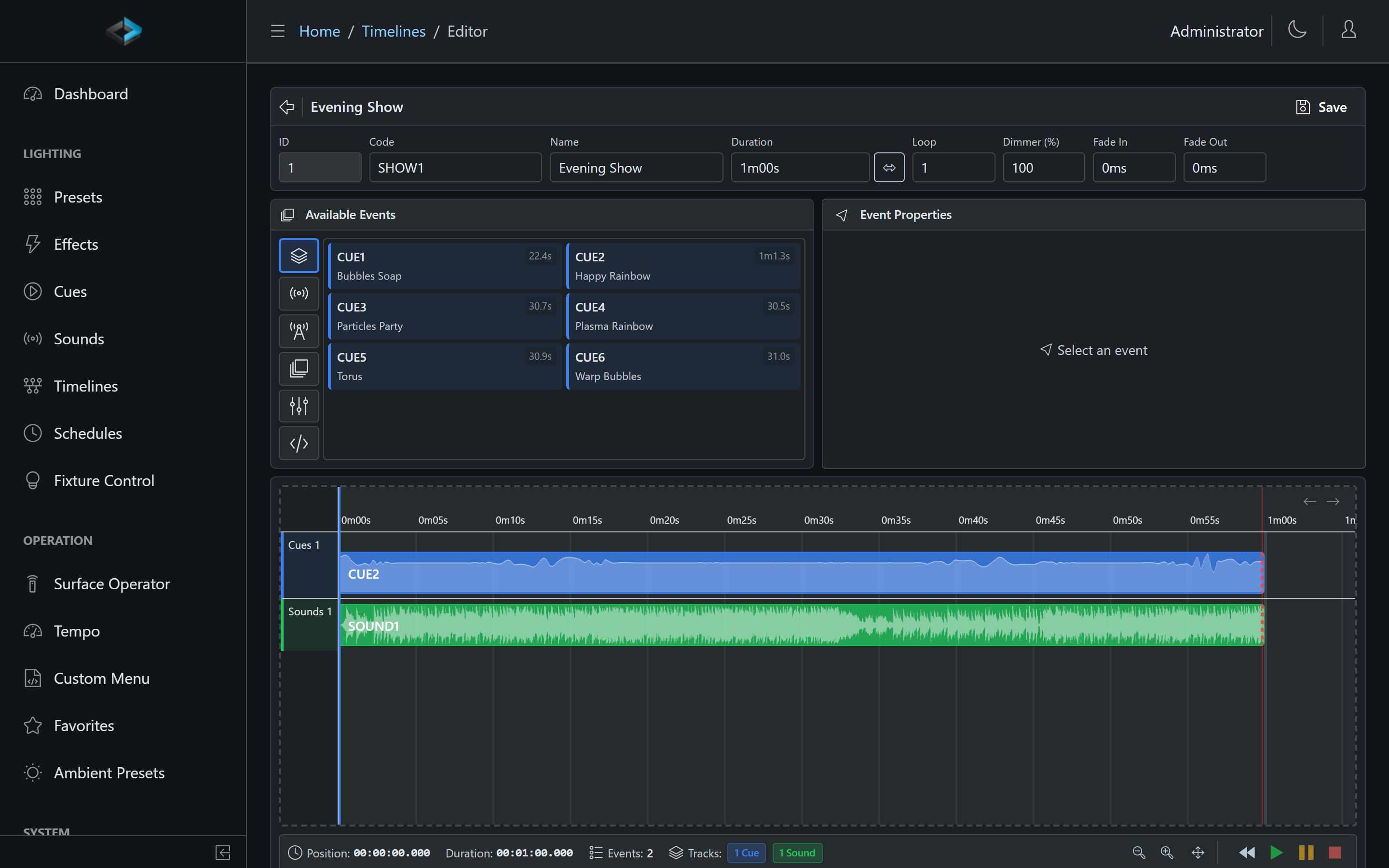
Open a timeline and click Editor. Drag events from the Available Events panel - cues, presets, sounds, effects, control values, and scripts - onto the tracks, then drag to position and resize them.
- Cue tracks - cue events show an intensity profile you can shape, ramping the cue’s dimmer over its duration (fade a show in over ten seconds, dip it in the middle, out at the end)
- Sound tracks - audio events render their waveform on the track, making it easy to line lighting hits up with the music. Each sound event has a Loop count (0 = forever) and a Layer for same-layer replacement, like cue playback layers
- Control Value tracks - move levels (like a DSP volume) at exact points in the show
- Other events - script events run a script at an exact timestamp, and Hold milestones make the timeline wait for a trigger before continuing
A playhead with seek/scrub lets you preview any point; zoom and snapping make fine alignment easy.
Interactive Timelines
A timeline doesn’t have to run start-to-finish on its own. Drop a Hold milestone on it and playback waits at that point - looping sounds keep looping, the lights hold - until a button release, another trigger, or a timeout continues the show. That’s how a timeline follows a tap handle, an operator’s cue, or a payment confirmation.
Timecode Chase
Turn on Timecode chase to lock the playhead to incoming Art-Net ArtTimeCode. Play then joins live timecode (for example three minutes in after a reboot) instead of starting at the cursor. The editor status bar shows a TC: chip so you can confirm packets before the show. Timecode only goes further: Play, Jump, and Resume are refused unless they join live timecode, from every source.
Playback Controls
During playback, the Web UI provides a progress bar with pause/resume, seek/scrub, and stop - on the timeline page and on the dashboard. A timeline waiting at a Hold milestone shows a red HOLDING badge, and play acts as continue.
Triggering Timelines
Timelines can be started from:
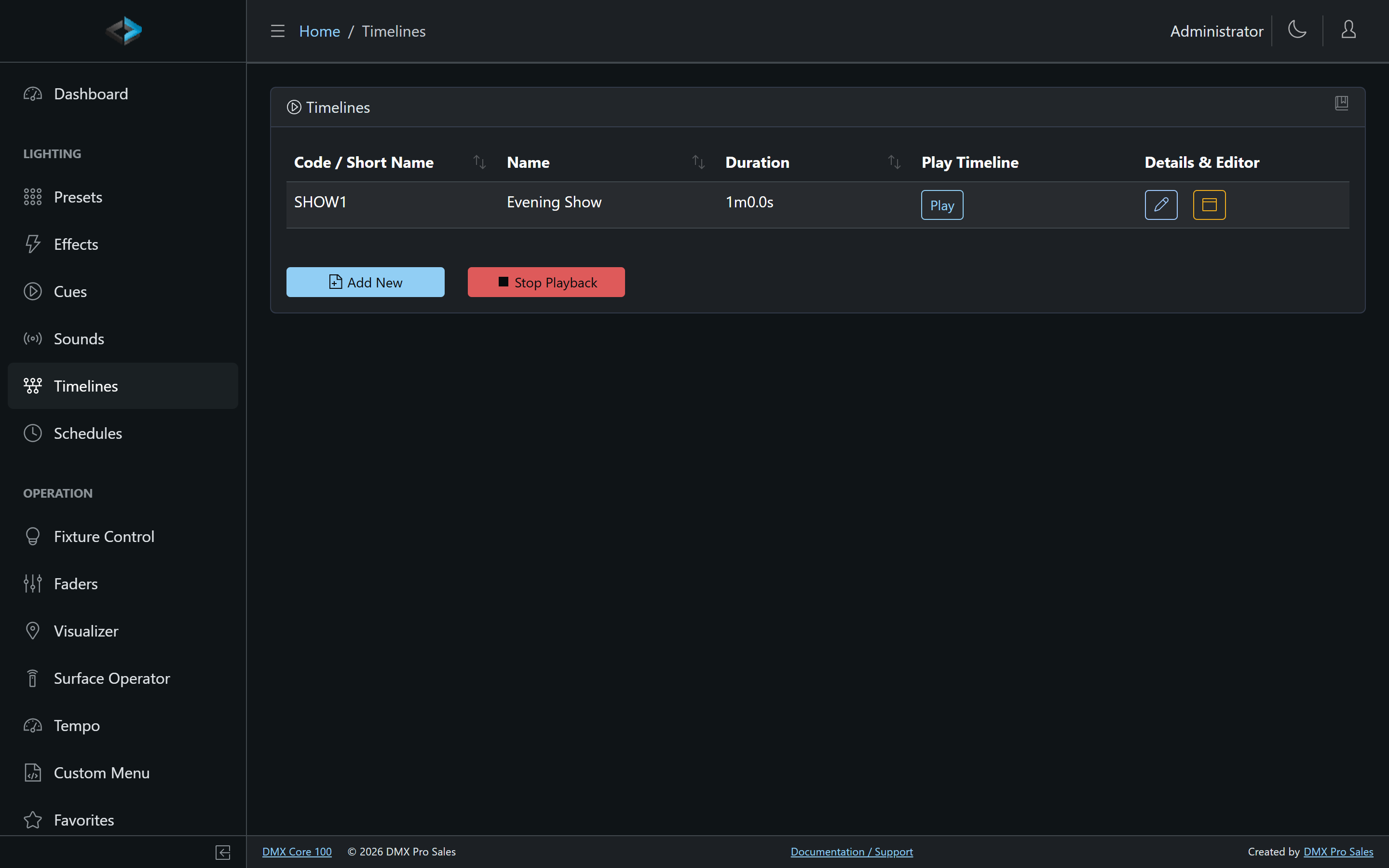
- Web UI - the play button in the timeline list
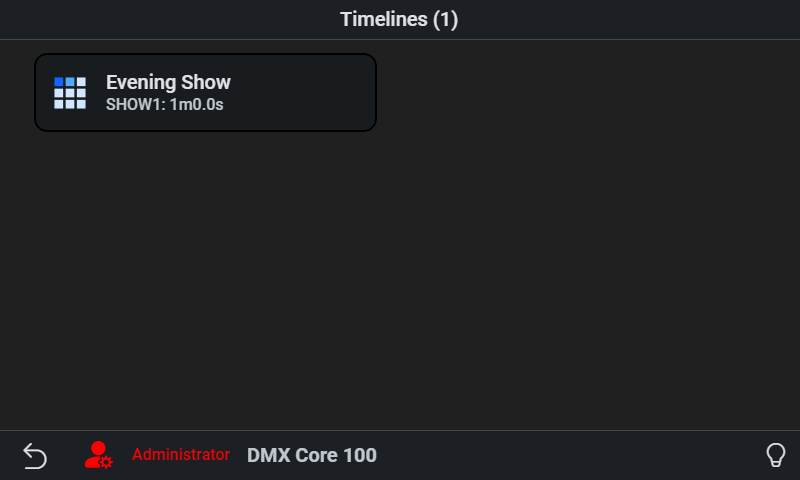
- Touchscreen - via schedules or custom menus
- Control surfaces - a Play Timeline button assignment
- External control - API, OSC, MQTT, or other input triggers
- Scripts -
dmx.playTimeline(code)
Duplicating Timelines
Duplicate a timeline from its detail page to create variations of an existing sequence.