
DMX Core USB Interface Utility
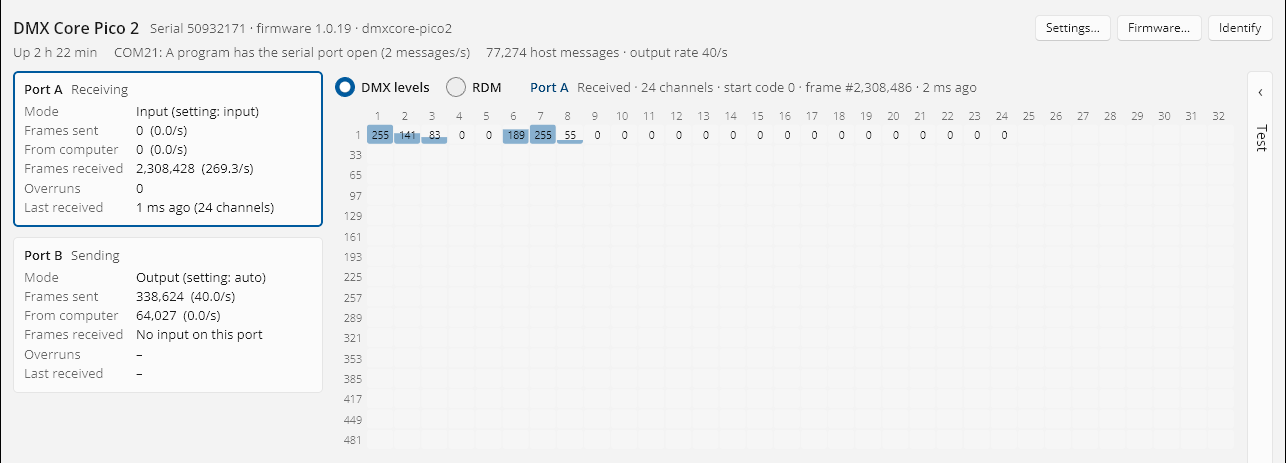
The DMX Core USB Interface Utility shows what the interface is doing (ports, DMX levels, RDM), changes its settings, sends test patterns and installs firmware. It runs on Windows, macOS and Linux, and updates itself when a new version is published.
Monitoring and RDM while your lighting software runs
The utility talks to the interface over a USB connection of its own, separate from the serial port your lighting software uses. So while your software has the interface open and is running a show, the utility can still:
- show each port’s status: what it is doing, frames sent and received, and whether the program is still sending,
- show the live DMX levels of every channel, sent or received,
- run RDM: discover fixtures, change their DMX address, label or personality, identify them and read their sensors, without stopping the show.
You don’t need to close your lighting software to check what the interface is doing. Test sends are the one thing that waits until the software has closed the interface.
Install
Windows
Download and run DMXCoreUSBUtility-Setup.exe (64-bit Windows). It installs the utility and starts it.
macOS
Download and open the installer for your Mac (Apple menu > About This Mac shows which one you have):
Linux (x86_64)
Paste this into a terminal:
curl -fsSL https://downloads.dmxcore.com/velopack/usb-utility/linux-x64/install.sh | shIt puts the utility in ~/Applications, adds it to the applications menu and starts it. Or download the AppImage yourself and make it executable.
The utility needs libusb, which most desktop distributions include. If it is missing, install it first (for example sudo apt install libusb-1.0-0).
The first time the utility sees the interface, Linux does not let it open the device yet. Click Allow USB access and enter your password; the utility adds the udev rule Linux needs.
Updates
The utility checks for a new version every time it starts. When one is ready, a Restart to update button appears at the bottom of the window. About > Check for updates checks right away.
The main window
Plug in the interface; it shows up by itself. With more than one interface plugged in, pick one at the top.
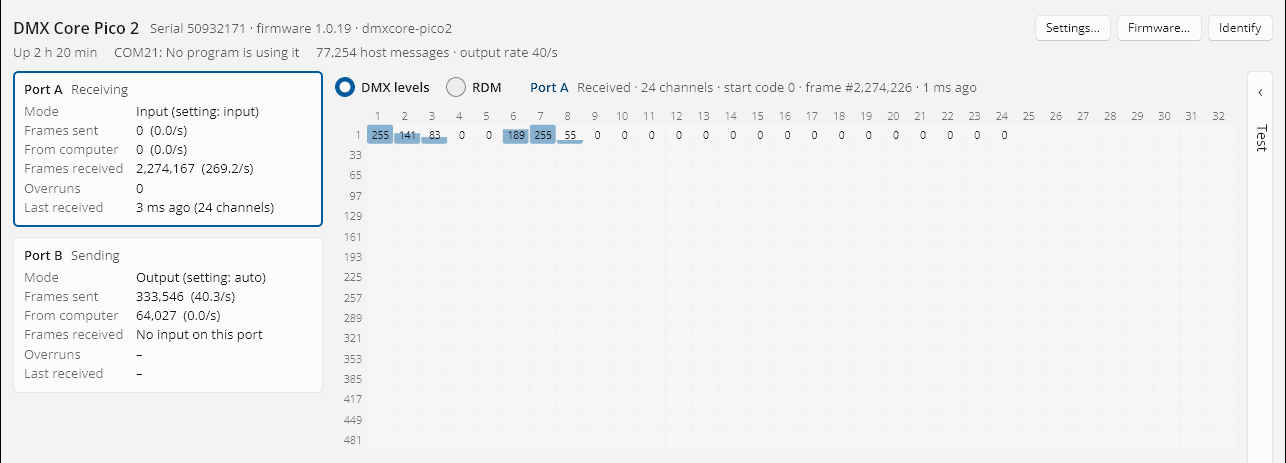
The top of the window shows the interface’s name, serial number, firmware version, and how long it has been running. It also shows how many messages it has had from the computer and, on a DMX Core Pico 2, whether it has one serial port or one per DMX port. The buttons:
- Settings… changes what the interface keeps across power cycles. See Settings.
- Firmware… shows the installed firmware and installs a new one. See Installing the Firmware.
- Identify blinks the interface’s LEDs for 10 seconds.
If the interface reports a problem, it is listed under these buttons.
Port status
Each DMX port has a card:
| Field | Meaning |
|---|---|
| Mode | What the port is doing now (Idle, Output, Input) and its direction setting |
| Frames sent | DMX frames sent on the port. This keeps counting after the program stops, because the interface repeats the last frame. |
| From computer | DMX frames the program on the computer has sent to this port, so you can see whether it is still sending |
| Frames received | DMX frames received on the port, and the rate |
| Other packets | Packets with other start codes than DMX levels, such as RDM or text |
| Overruns | Receive errors |
| Last received | How long ago the last frame came in, and how many channels it had |
| Serial port | The serial (COM) port name for this port |
| Program | Whether a program has the serial port open, and its output rate |
Click a port card to show that port in the DMX levels and RDM panes.
DMX levels
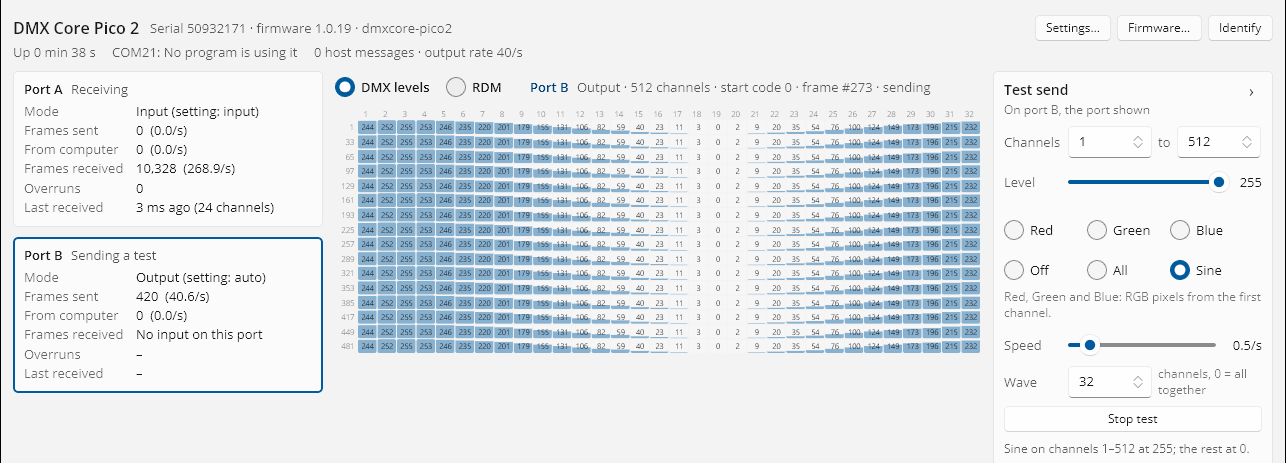
The DMX levels pane shows all 512 channels of the selected port, live: what the port is sending, or what it receives.
Test send
The Test tab on the right edge sends test levels on the selected port: one level on a range of channels, red, green or blue on RGB pixels from the first channel, or a moving sine wave. Click Start test; closing the pane ends the test. Test sends are off while a program is using the interface, and on a port set to Input.
RDM
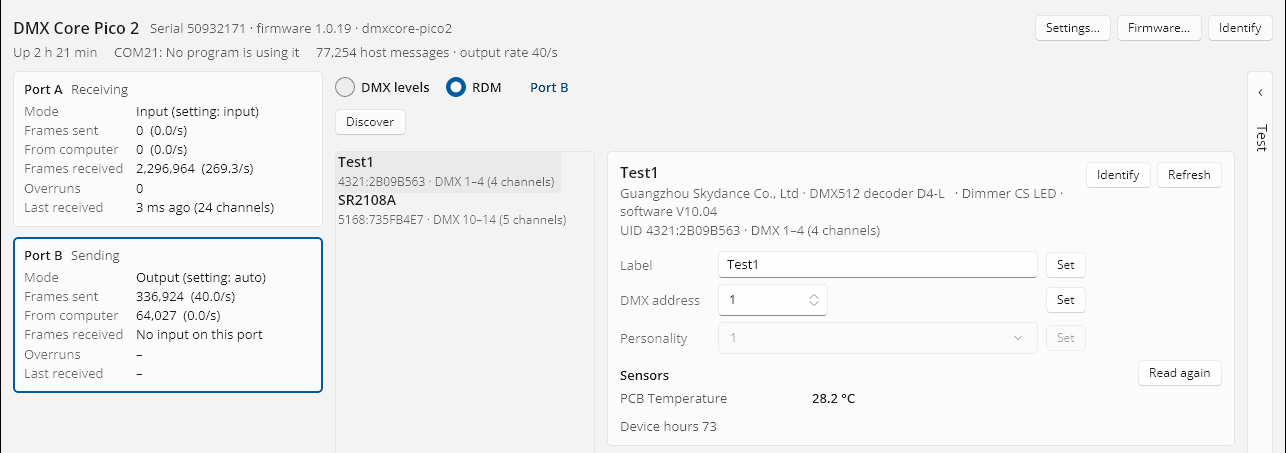
The RDM pane finds and sets up RDM fixtures on the selected port.
- Select the port and click RDM.
- Click Discover. The fixtures found are listed on the left. Discovery mutes the fixtures for a moment and unmutes them when it is done.
- Pick a fixture to see its details: manufacturer and model, UID, DMX address, personality, sensors, and status messages.
For the selected fixture you can:
- Change its Label, DMX address and Personality, each with Set.
- Turn Identify on to make it show itself (blink, move or flash), until you turn it off.
- Refresh to read everything from it again, or Read again for the sensors.
RDM works while lighting software is using the interface. Discovery still mutes the fixtures for a moment, and the software may run its own RDM at the same time.
Troubleshooting log
The utility keeps a log for support: a text file per day, kept for a week. About > Open log folder opens it. It records the devices found, errors, firmware installs, settings changes and update checks, but no DMX levels. Attach it when you ask us for help.
© 2026 DMX Pro Sales, LLC. All rights reserved. DMX Core is a registered trademark of DMX Pro Sales, LLC. Other product names are trademarks of their respective owners.