
Fixture Profile Editor
The profile editor builds and changes fixture profiles in the Web UI. Use it to:
- Build a profile by hand for a fixture no library has, straight from the DMX chart in its manual
- Fix an imported profile: a wrong function on a channel, a missing mode, a misnamed option
- Make a variant of a profile: the same fixture with an extra channel or a different mode name
The editor is part of the Web UI only. The touchscreen uses the edited profiles right away.
Opening the Editor
| Where | What it does |
|---|---|
| Lighting Setup > Profiles > New profile | Starts a new profile |
| A profile’s details page, Edit | Edits that profile |
| A profile’s details page, Duplicate | Opens a copy named ”… (copy)” to change and save as a new profile |
| Add profile… > Build the profile by hand on Fixture Details | Starts a new profile; Save brings you back to the fixture with the new profile selected and its other fields as you left them |
Editing needs the Edit fixtures permission. Profiles provided by a plugin cannot be edited or duplicated.
Starting a New Profile
A new profile starts with a few questions:
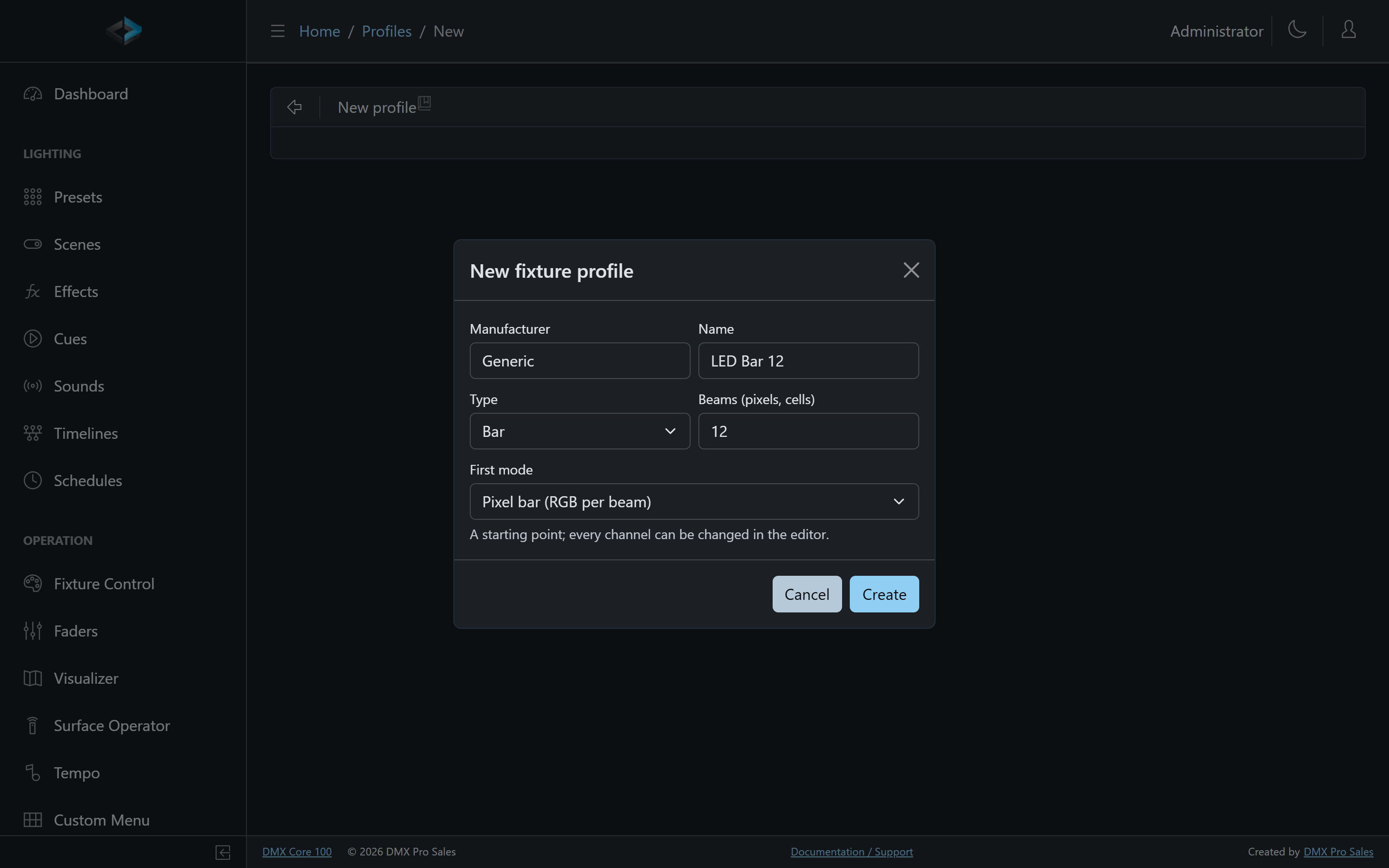
- Manufacturer and Name - as printed on the fixture. Use “Unknown” when the manual doesn’t say
- Type - PAR, spot, moving head, bar, strip, matrix, fog, switch or other
- Beams - for bars, strips and matrices: how many pixels or cells the fixture has
- First mode - a starting point: Dimmer, RGB, RGBW, Dimmer + RGB(W), Moving head basics (pan and tilt with fine channels, dimmer, shutter, color wheel, gobo), or a Pixel bar with one red, green and blue channel per beam plus a master dimmer and shutter
Everything can be changed afterwards.
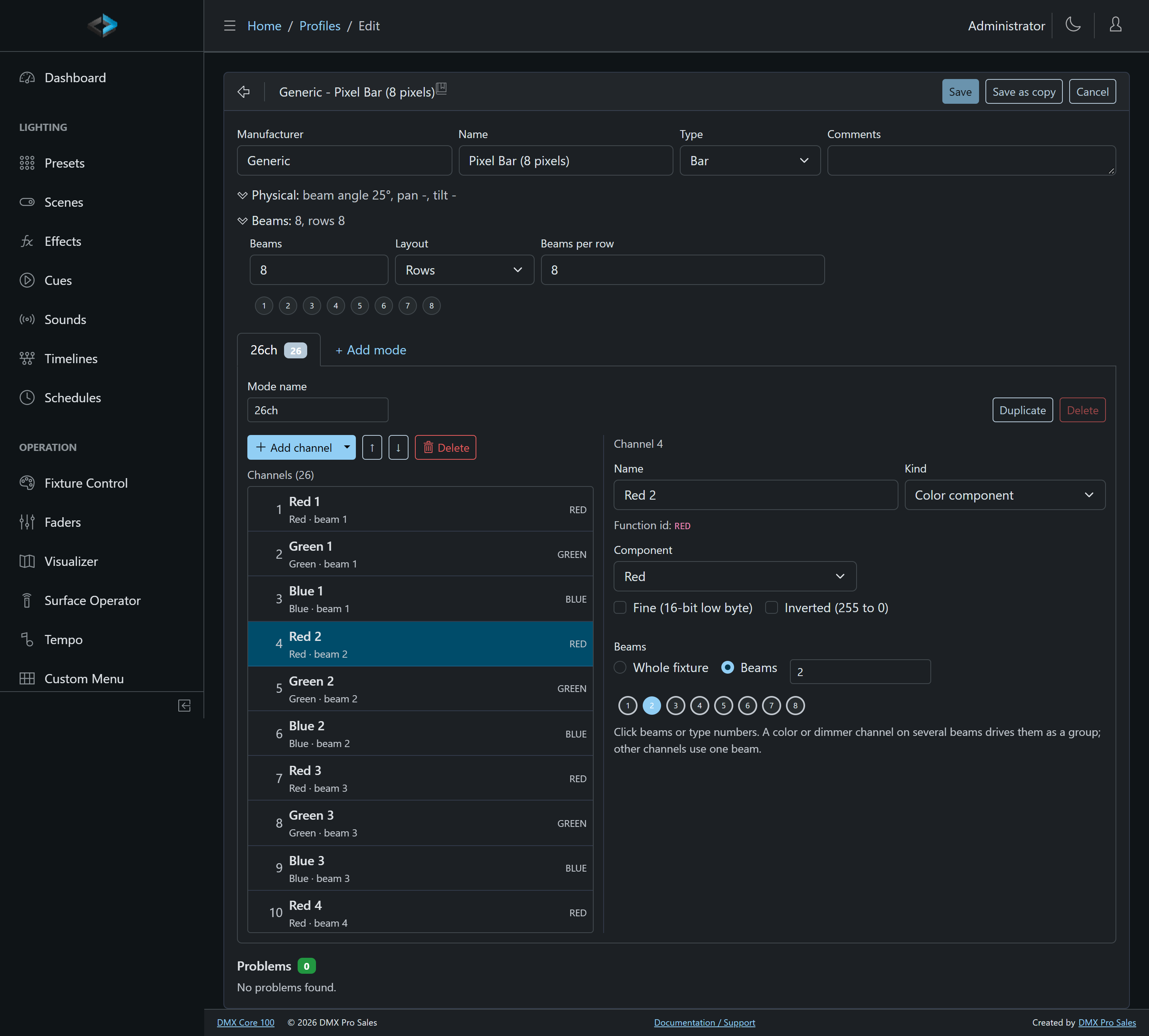
The Profile
The top of the editor holds the profile itself:
- Manufacturer, Name, Type and Comments
- Physical - the beam angle, pan range and tilt range in degrees
- Beams - how many beams (pixels, cells) the fixture has and how they are laid out: in rows (the number of beams in each row, top to bottom) or in rings (the number in each ring, outer ring first). The picture shows the layout. Lowering the count, or going back to one beam, removes beam assignments the fixture no longer has, after asking
Modes
Each channel mode (personality) from the manual is a tab, for example 6ch, 9ch and 141ch. Under the tabs:
- Mode name - rename the mode. Fixtures that use it move to the new name when you save
- Duplicate - copy the mode, for a variant with one more or one fewer channel
- Delete - remove the mode. A mode that a fixture uses cannot be deleted; move those fixtures to another mode first
- + Add mode - start an empty mode
Channels
The list on the left is the mode’s channels in order, numbered exactly as in the manual. Each row shows the channel’s name, a short summary, its beam and the function id that presets, hidden functions and faders use for it.
- Add channel adds a channel below the selected one. Its arrow offers ready-made blocks: RGB, RGBW, Dimmer + RGB(W), Pan/Tilt 16-bit, Shutter / Strobe, and RGB per beam (one red, green and blue channel for every beam that has none yet)
- ↑ and ↓ move the selected channel; Delete removes it. Channel numbers follow the order
- With the list focused, the arrow keys select the next or previous channel, Home and End jump to the first and last, and Alt+arrow keys move the selected channel
The selected channel
The right side edits the selected channel. Kind says what the channel does, and the fields below follow from it:
| Kind | What you set |
|---|---|
| Dimmer | Fine, Inverted |
| Color component | Red, green, blue, white, cool or warm white, amber, lime, UV, cyan, magenta or yellow; Fine, Inverted |
| Color temperature | Fine, Inverted, Fallback value |
| Position | Pan or tilt; Fine, Inverted, Fallback value |
| Beam control | Focus, zoom, iris, frost, gobo or prism rotation, speed, and any other single function such as a strobe, lamp or switch channel; Fine, slider, Inverted, Fallback value |
| Shutter / Strobe | A list of modes: closed, open, strobe, pulse, ramp up or down, random, lightning |
| Color wheel | A list of slots with a name and a color swatch |
| Gobo wheel, Prism | A list of slots |
| Lamp / Command | A list of options: lamp on, lamp off, command, or no function |
| Switch | The on and off ranges |
| Fog | Inverted, Fallback value |
| Custom slider | One value across the channel; Inverted, Fallback value |
| Custom options | A list of options, each with its own name and an optional function |
- Fine - the channel is the low byte of a 16-bit pair (for example “Pan fine”)
- Inverted - the channel runs backwards, like a speed channel printed “fast to slow”
- Fallback value - the DMX value sent while nothing controls the channel, for example movement speed “fastest” or the iris open. Without it the channel sends 0
Option lists
Shutter modes, wheel slots and custom options are a list of DMX ranges. Select a row to edit its From and To values, Name and function, and whether the value within the range works as a slider, runs inverted, or is the channel’s default (the option a fixture rests at; at most one per channel).
- + Add adds a row below the selected one, starting right after it
- Add above, Duplicate, ↑, ↓ and the bin work on the selected row
- The arrow keys and Alt+arrow keys work in the list the same way as in the channel list
Beams
On a fixture with beams, a channel is either for the whole fixture (a master dimmer, strobe or macro channel) or for one or more beams. Type beam numbers such as 1-4, 7, or click beams in the picture. A color or dimmer channel can drive several beams as a group; other channels use one beam.
The same function on every beam keeps one function id - red on all 46 pixels of a panel is RED, not RED_46 - so presets and hidden functions stay simple.
Testing a channel
When fixtures use the profile, the selected channel shows Test in Channel Tester links for up to six fixtures on that mode, each with its slot and address. The address is the fixture’s start channel plus the channel’s position in the editor. The link opens the Channel Tester in a new tab and picks that slot and channel when you press Start Tester. If a tester session is already running, it asks before switching that session to the linked slot.
Problems
The Problems list under the editor checks the profile as you type: channel numbering, overlapping options, names, duplicate mode names, beams outside the fixture. Click a problem to jump to its channel. Save stays off while problems remain.
Warnings - for example a function that presets use but the edited profile no longer has - do not block saving.
Saving
- Save (or Ctrl+S) saves over the profile. Fixtures using it follow the change immediately
- Save as copy saves the edited profile as a new one and keeps the original as it was
- Cancel goes back without saving; the editor asks first when there are unsaved changes
When fixtures use the profile, Save first shows what the change means for them:
- Functions no longer in the profile, with the presets that set them and the fixtures that hide them. Those settings stop affecting the fixtures
- Fixture options that no longer exist - the fixture falls back to the channel’s default option
- New channel overlaps when a mode gets longer and runs into the next fixture
Presets and settings for functions that are still in the profile keep working.
Related
- Fixture Setup - importing profiles and adding fixtures
- AI-Generated Fixture Profiles - a profile from photos of the manual, which you can then fix here
- Channel Tester - check each channel on the real fixture