
Channel Tester
The Channel Tester is a diagnostic tool for the outputs: it takes over one slot and lets you set any of its 512 channels, and those levels go out through the output mapping to every output the slot feeds - sACN, Art-Net, KiNet, DMX serial, Sig-Net and plugin outputs alike. Use it to check that an output and its wiring work, to find which channels a fixture really sits on, to poke one channel and see which fixture reacts, or to bring a whole fixture to full and spot it on stage.
It is the writing counterpart of the Output Monitor: the monitor shows what a slot sends, the tester sets it.
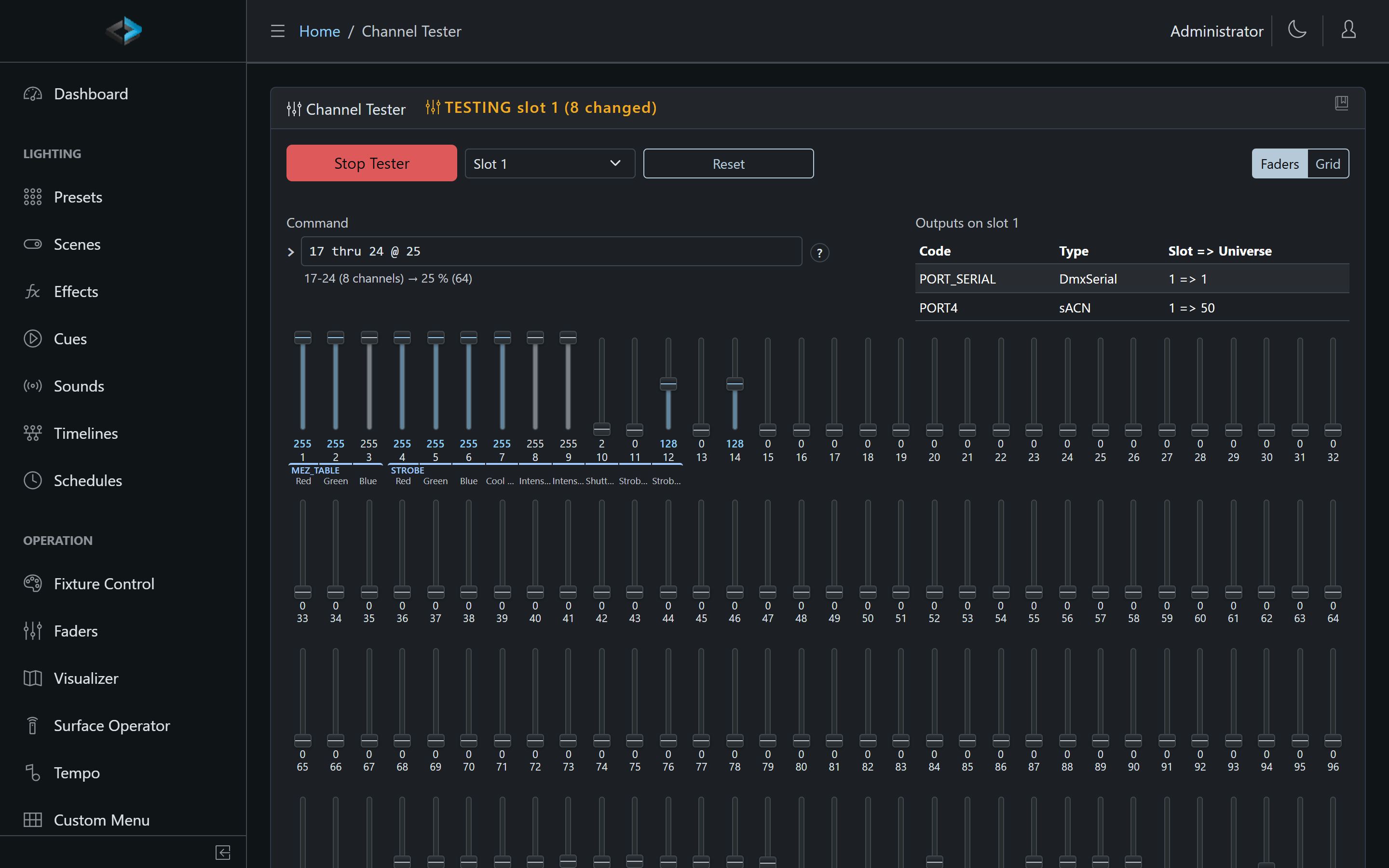
Starting a session
- Go to Utilities > Channel Tester and click Start Tester
- Pick a slot. Only slots that an enabled output is mapped to are listed - a level on an unmapped slot would go nowhere
- The Outputs on slot N table shows every output the slot feeds: Code, Type and Slot => Universe, the same columns as the Output Monitor
Picking a slot captures what the slot is sending at that moment and the tester takes it over: from then on the slot sends exactly what the faders show, all 512 channels, until you stop the tester or pick another slot. The show on that slot - cues, presets, effects, faders, routed input - is frozen at the captured levels meanwhile and carries on when the tester lets go. Click Stop Tester when you are done; leaving the page also ends the session, and an idle session ends by itself after 60 minutes.
Setting channels
- Faders - one fader per channel, all 512 on the page, 32 per row in the same positions as the Output Monitor grid. They start at the captured levels. Drag a fader to change its channel; a value that differs from the capture turns bold. Click the value to type a number (0-255), double-click the channel number to toggle the channel between full and its captured level
- Reset puts every channel back at its captured level and keeps the slot selected. The reset buttons on the grid and in the fixture table do the same for a selection or one fixture, and
relon the command line for any range - Picking another slot captures that slot instead; the previous one goes back to the show
While a slot is selected the card header shows TESTING slot N, with the number of channels that differ from the capture.
What actually goes out
The tester normally wins the merge on its slot. Something after the merge can still change what leaves the slot: a channel rule (a cap or scale on that channel, or a copy whose source is elsewhere), Blackout, Output Off, or an active recorder session. The page shows a notice for Blackout, Output Off and the recorder; for channel rules, open the Output Monitor in a second tab to see the sent values.
Command line
Console users can skip the faders: the field above them takes one command per line, Enter applies it. While you type, the line under the field previews what Enter will do (1-8 (8 channels) → 100 % (255)) and shows any error in red; nothing is applied until the whole line parses. The ? button next to the field opens the syntax table. Up/Down walk the command history, Escape clears the field.
| Command | Meaning |
|---|---|
1 @ 50 | channel 1 to 50 % (percent is the default) |
1 @ 128 d or 1 @ d128 | a DMX value 0-255 |
1 thru 8 @ full | a range; full = 100 %, half = 50 %, out or off = 0 % |
1 + 3 + 5 @ 75 | + adds channels to the selection, - removes them (1 thru 24 - 12 @ 75) |
all @ 20 | all 512 channels of the slot |
1 thru 8 rel | reset to the level captured when the slot was selected |
1 thru 8 @ +10, @ -5 | relative to the current level |
par1 @ full | a fixture code stands for that fixture’s channels on this slot, all copies; par1.2 is copy 2 |
slot 4 | select another slot |
1 thru 8 | scrolls to those channels; in the grid view it selects them |
@ 50, rel | grid view: a line that starts with @ or rel acts on the selected cells |
thru can be written t, @ can be written at, and case does not matter.
Fixtures on the slot
Under the faders, Fixtures on slot N is a table of every enabled fixture copy on the slot with its channel span. Click a code to scroll to its channels (in the grid view, to select them); the Zero, Full and Reset buttons act on the whole fixture. Each fader also carries its fixture’s code above the first channel and the channel’s name from the profile (Red, Dimmer, Strobe) under each channel, so the layout of a fixture is visible under its faders.
Grid view
On a phone, or with the Grid button, the faders become the Output Monitor’s 32 x 16 grid (16 cells per row on a phone, so they are big enough to tap): each cell shows its level, shaded by brightness, outlined when it differs from the capture, and the cells of each fixture copy are boxed together so its span is visible. Tap a cell to select it (with a mouse, drag across cells to select a run; on a phone a finger drag scrolls, and a range comes from the command line), then move the slider (the channels follow it live), type a number, or use Zero, Full and Reset above the grid. The command line works the same in both views.
Session behavior
- One tester session per device. Starting a session elsewhere takes over and releases the first session’s slot
- A session resumes when you navigate away and back within the Web UI; closing the tab or the browser ends it
- Levels are not saved: a restart of the device releases the slot
- Output Off parks the levels and brings them back when output is turned on; Blackout sends zeros until it is released; a recorder session parks them until it ends