
Sounds
The DMX Core 100 supports audio playback synchronized with your lighting. Sounds can be played alongside cues, used in timelines, or triggered independently via schedules and external control.
Audio Requirements
On the hardware unit, audio playback requires a USB sound card or the optional onboard audio board connected via the piggy-back connector; the desktop software uses the computer’s own audio output. Select the audio device and sample rate under Device > System. The system supports WAV, MP3, FLAC, OGG, and AIFF audio file formats.
Managing Sounds
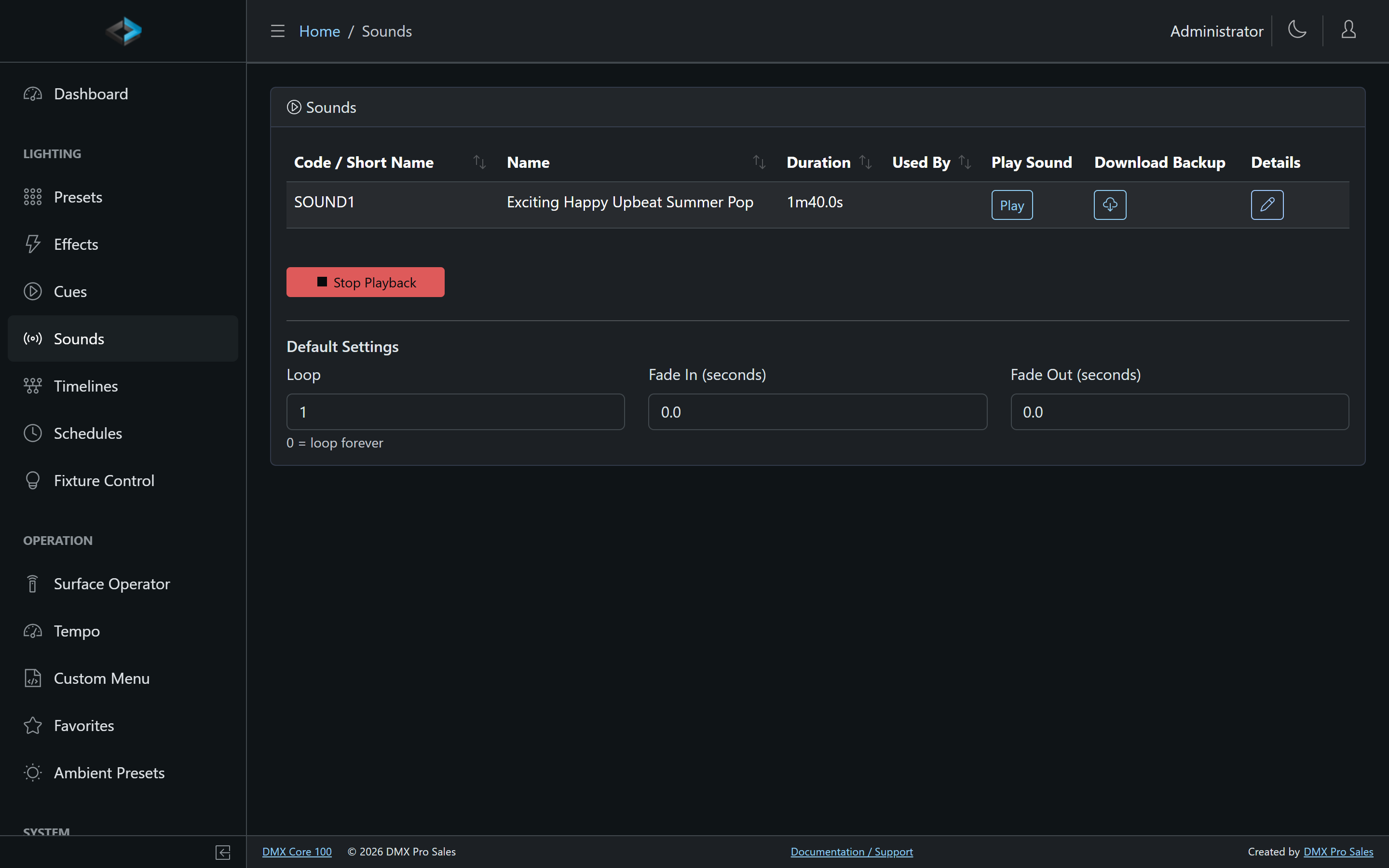
Uploading Sounds
- In the Web UI, go to Lighting > Sounds
- Click Import and pick a WAV, MP3, FLAC, OGG, or AIFF file
- The sound is added to the list, named after the file, and ready to use
Audio can also be placed with File Explorer instead - a file uploaded there is available for import as a sound.
Sound Settings
Each sound’s detail page has:
- Name - Display name
- Code - Unique identifier for API and external control
- Volume - Playback volume level
Loop, Fade In (seconds), and Fade Out (seconds) are not per-sound fields. They live on the Sounds list as Default Settings (Lighting > Sounds), the same pattern as cues.
Playback Controls
During sound playback, the Web UI dashboard shows:
- A progress bar with current position and total duration
- Pause/Resume controls
- Scrub - Drag the progress bar to jump to any position
- Stop button
Aligning audio with lighting
There is no Audio Delay setting on a sound. To shift a cue’s attached sound relative to the lighting, set that cue’s Sound Offset (see Attached Sound). To fire metronome-synced effects early to compensate for fixture lag, use Output Latency on the Tempo page (metronome only).
Cloning Sounds
You can clone (duplicate) a sound in the Web UI to create a copy with different settings (e.g., different volume or loop count) while sharing the same audio file.