
Main/Home Screen Logo
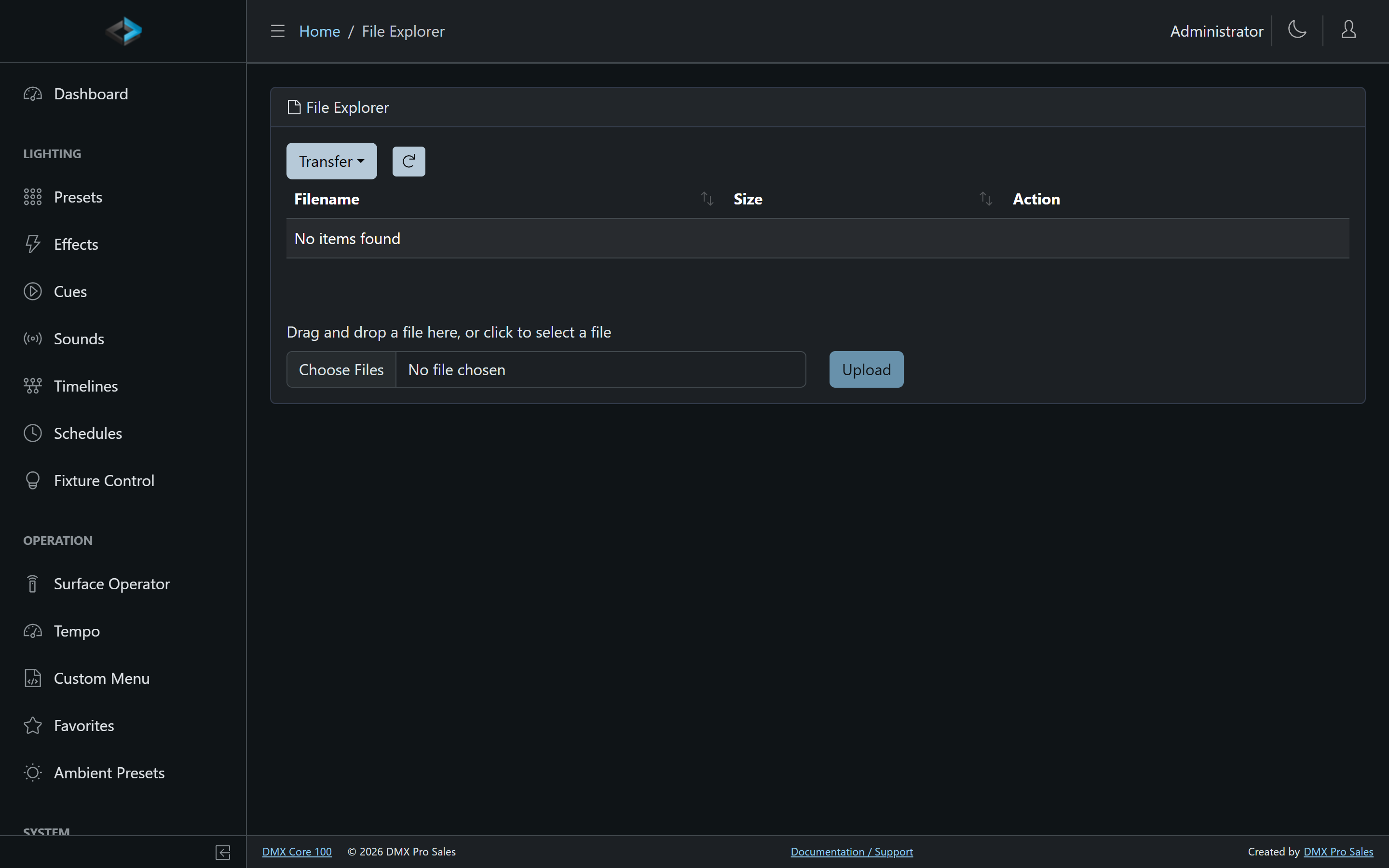
You can replace the main DMX Core logo (displayed on the home screen) by uploading an image in the Web Admin UI under File Explorer > Images. The file should be named home-logo and can be PNG, JPG or WebP. The native size is 800×300, but the DMX Core 100 will resize any uploaded image to fit. The touchscreen About and Help pages show the same logo.
The home screen picks up a new, changed or deleted home-logo within a second, without a restart. Deleting it brings the built-in logo back.
To replace a logo, delete the old file first. File Explorer does not overwrite an existing file: uploading home-logo.png a second time stores it as home-logo (1).png, which is not used.
If the folder holds more than one home-logo file, PNG is used first, then JPG, then WebP.
Logo animation
The built-in logo plays a short shine across the mark every 20 seconds. Logo animation pause (seconds) sets how long the logo rests between runs. It is under Device > Touchscreen in the Web UI and in Settings on the touchscreen:
| Value | Behavior |
|---|---|
| Empty | No animation; the logo is a still image |
0 | The animation loops continuously, with no rest between runs |
1 and up | The logo rests this many seconds, plays once, rests again (default 20) |
The animation only plays while nothing else needs the device’s attention. It stops on the still logo, and starts again after its rest once the condition clears, while:
- the recorder is enabled (armed, previewing or recording)
- the output is sending to more than 64 universes
- the display is turned off
- another page or a dialog is open on the touchscreen
A custom PNG or JPG logo is never animated.
Animated custom logo
An animated WebP named home-logo.webp plays the same way as the built-in animation and follows the same pause setting. Its first frame is the still image shown between runs, and the logo shown on the About and Help pages. GIF files are not used, and an animated PNG shows only its first frame.
To make one:
- Size: 800×300, or the same 8:3 shape at a higher resolution. Use a transparent background so the logo sits on the theme’s background color.
- Length: keep it short; 1 to 3 seconds at 24 to 30 frames per second is plenty.
- Ending: for an animation that plays once and rests, make the last frame the same image as the first, so returning to the still is invisible. For a continuous loop (pause
0), make the last frame lead into the first, without repeating it. - Lossless: save the WebP lossless. Lossy compression can make the last frame slightly different from the first, which shows as a small jump at the end of each run.
Any animation tool that exports a numbered PNG sequence (After Effects, Blender, and so on) works. Pack the frames into an animated WebP with Google’s img2webp, setting the frame time in milliseconds (33 ms is 30 frames per second):
img2webp -lossless -loop 0 -d 33 frame_*.png -o home-logo.webpor with FFmpeg:
ffmpeg -framerate 30 -i frame_%03d.png -c:v libwebp_anim -lossless 1 -loop 0 home-logo.webpThen upload home-logo.webp under File Explorer > Images.