Custom Panels
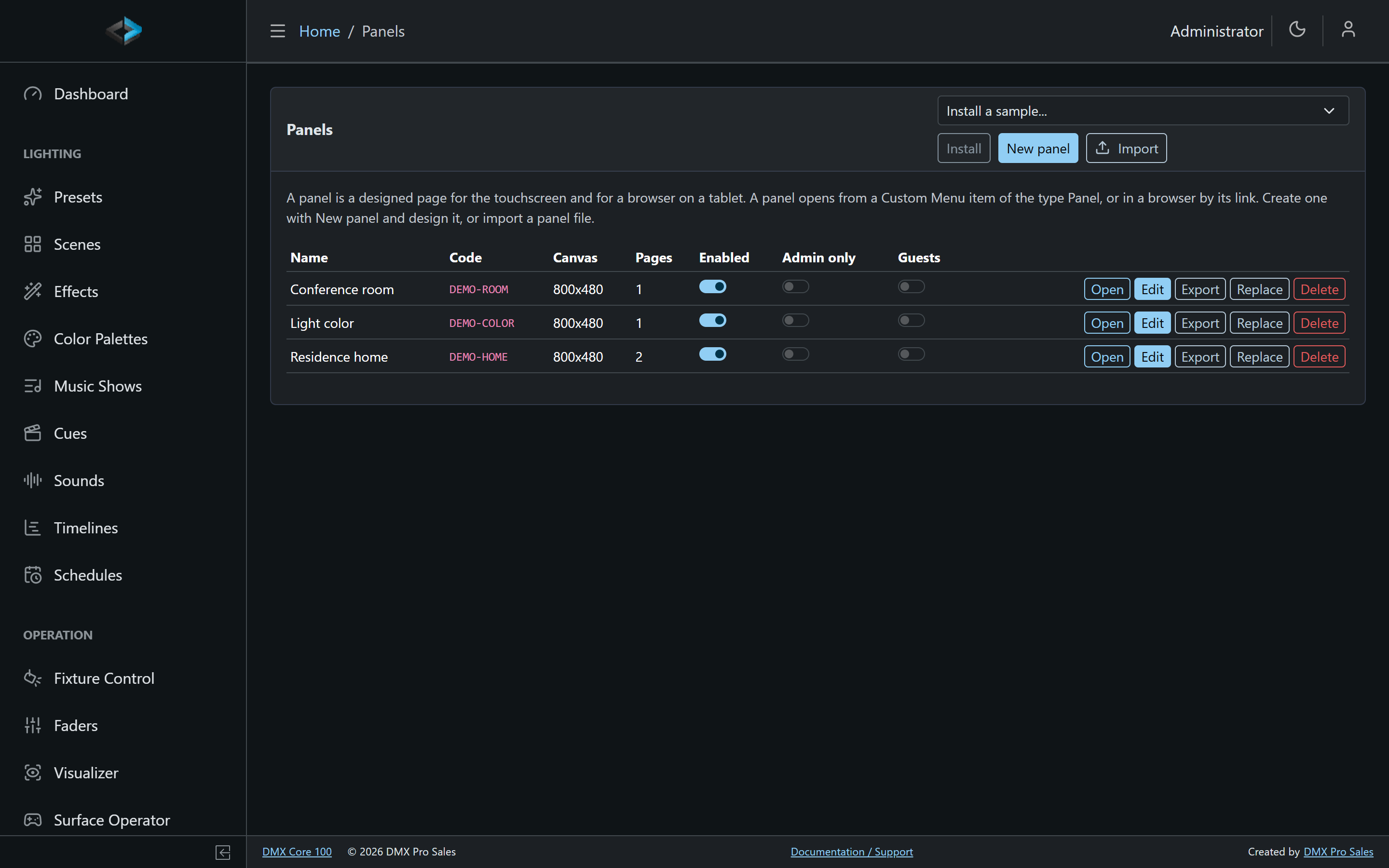
A Custom Panel is a control page you design yourself: buttons, scene tiles, sliders, color and white controls, a clock, images and more, laid out the way the room should work. The same panel runs on the DMX Core 100 touchscreen, on its Satellite Units and in a browser on a tablet or computer.
Panels sit next to Custom Menus: a custom menu is a list of buttons the unit lays out for you, a panel is a page you lay out yourself.
Getting a first panel
The Panels page is in the Web UI under Control & Integrations. A first panel comes from one of these:
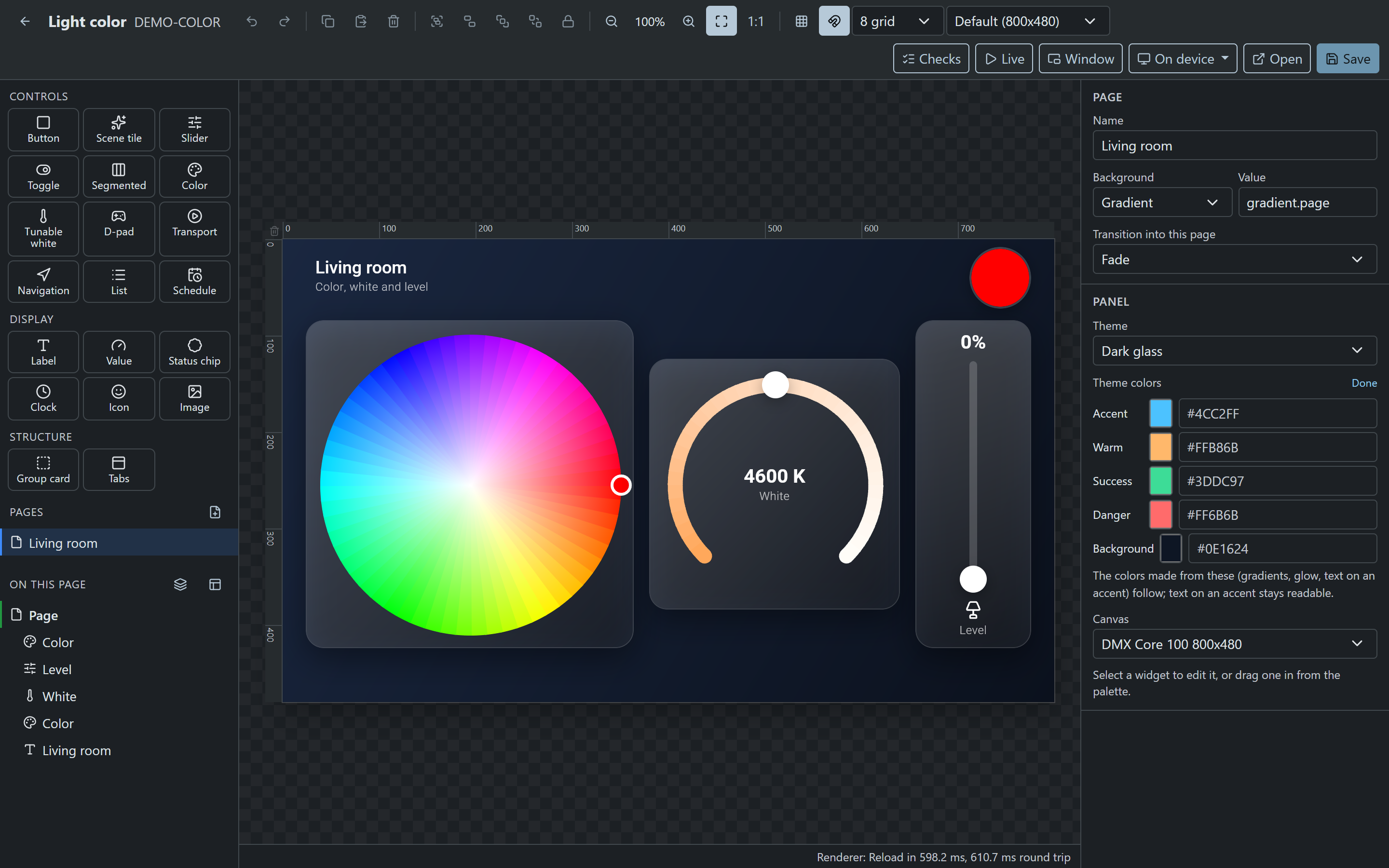
- Demo content. Go to Backup & Restore > Create Demo Data, filter by Panel and pick one: Conference room, Residence home, Lighting scenes or Light color. The scene panels come with the demo presets their buttons use. Light color controls the color, white and level of the first zone with color fixtures.
- A template. On the Panels page, New panel asks for a name and a starting point: an empty page in the size of your screen, or one of the templates (Conference room, Residence home, Lighting scenes, Light color). The designer opens right away.
- A panel file. Import takes a panel exported from another unit (
.dmxpanel), images included.
Designing a panel
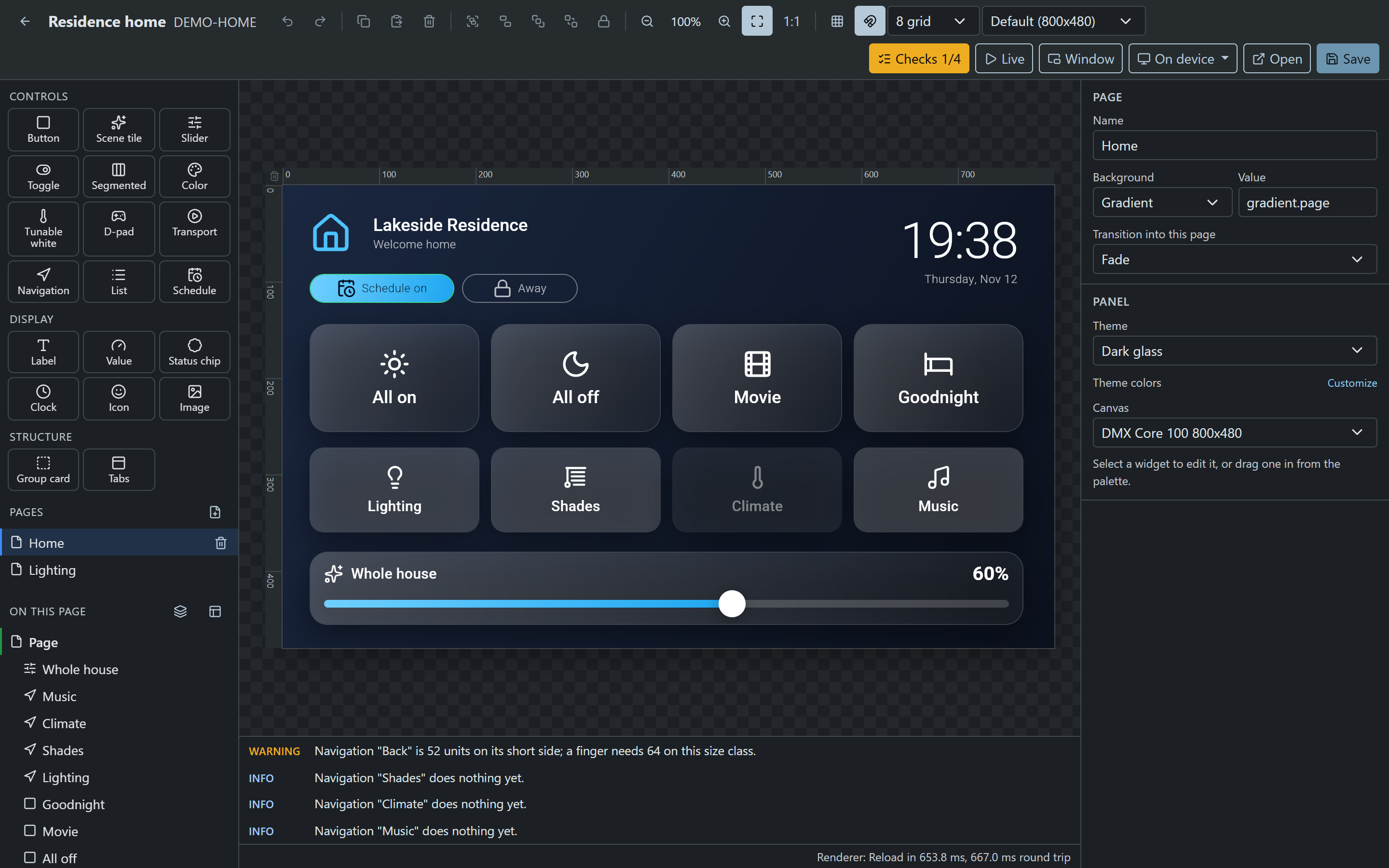
Edit on the Panels page opens the designer. Drag widgets from the palette on the left onto the page, or click one to add it in the middle. Select a widget to set what it does on the right: the preset, cue, zone, fixture or Control Value it controls, and how it looks.
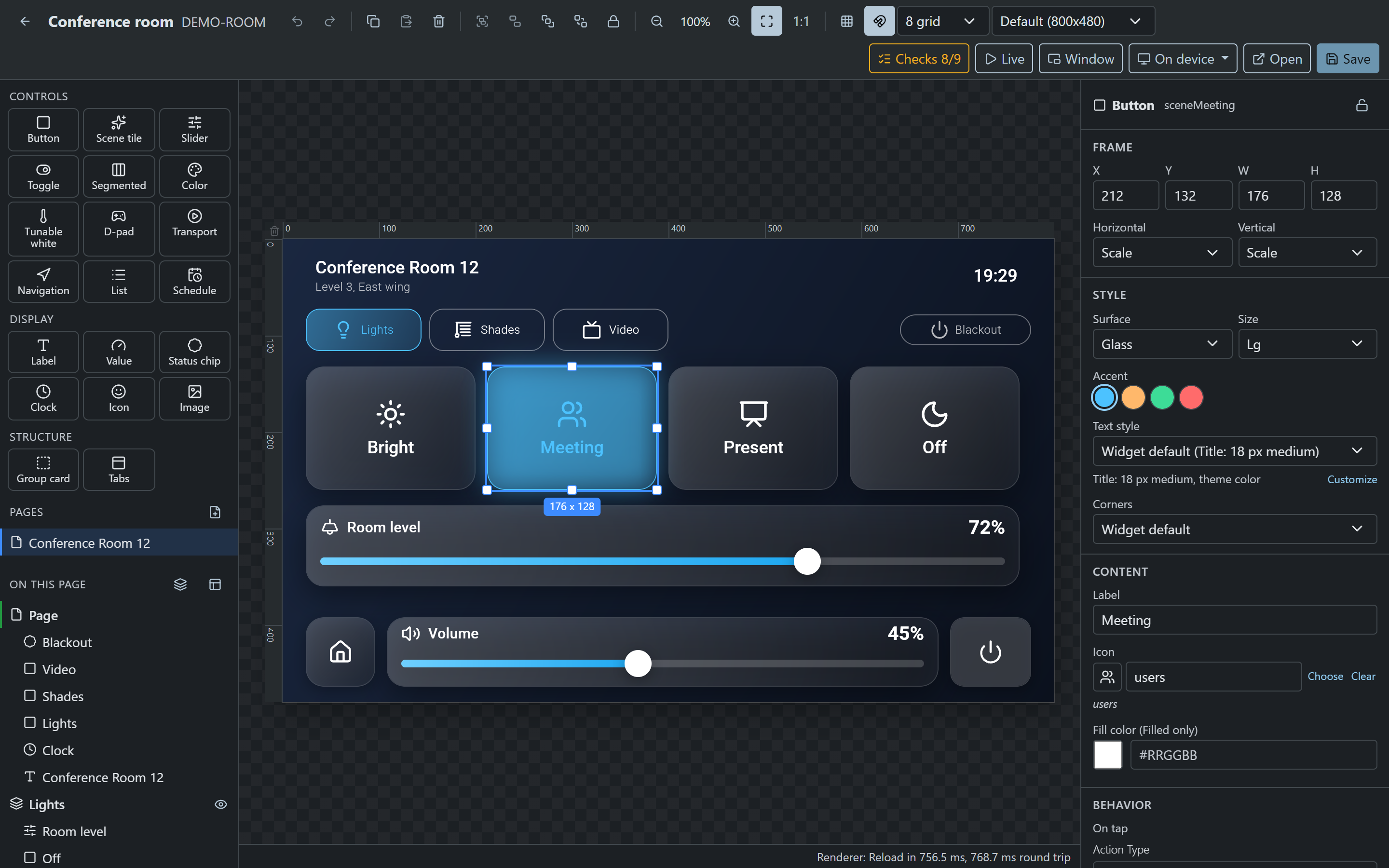
- Snapping and guides. Widgets snap to each other and to the grid. Drag from a ruler to place a guide.
- Panel colors. With nothing selected, the right side shows the panel’s theme. Customize next to Theme colors sets your own accent and background colors for this panel; everything made from them follows.
- Checks. The Checks button lists what may trouble the people using the panel: buttons too small for a finger, pages with no way back, text that is hard to read on its background, controls that do nothing yet. Click a finding to go to the widget.
- Tablets and phones. The size menu in the toolbar switches between the default layout (the panel’s own screen) and tablets and phones. Tablets get the default layout scaled and phones a stacked version of it, until you give them a layout of their own.
- Live and Window. Live shows the saved panel working against the unit, Window opens a preview window you can move to another screen while you work.
- Save stores the panel. Every screen showing it updates right away.
Showing a panel on the touchscreen
A panel opens on the touchscreen in two ways:
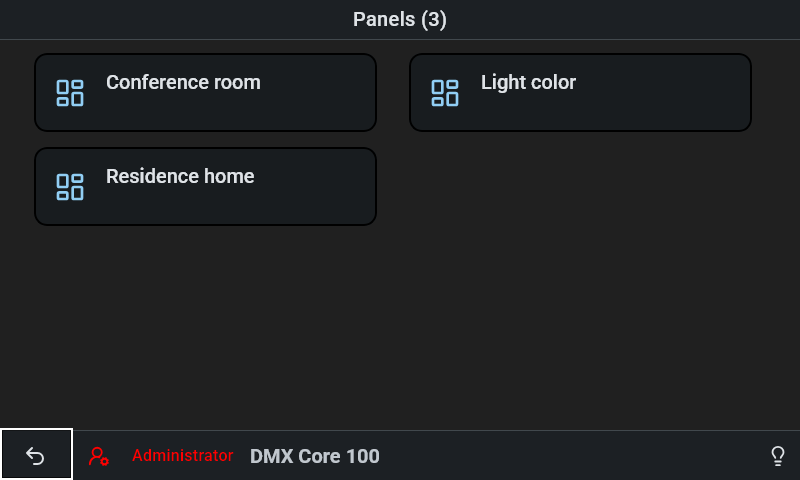
- Main Menu > Utilities > Panels lists the unit’s panels.
- A Custom Menu item of the type Panel opens the panel you choose. With the unit set to show only its custom menu, a panel can be the only thing people see.
From the designer, On device > Show on this unit’s screen opens the panel on the touchscreen straight away.
To leave a panel on the touchscreen, hold a top corner of the screen for two seconds.
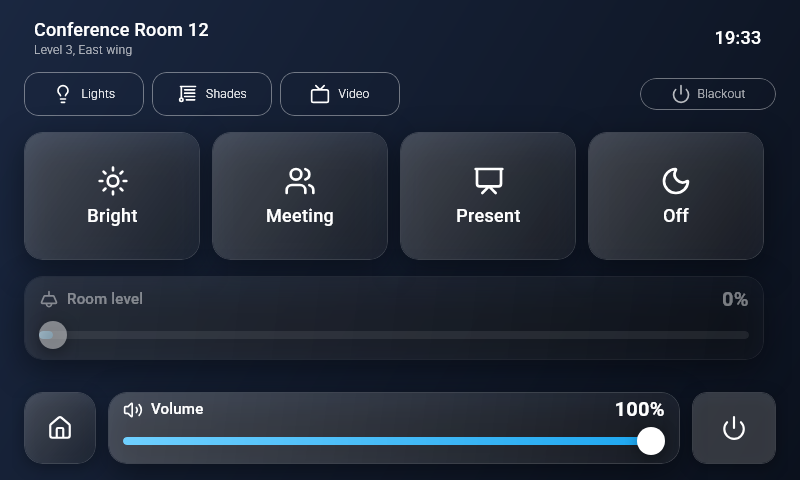
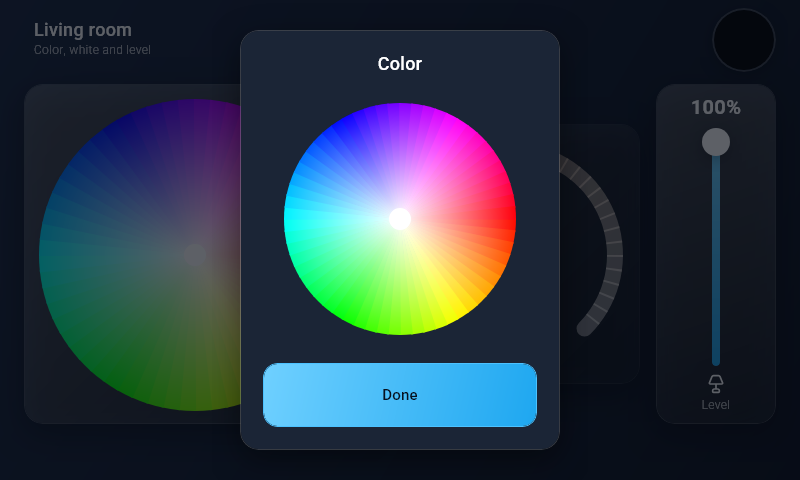
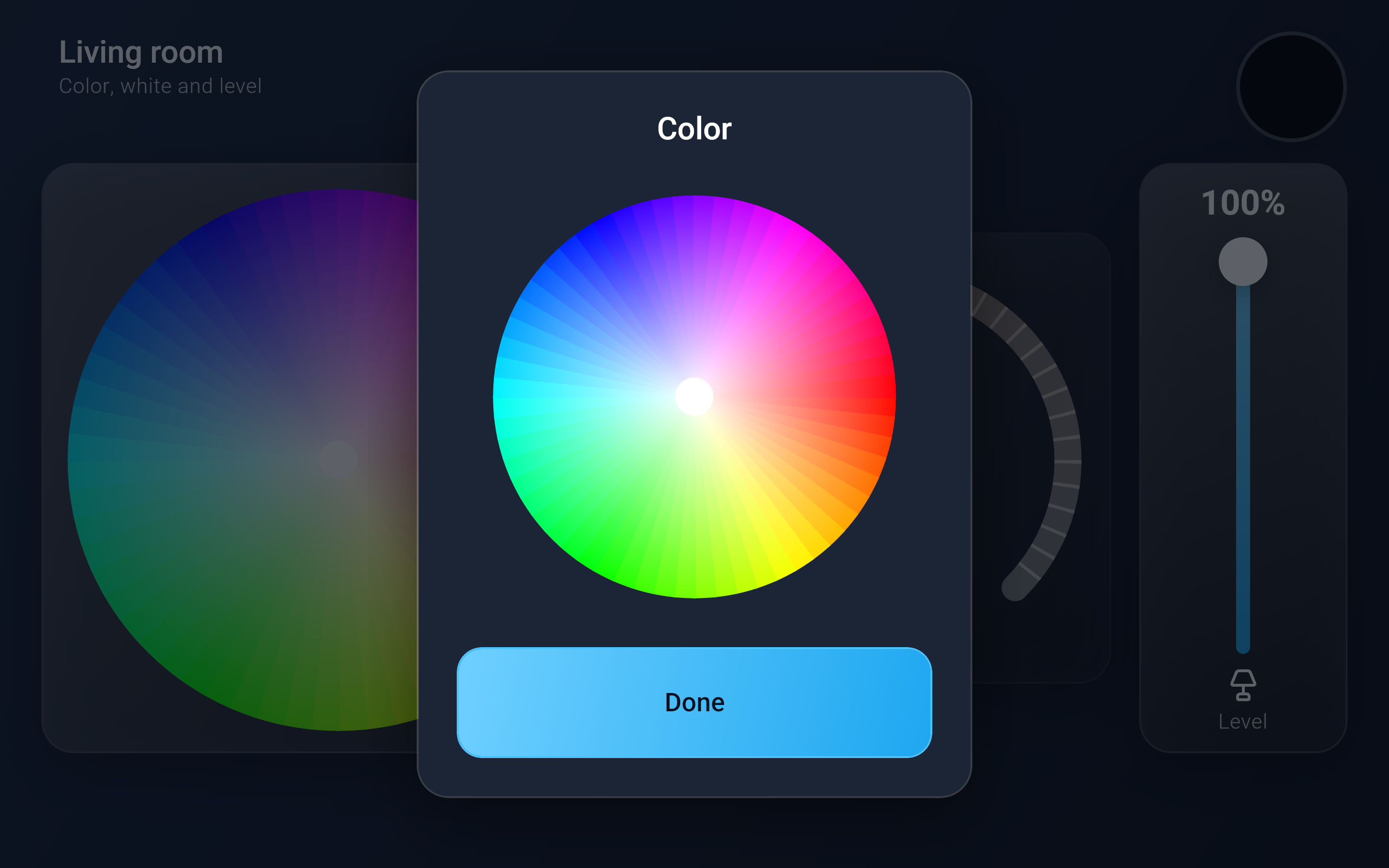
A color control can show its picker all the time (a wheel or sliders on the page), or as a small color chip that opens the picker when tapped:
Opening a panel in a browser
Open on the Panels page, or in the designer, opens the panel in a browser tab. Bookmark it on a tablet to use the tablet as a remote for the room. The panel follows the unit live: a scene started anywhere lights up on every screen showing it.
Satellite Units
On a unit with Satellite Units, the Satellite Units button on a panel’s row chooses which Satellite Units may show it (all of them by default). Panels are always designed on the Main Unit; a Satellite Unit shows the Main Unit’s panels.
Saving a panel updates every Satellite Unit showing it. To put a panel on a Satellite Unit’s screen, tick Show this panel for that unit in the menu next to Save, or use On device in the designer and pick the unit.
Export and import
Export on the Panels page saves a panel with its images as one .dmxpanel file, to keep or to bring to another unit with Import. Replace loads a file over an existing panel and keeps its code, so menu items and links to it keep working. Panels and their images are part of a full backup.
Hiding Panels
A unit that never uses panels can leave them out of the menus: turn on Hide Panels under Settings > System, in the Web UI or on the touchscreen. This removes Panels from the Web UI sidebar, from Utilities on the touchscreen, from the item types of a Custom Menu and from the demo data. Panels that already exist keep working: a Custom Menu item, a Satellite Unit or a bookmarked link still opens them.