
Schedules
Schedules let you automatically trigger cues, presets, sounds, timelines, or ambient presets at specific times. Use schedules for recurring lighting scenes - for example, turning on lobby lights at sunset or running a show every evening.
Viewing Schedules
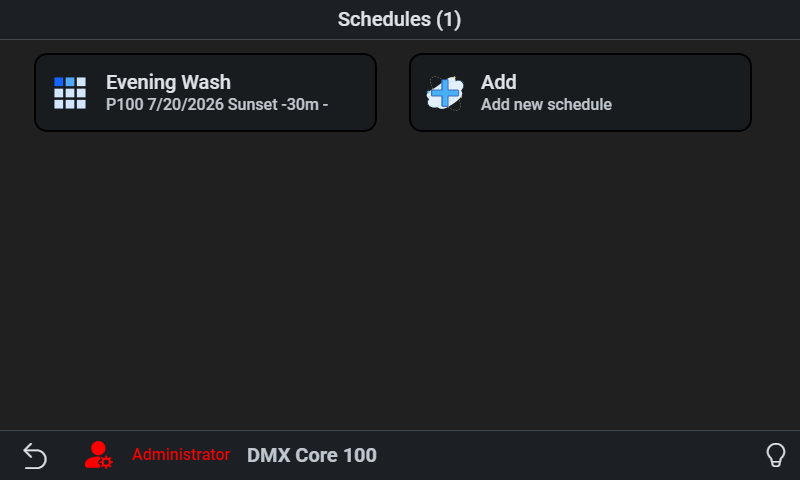
On the touchscreen, navigate to Main Menu > Utilities > Schedules to see the list. Select one to modify its settings, or choose Add to create a new schedule.
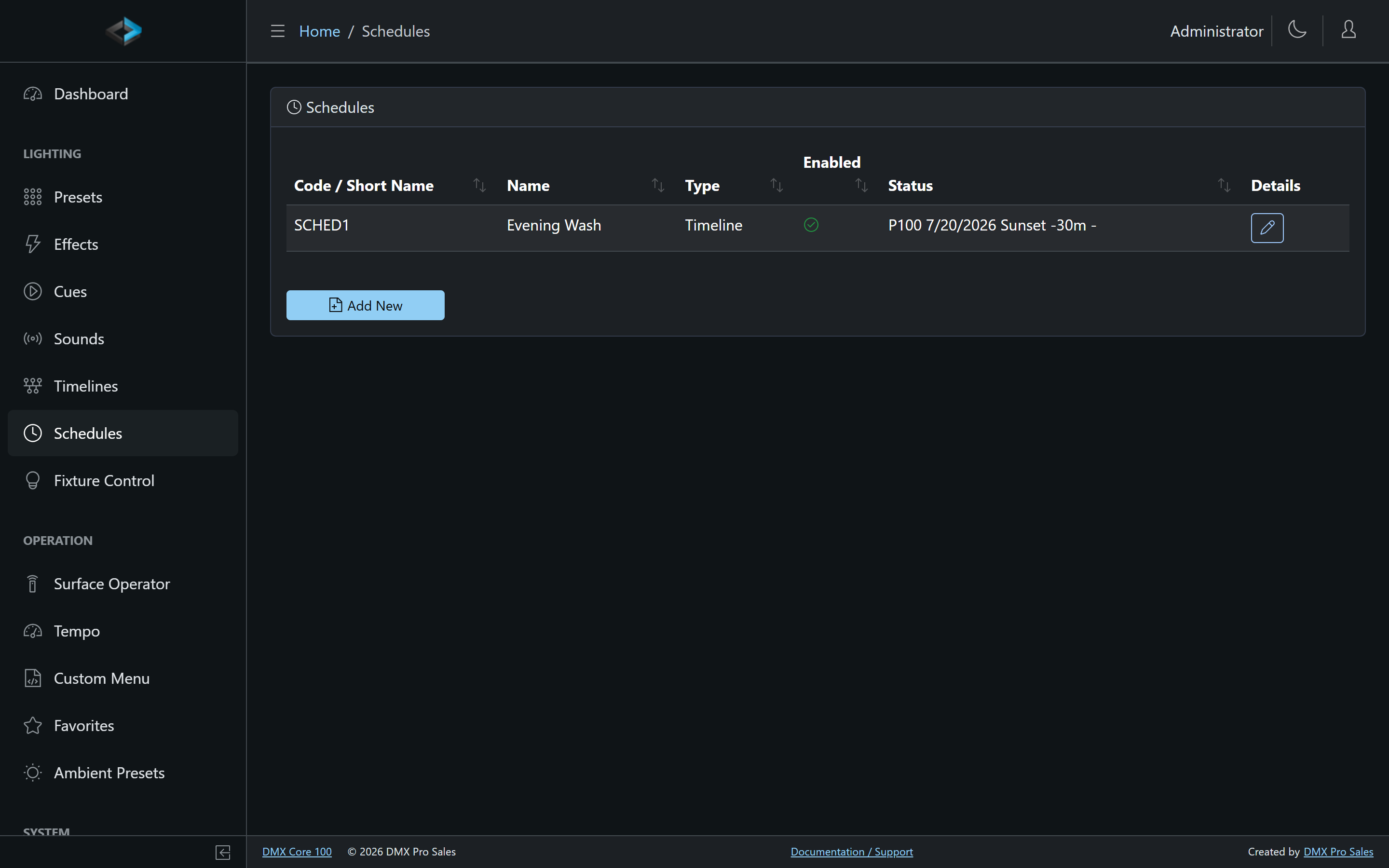
In the Web UI, go to Lighting > Schedules. The list shows all schedules with their enabled/disabled status. Click a schedule name to edit it.
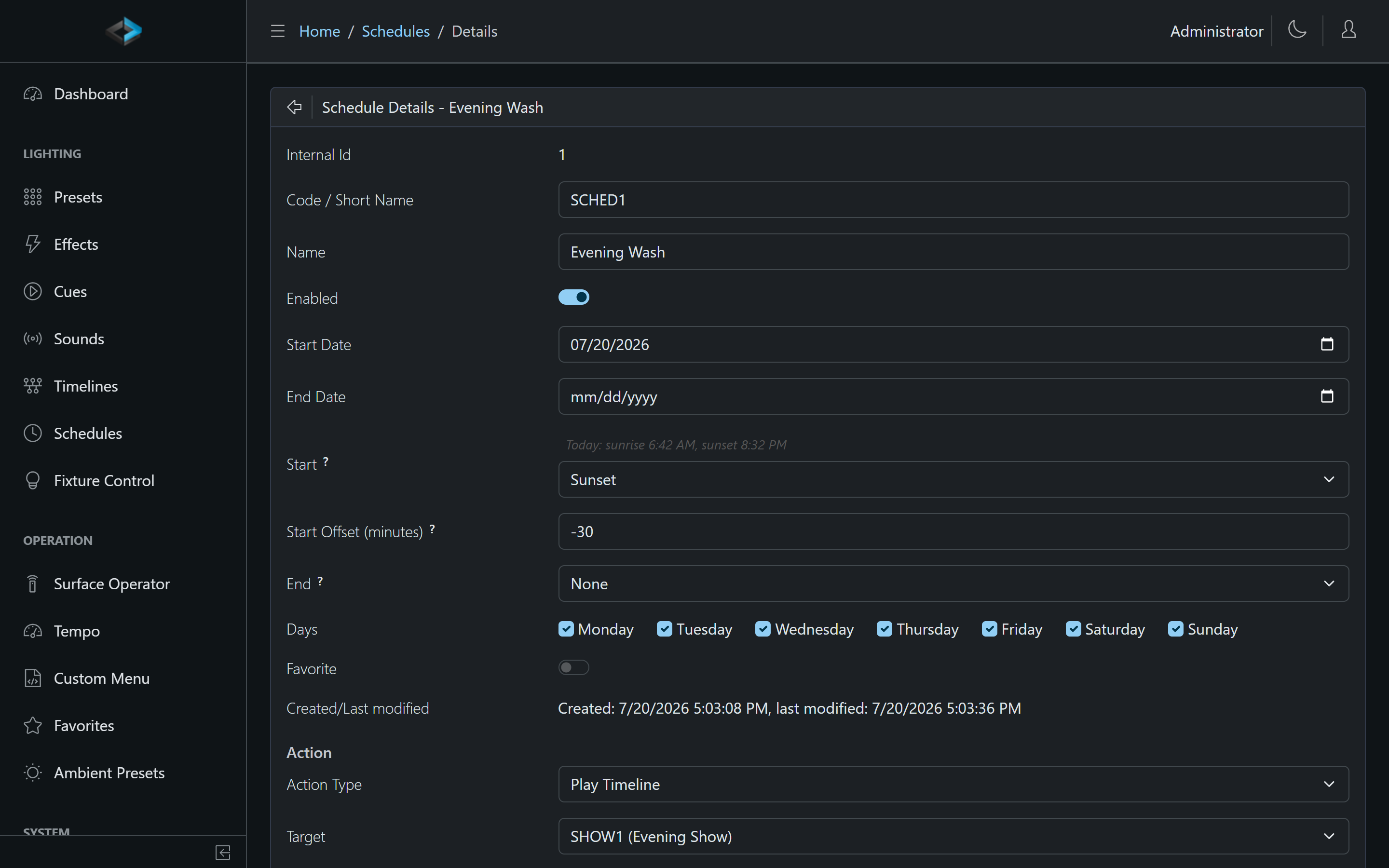
Schedule Settings
| Setting | Description |
|---|---|
| Name / Code / Short Name | Display name and identifier |
| Enabled | Turn the schedule on or off |
| Favorite | Include the schedule on Operation > Favorites (Web UI). The touchscreen has no favorites list |
| Start Date | When the schedule starts |
| End Date | Optional end date (inclusive) |
| Days | Days of the week the schedule runs on |
| Start | How the start time is determined: a fixed time of day, or sunrise/sunset with Start Offset (minutes) (Web UI) |
| Start Time | Time of day when the schedule triggers (when Start is a fixed time) |
| End | How the end time is determined: None, a fixed time, or sunrise/sunset with End Offset (minutes) (Web UI). None means the schedule never ends on its own |
| End Time | Optional end time |
| Action Type | What to run: cue, preset, sound, timeline, ambient preset, DMX output on/off, blackout on/off, or Run Script. A script runs once at the start time with ctx.trigger.source set to SCHEDULE and ctx.trigger.code to the schedule’s code; nothing runs at the end time, so for a closing script turn on a second script’s Run On Events › Schedule ended switch and check ctx.event.code |
| Target | Which item to play |
| Priority | Playback priority |
| Loop | Repeat count; 0 = forever |
| Run to completion | When on, playback runs to the end of the item rather than cutting at the schedule end |
| Fade-In Time (ms) / Fade-Out Time (ms) | Transition times (Web UI). The fade-in applies at the start time; the fade-out applies when the schedule ends, so a cue, sound, timeline or preset eases out at closing time instead of cutting. 0 stops hard (a preset then releases with its default fade). An item set to run to completion finishes its pass and ignores the fade-out |
| Dimmer / Volume | Brightness and attached-sound level (Web UI) |
The touchscreen editor has Priority, Type, Play, Loop, and Run to completion.
Schedules are triggered on whole minutes (e.g., 8:00:00, 8:01:00). When a schedule ends, the item it started (for example a preset) is stopped. With End = None it never ends.
Delete Schedule will remove the schedule from the system. Note that changes don’t take effect until you exit the settings screen.
Sunrise and Sunset Times
Instead of a fixed time of day, a schedule can start and/or end at the calculated sunrise or sunset for your location - for example, turn lights on 30 minutes before sunset and off 30 minutes after sunrise. The times are calculated on the device itself, so no internet connection is required, and they automatically track the seasons and daylight saving time.
Sunrise/sunset schedules are configured in the Web UI schedule editor:
- Set the device location first, under Device > System - see Device Location.
- In the schedule editor, change Start (and/or End) from Fixed time to Sunrise or Sunset.
- Optionally enter Start Offset (minutes) or End Offset (minutes): positive values are after the event, negative values are before. For example, Start = Sunset with offset -30 triggers 30 minutes before sunset.
While editing, the editor shows today’s calculated sunrise and sunset for your location so you can sanity-check the configuration.
A start of Sunset with an end of Sunrise creates an overnight schedule that runs through midnight, just like fixed times where the end is earlier than the start.
Notes:
- If no device location is configured, sunrise/sunset schedules do not run and show a Set device location for sunrise/sunset status in the schedule list.
- Offsets can be up to ±720 minutes (12 hours). If an offset would push the time past midnight, it is limited to the same day.
- The schedule list and status displays always show the resolved time for the current day (e.g., “Start at 8:03 PM”).
Snoozing Schedules
Snooze is a touchscreen feature. Go to Main Menu > Utilities > Snooze Schedules:
- Resume
- Snooze 1h
- Snooze until midnight
- Snooze until 9am
Snooze stops schedules from starting. It does not end a schedule that is already running. The current snooze status is displayed on screen.
The Web UI has no snooze. A custom-menu Toggle Schedule action only flips that schedule’s Enabled flag and does not re-enable it later - it is not a snooze.
Duplicating Schedules
In the Web UI, you can duplicate a schedule to create a copy. This is useful for setting up similar schedules for different times or days.