
Zones
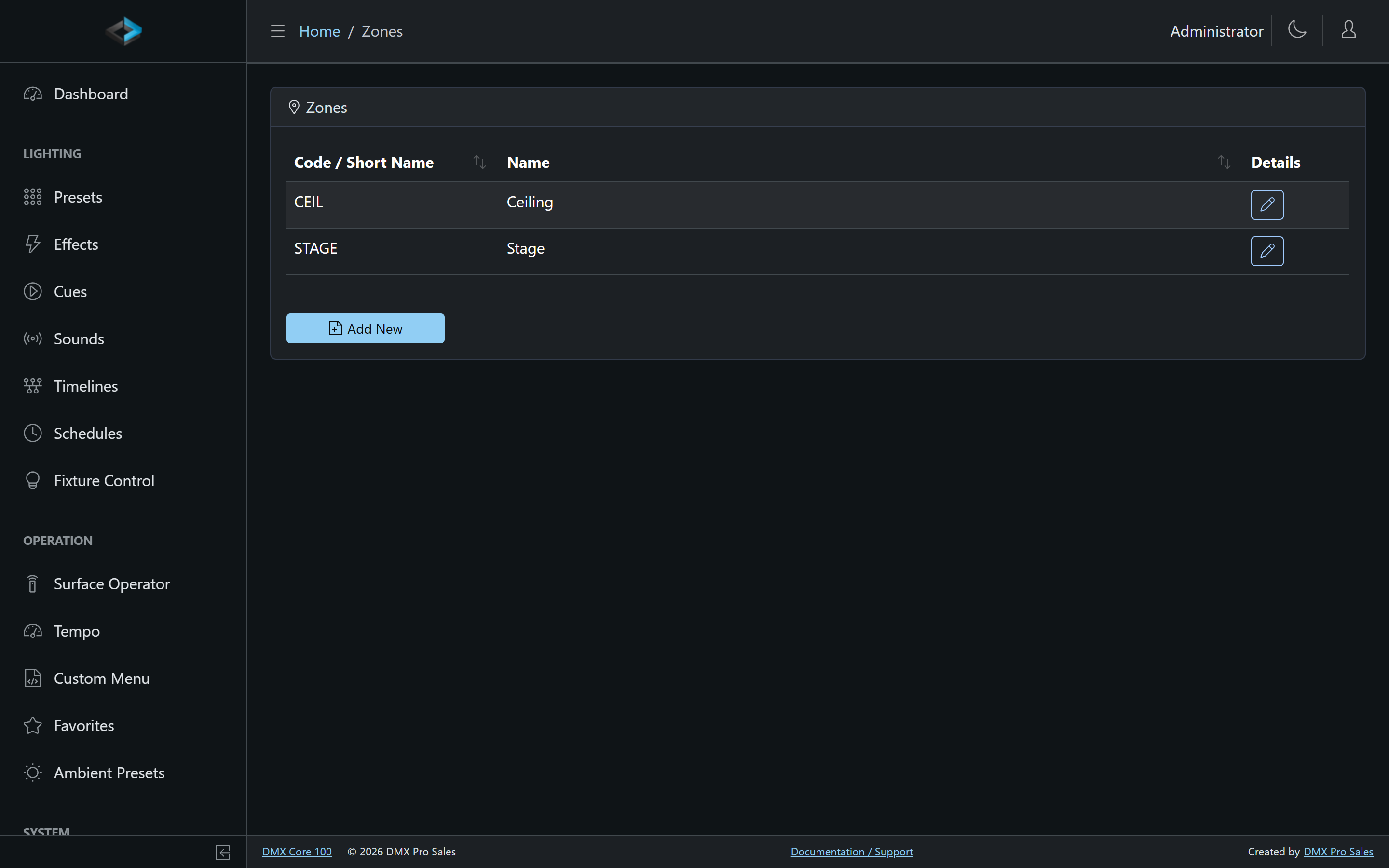
Zones let you group fixtures together for easier management. For example, you might create zones for different rooms, areas of a stage, or types of fixtures. Zones are used throughout the system - you can apply presets and effects to specific zones rather than individual fixtures or the entire system.
Managing Zones
Zones are managed under Lighting Setup > Zones in the Web UI, or Main Menu > Settings > Zones on the touchscreen. Enable Multi-Zone Playback under Device > System to turn on zone support.
Creating a Zone
- In the Web UI, go to Lighting Setup > Zones (touchscreen: Settings > Zones)
- Click Add New (touchscreen: Add)
- Set Code / Short Name and Name (Internal Id is assigned and read-only)
- Click Save
The zone editor does not assign fixtures. Open each fixture and set its Zone field instead - see Fixture Setup.
Editing a Zone
Click a zone name in the list to open its settings. You can change the code and name, or delete the zone. To add or remove fixtures, edit the fixture’s Zone field.
Using Zones
Once zones are configured, they appear throughout the system:
- Presets - Create zone-specific presets that only affect fixtures in a particular zone
- Effects - Apply effects to an entire zone
- Fixture Control - Filter and control fixtures by zone
- Input Triggers and Control Surfaces - Bind a fader or knob to a zone’s intensity
- Q-SYS & Symetrix - Switch between zone levels on a single fader