
Software Updates
How you upgrade the DMX Core 100 depends on the platform. The Web UI only shows Utilities > Releases when that install can pick a build in-app. Do not assume every unit has that sidebar item.
Which upgrade path you have
| Platform | In-app Releases? | How upgrades actually happen |
|---|---|---|
| Appliance (Linux / Balena) | Yes - Web UI Utilities > Releases. Touchscreen Utilities > Device Operations > Releases | In-app picker. The Appliance needs internet (or Internet Passthrough) so it can download the cloud catalog |
| Windows (Velopack / ClickOnce) | Yes | Utilities > Releases |
| macOS | Yes | Utilities > Releases |
| Linux Snap | No - the sidebar item is hidden | snapd refreshes the app outside the UI. Utilities > System reports that updates are managed by the Snap Store |
If you installed from the Snap Store, do not look for Utilities > Releases. It is not there.
You can also keep devices current from the cloud portal (release channels, pinning, automatic updates) when the unit has internet and a remote-access subscription.
Read the version number, not the date next to the row
Version numbers are year.month-day, not “whatever date is printed next to a catalog row.”
2026.717is 17 July 20262026.4is 4 April 2026 - older than2026.717, even if the row shows a later date such as 4/30/2026
The third component (.2 in 2026.717.2) is the patch for that day. A listed build whose version number is lower than the one already running is a downgrade, not an upgrade.
Check the running version on Utilities > System (or on the Releases page itself) before you pick a row.
Appliance, Windows, and macOS
Web UI
- Note the running version on Utilities > System.
- Open Utilities > Releases.
- Compare each listed build to the running version. Install only a higher version number.
- Wait for the update to apply. The application restarts when it finishes.
Touchscreen (Appliance)
On an Appliance, open Utilities > Device Operations > Releases.
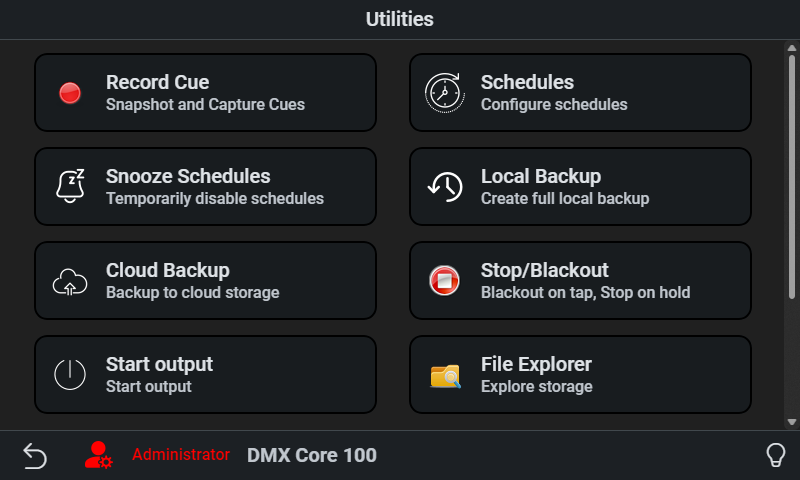
Pick a listed release the same way: compare the version number to what the unit is already running.
Switching to an older build
From v2026.907.x, switching to an older build asks for confirmation and warns you to take a backup. Leftover catalog entries that were never meant for that unit are not offered. Older Web UI builds did not warn - if you are below v2026.907.x, read the version number carefully before you tap a row.
Cancel the confirmation unless you intentionally need that older build.
Linux Snap
A Snap install has no Utilities > Releases item. snapd refreshes dmxcore100 on its own schedule. Utilities > System states that updates are managed by the Snap Store.
To refresh immediately from a terminal:
sudo snap refresh dmxcore100See Linux desktop software for install details.
Isolated / no-internet units
The in-app picker needs a current cloud catalog. An Appliance on an isolated network will sit on an older build and may only show leftover or down-rev entries.
- Get the unit online - plug it into a network with internet, or use Internet Passthrough (DMX Core Connect on a laptop that already has internet).
- Wait until Internet access and Cloud connection are green on Utilities > System.
- Then pick a current build from Utilities > Releases in the Web UI, or Utilities > Device Operations > Releases on the Appliance touchscreen.
- Deactivate passthrough when you are done.
Do not re-flash the boot image just to change software version. Re-flashing is for a unit that will not boot - see Re-flash Instructions.