
Recording
The DMX Core 100 can record DMX data from external sources (lighting software, consoles, etc.) and save it as cues for later playback.
Recording on the Touchscreen
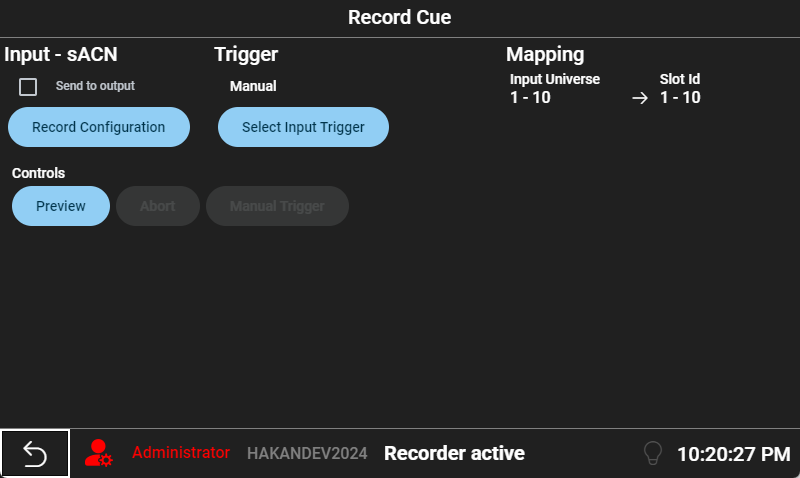
Navigate to Main Menu > Utilities > Record Cue.
-
Press Preview to start listening for incoming packets. The protocol and universe IDs come from the input mapping and the Recording protocol on Settings > Inputs - not from the output configuration. Any active playback will be stopped.
-
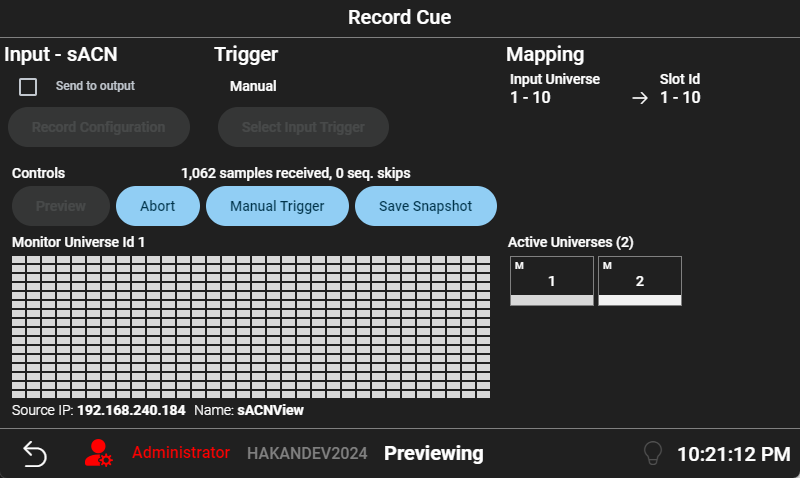
You’ll see a graphical representation of all the DMX channels per universe during preview:
-
Send to output (on the Record Cue page) forwards the live input to the outputs while you preview or record, so you can watch the look on the fixtures.
-
While previewing, capture what you need:
- Press Save Dynamic Cue to record a full show until you stop recording. Recording must have started first - use Manual Trigger, or the configured input trigger, not Preview alone.
- Press Save Static Cue to capture a single moment of the current DMX state as a cue
-
After a successful dynamic save, Play / Pause and Restart appear on the Record page. Play the take on the real outputs to confirm it - once through, with no fade, loop, or linked sound. Pause holds the last look; Play again resumes. Restart plays from the beginning. The recorder session stays open so you can Preview and record another take without leaving. (Static snapshot saves do not get test play.)
-
You can rename the recording later from the Cues list.
The recorded size and remaining free space are shown on the Record Cue page while you work. Press Abort to stop preview without capturing anything.
Recording in the Web UI
In the Web UI, go to Utilities > Record. The Web UI recording interface provides additional features:
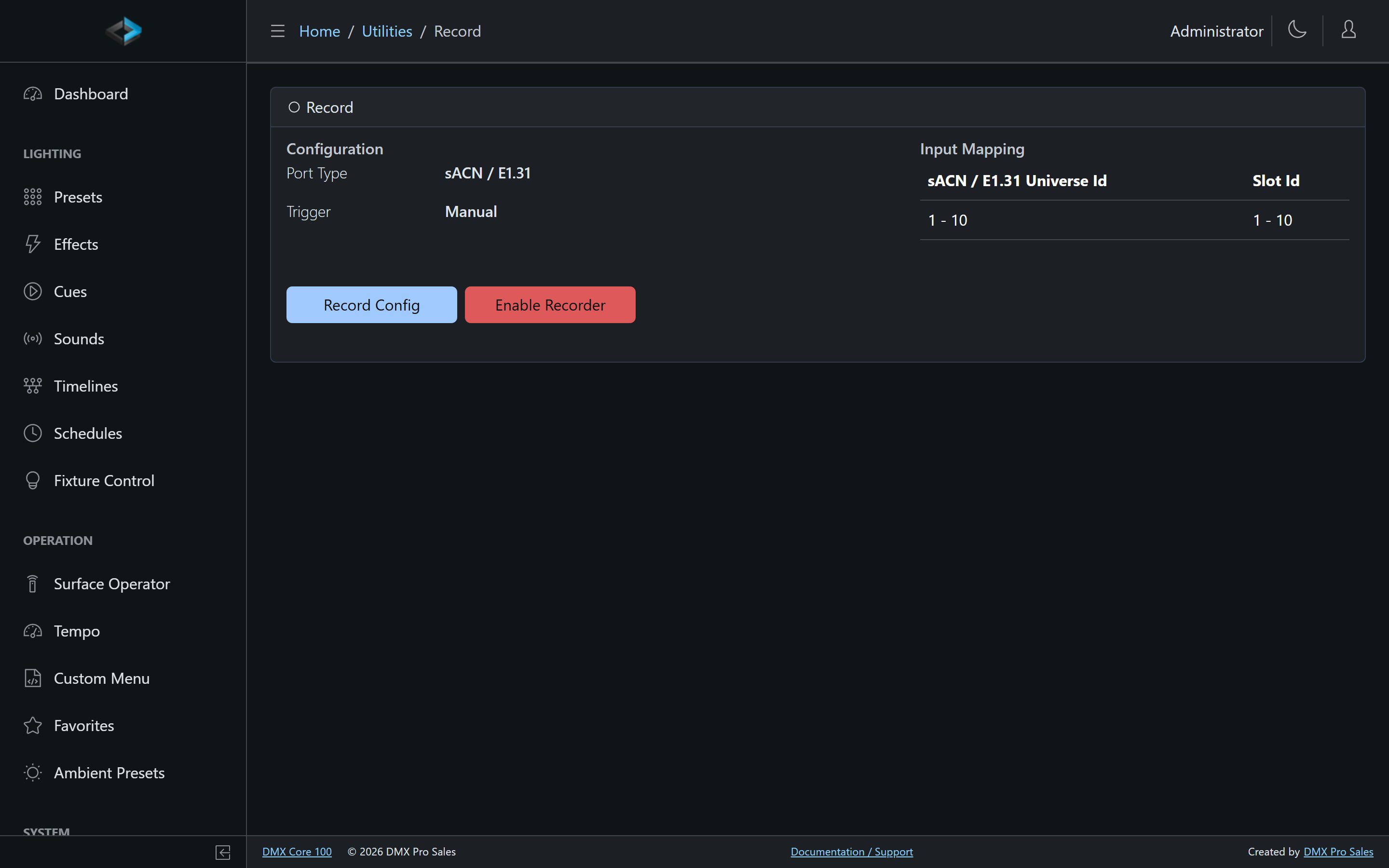
- Press Enable Recorder first - that starts Preview. Incoming DMX appears on the channel monitor.
- Start the take with Manual Trigger (or the configured input trigger). Save Dynamic Cue is only available after recording has started, not while you are only previewing.
- Press Save Dynamic Cue for the full sequence, or Save Static Cue for a single look. Both create a cue.
Other controls on the page:
-
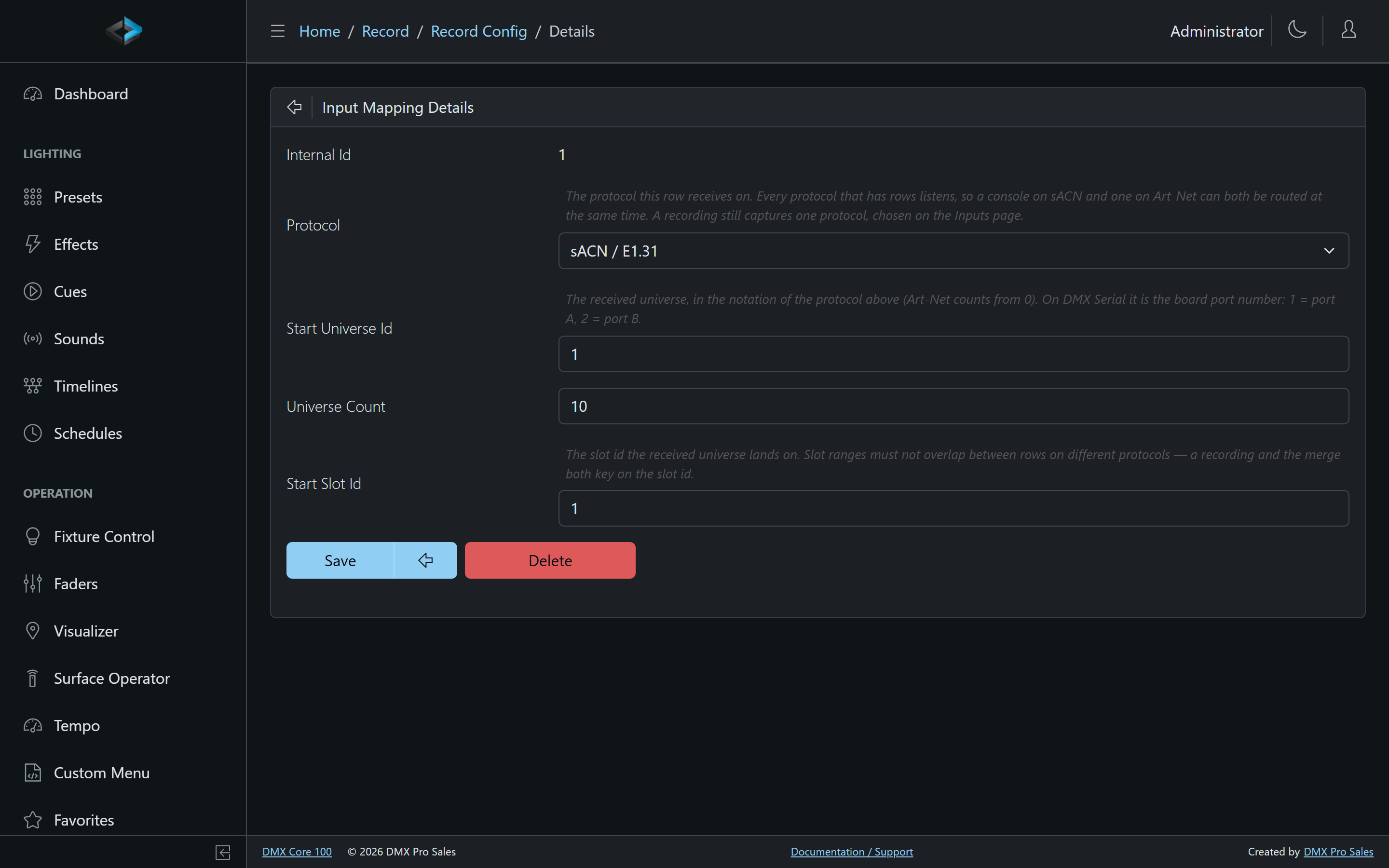
Input - The universe-to-slot mapping is a device setting shared with stream routing, and each row names its own protocol. A recording captures one protocol: the Recording protocol on the Inputs page, which can only be one of the protocols that have mapping rows. The other mapped protocols keep routing while the recording runs. The Record page shows both and links to Lighting Setup > Inputs to change them
-
Trigger - Start recording with Manual Trigger, or automatically from an external signal (DMX threshold, HTTP, TCP, UDP, or OSC)
-
Real-time monitoring - View incoming DMX data as it arrives, with the recorded size and remaining recording space shown while recording
-
Stay on the page after save - after Save Dynamic Cue, Play / Pause and Restart confirm the take. Disable Recorder when you are finished; the recorder no longer disables itself after a save
Input Sources
The DMX Core 100 can record from the following input sources:
| Source | Description |
|---|---|
| ArtNet | Network DMX protocol (UDP) |
| sACN (E1.31) | Network DMX protocol (multicast/unicast) |
| DMX-512 | Direct DMX input via optional 2-port DMX board |
| KiNet | Color Kinetics network protocol |
Timing Accuracy
Every incoming packet is timestamped when it arrives, so the recording preserves the original timing of the source. On the DMX Core 100 hardware unit this is always wire-accurate. When recording with the desktop software on Windows, wire-accurate timestamps require a one-time network adapter setting - see Wire-Accurate Recording Timestamps. Without it, recording still works with slightly less precise application-level timestamps.
Importing Existing Recordings
Shows recorded elsewhere can be imported as cues instead of re-recorded:
upload the file in Utilities > File Explorer and pick the import action
offered for it. Supported out of the box are PCAP captures (.pcap,
.pcapng, .cap - e.g. from Wireshark) and Pharos recordings (.pdrec);
with the Lightjams plugin installed,
Lightjams recorder videos
(.mp4/.avi) import the same way.
Triggered Recording
The recorder’s Trigger setting starts recording automatically when a specific event occurs - for example, when a DMX channel exceeds a threshold value, or when an HTTP, TCP, UDP, or OSC message arrives. This is configured on the Record page as part of the recorder configuration. The same start step is Manual Trigger when you begin the take yourself.
Storage
Recording needs about 500 MB of free space to start, and stops if free space falls below 200 MB. Captures are compressed with zstd while recording and, by default, saved as uncompressed PCAP cue files - so a recording can only grow as long as its uncompressed form still fits. Turn on Store recordings compressed under Device > System to save new recordings as compressed cues instead: they take typically 3–5x less space, longer takes fit, and less is written to the flash storage. Mind the restrictions listed there (older releases cannot play compressed cues).
A rough size guide: one universe at 40 Hz is on the order of a few megabytes per minute of dynamic recording (exact size depends on how busy the source is). Static cues are one frame and stay small. Check the remaining-space readout on the Record page before a long take.