
Cues
Cues are recorded DMX sequences (shows) that can be played back on demand, on a schedule, or triggered externally. They capture the exact DMX data from your lighting software so it can be replayed at any time.
Viewing and Playing Cues
On the touchscreen, navigate to Main Menu > Cues to see the list. Tap a cue to instantly start playback. Long-hold a cue to access its settings.
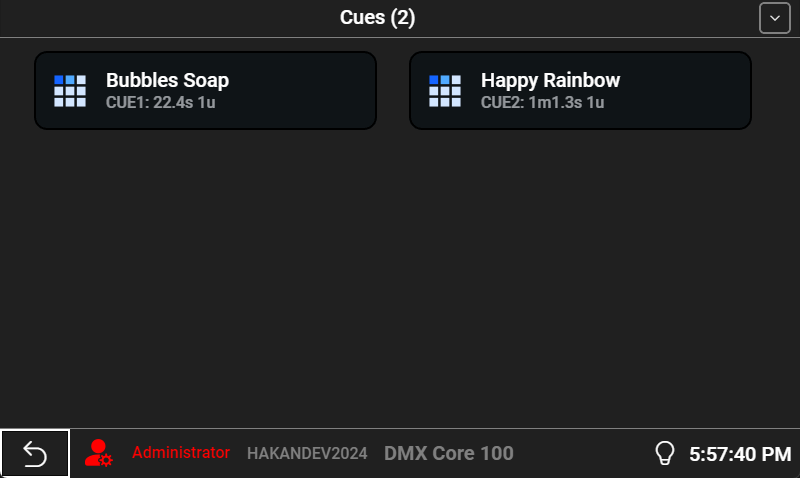
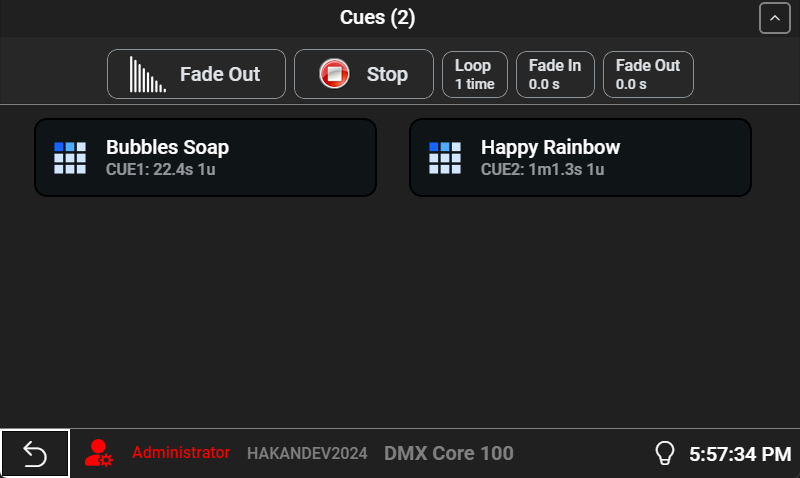
The top bar expands to show playback controls - tap the arrow to toggle it. Controls include Fade Out, Stop, and the list-wide Default Settings for Loop, Fade In, and Fade Out (the same defaults as on the Web UI Cues list).
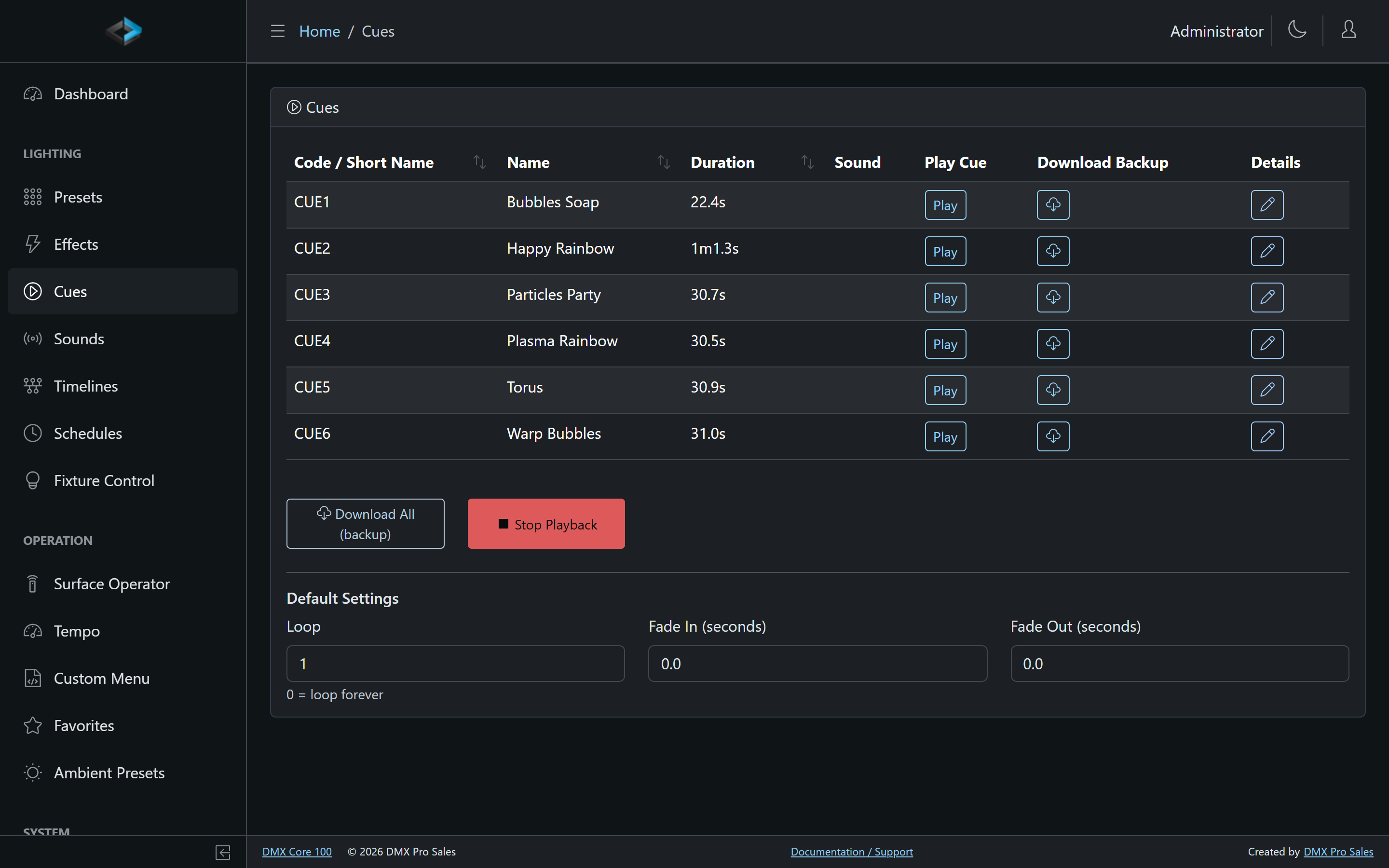
In the Web UI, go to Lighting > Cues. The list shows duration and size, with play buttons and per-cue download. Click a cue name to open its detail page.
Default Settings
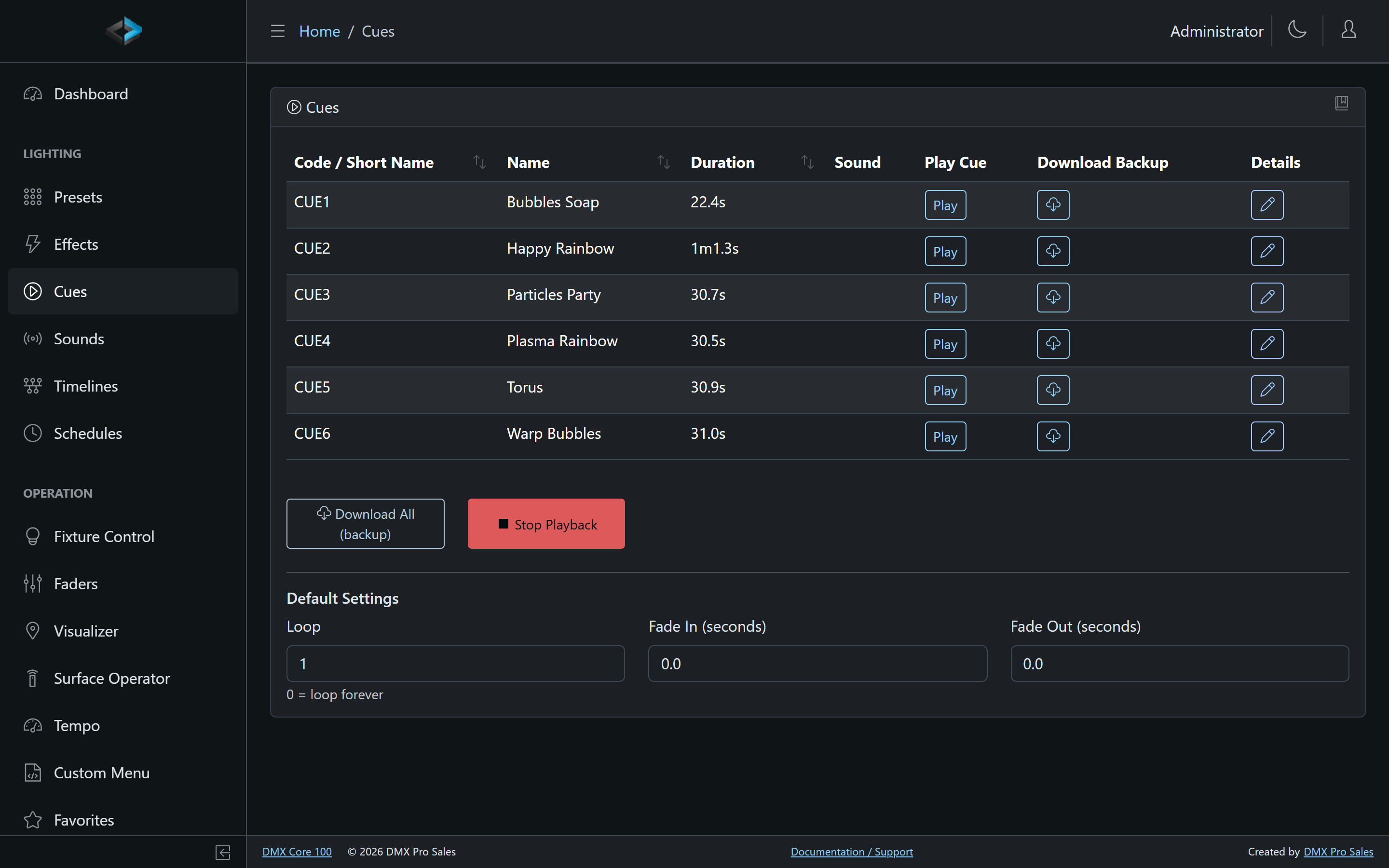
Fade In (seconds), Fade Out (seconds), and Loop are not per-cue fields. They live on the Cues list as Default Settings (Web UI: Lighting > Cues; touchscreen: the cue list top bar). New playback uses these defaults. Loop of 0 means loop forever.
Cue Settings
Long-hold a cue on the touchscreen, or open it in the Web UI, to edit its settings:
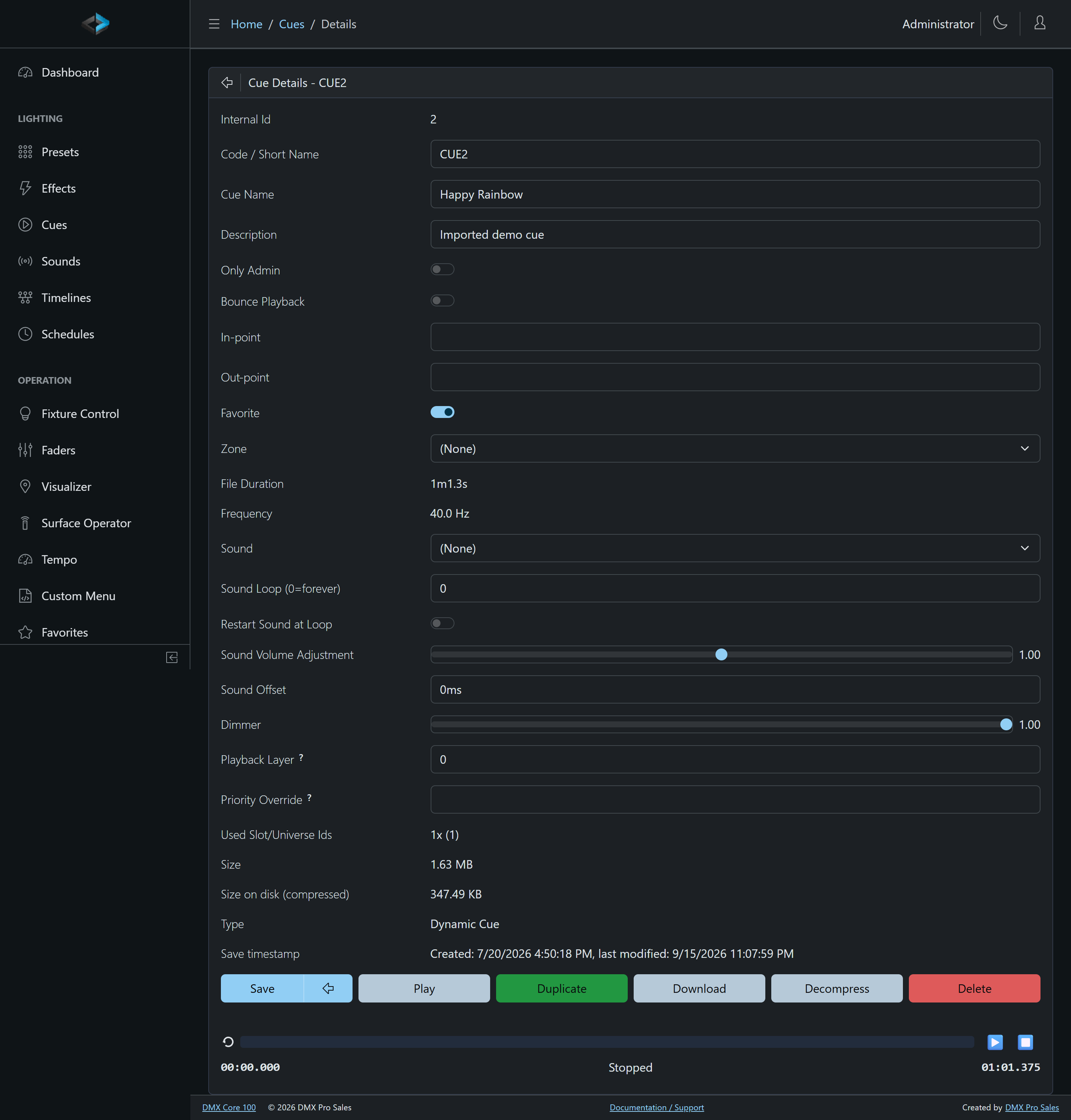
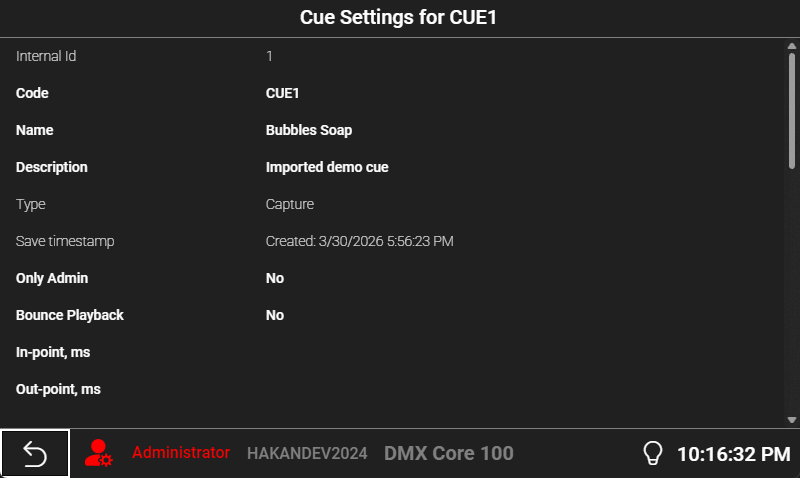
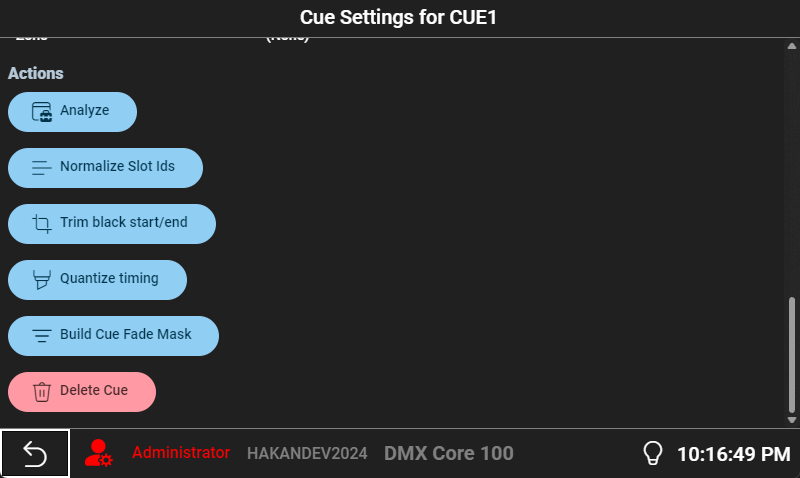
- Code - A unique identifier used in API trigger events and external control
- Name / Description - Display name and notes
- Bounce Playback - Play forward then backward for seamless looping
- In-point / Out-point - Trim playback to a portion of the recording
- Dimmer - Overall brightness level for the cue output
- Only Admin - Hide the cue from non-admin users
- Favorite - Show the cue in Favorites
Attached Sound
A cue can have a sound attached so audio and lighting always start together. The attachment has its own loop count, Restart Sound at Loop option, volume adjustment, and a Sound Offset (milliseconds, 0–10000) to delay the sound relative to the lighting. The editor does not accept a negative offset. There is no separate Audio Delay setting - for metronome compensation see Output Latency.
Layers and Priority
- Playback Layer - cues on the same layer replace each other; cues on different layers play together (default 0)
- Priority Override - an optional sACN priority (1–200) replacing the recorded 100
See Layers & Priority for how concurrent playback combines.
Fade Mask
Channel Rules
Channel Rules adjust the output without modifying the cue files: cap or scale channels that were recorded too bright, copy channels to fixtures added after the show was recorded (multipatch), or repeat a few channels over a pixel tape. Rules apply to every source on the output, not only cues.
Playback Controls
During playback, the Web UI shows a progress bar with pause/resume, scrub (drag to any position), and stop. On the touchscreen, the home screen shows the currently playing cue with a stop button.
Duplicating Cues
In the Web UI, duplicate a cue to create a copy with the same DMX data but a new name and code - useful for variations with different dimmer, in/out points, or layer settings. Fade and loop still come from the list Default Settings.
Compressed Storage
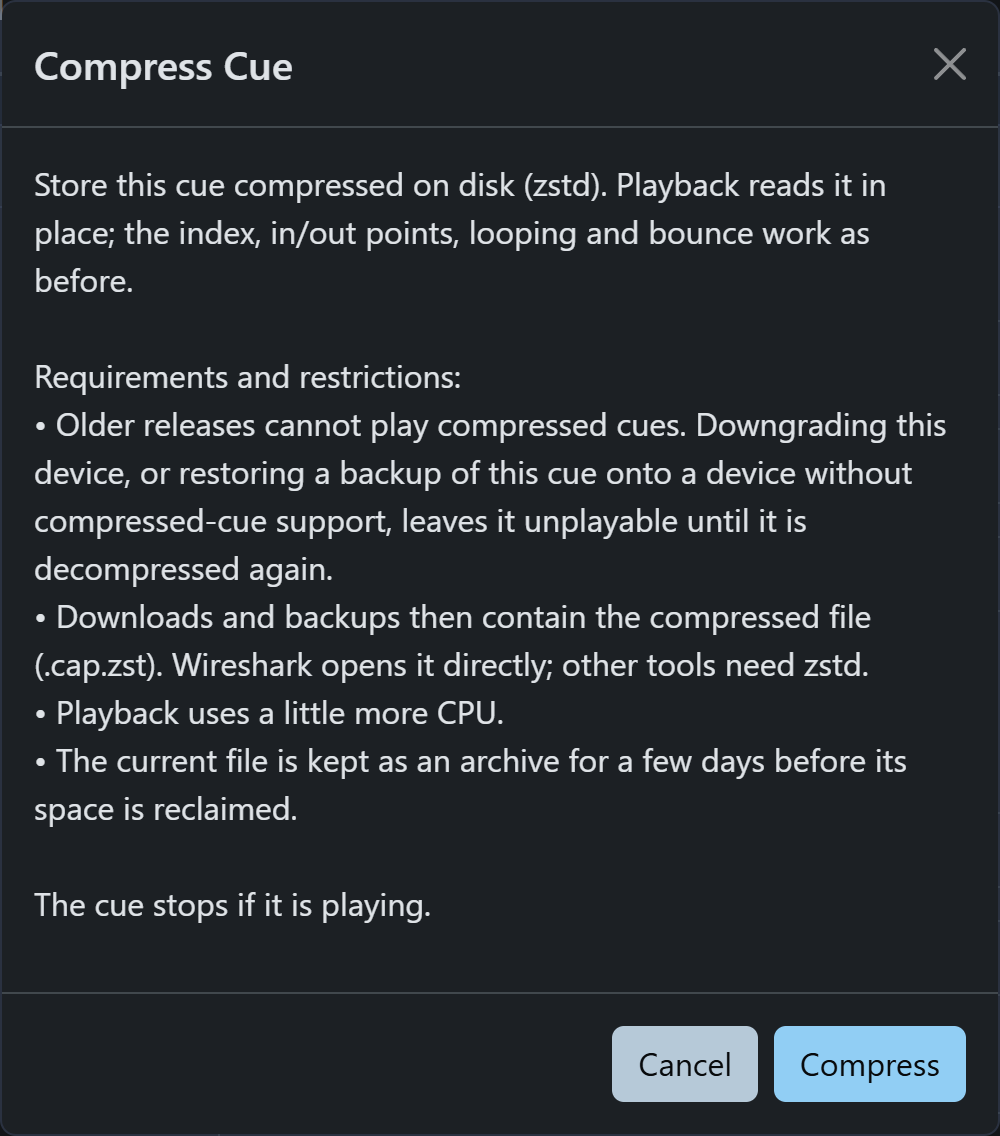
Before you compress, note:
- Older software cannot play compressed cues. If the device is switched to a release without compressed-cue support, or a backup holding a compressed cue is restored on such a device, that cue stays unplayable until it is decompressed on a release that supports it.
- Downloads and backups contain the compressed file (
.cap.zst). Wireshark opens it directly; other tools needzstd. - Playback uses slightly more CPU.
- The previous file is kept as an archive for a few days before its space is reclaimed, so free space does not drop right away. Decompressing needs free space for the full content size.
- The cue stops if it is playing.
Both actions need the Process Cues permission.
Technical Details
Cues are stored as Wireshark PCAP files internally (.cap, or .cap.zst when stored compressed: a standard zstd file with a seek table, so zstd -d yields the plain PCAP and Wireshark reads it as it is) and can be either ArtNet or sACN. They are automatically converted during playback if the output protocol differs from the format used during recording.
The code field is used in API trigger events and external control protocols. Codes must be unique and cannot be empty. Non-admin users can rename and delete cues they created within 24 hours of creation.