Fixture Control
The Fixture Control page provides real-time interactive control over your configured fixtures. You can adjust colors, dimmers, pan/tilt, and other fixture functions directly from the Web UI.
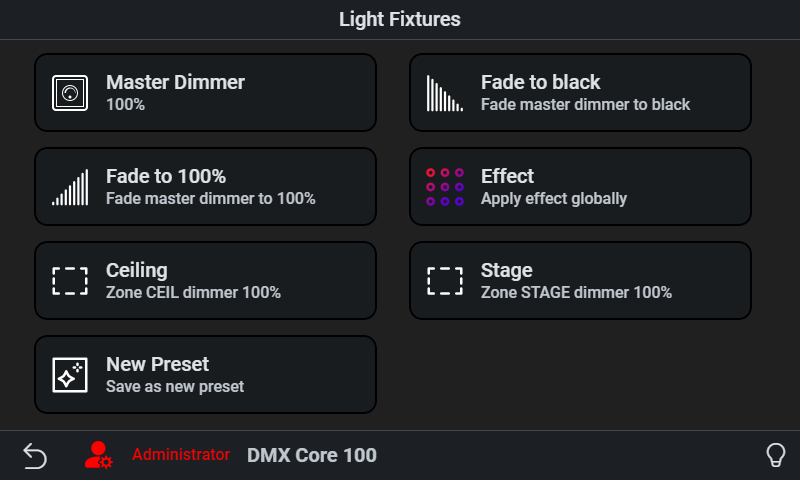
Fixture Control is available on both the touchscreen (Main Menu > Fixture Control) and the Web UI (Lighting > Fixture Control). The Web UI provides additional capabilities including the effects engine and detailed per-fixture editing.
Controlling Fixtures
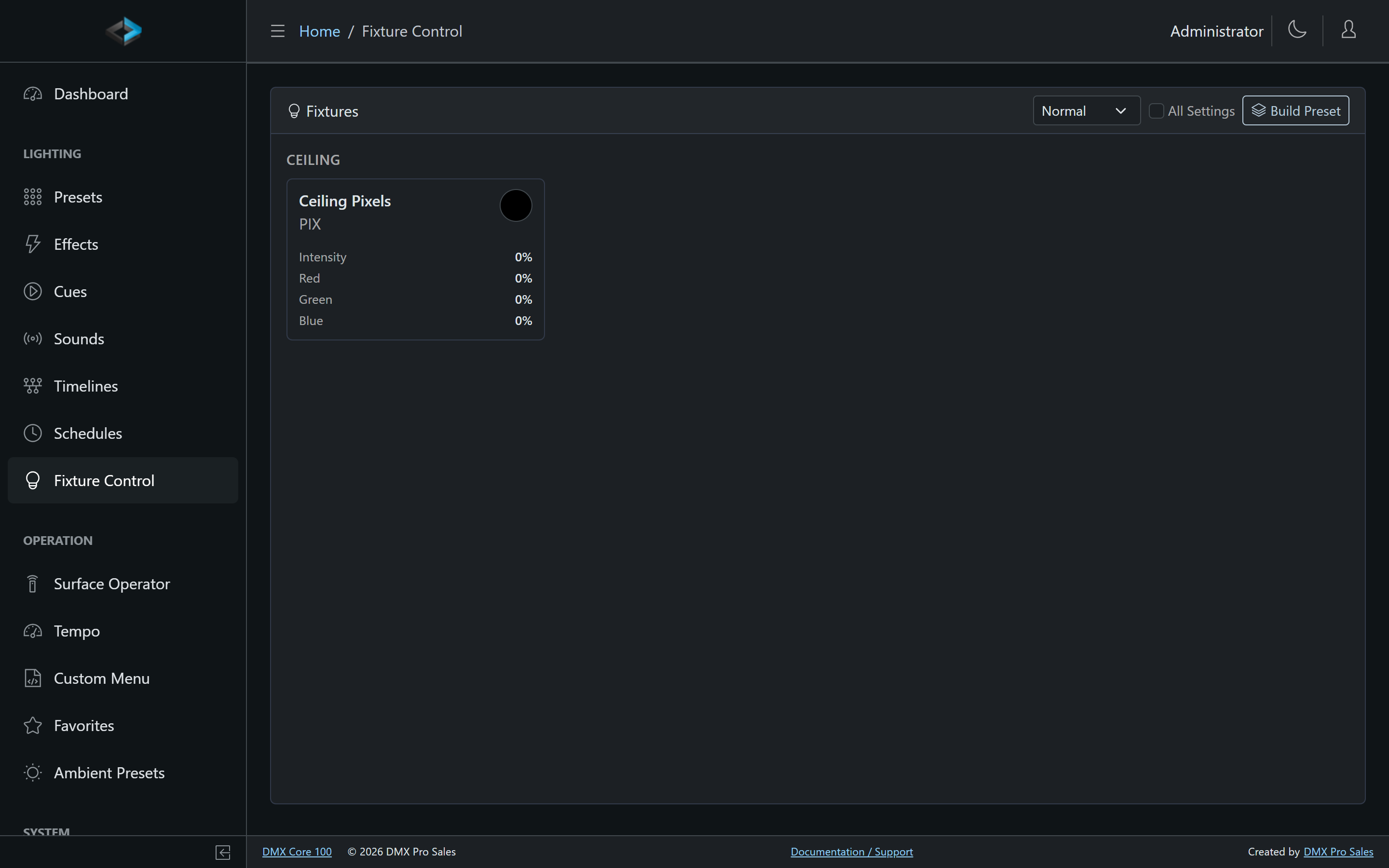
The Fixture Control page displays all configured fixtures with their current state. Three view modes - Normal, Compact, and Diagnostic - trade detail for density, and the All Settings toggle reveals every fixture function, including ones normally hidden. Select one or more fixtures to control them:
- Color - Use the color picker to set RGB/RGBA values for fixtures that support color mixing
- Dimmer - Adjust the intensity/brightness level
- Pan/Tilt - Position moving fixtures
- Other functions - Additional controls appear based on the fixture’s profile capabilities
Changes are applied in real-time - you’ll see the lights respond immediately.
Multi-Function Support
Fixtures with multiple instances of the same function type (e.g., multiple color wheels or gobos) are fully supported. The Fixture Control page displays separate controls for each function instance.
Modifiers
When you adjust a fixture’s properties through Fixture Control, these are applied as modifiers - runtime adjustments that layer on top of the fixture’s base state. A badge indicator shows when a fixture has active modifiers.
Fading to a Value
Slider changes normally apply live as you drag. Enable Fade in the header (with the duration select next to it, 0.5–30 s) and a slider gesture fades instead: release the slider and the DMX Core 100 fades the fixture smoothly to that value over the selected duration - the fade runs on the device itself, so it continues even if you close the browser. On a desktop browser, holding Shift while clicking a slider does the same thing without turning fade mode on.
Fading applies to the percentage sliders - intensity, extra color channels, and custom channels. The color wheel and multi-function selectors always apply immediately. The fade mode toggle and duration are remembered per browser and shared with the Faders page, where the same gesture works on the vertical faders and masters (see Fading to a Level).
Effects
The Fixture Control page also gives access to the effects engine. Select a fixture or zone and use the effects controls to apply animated lighting effects - breathing, fire, pulsing, and more. If multiple zones are configured, each zone has independent effects controls.
Copy Trims
A fixture configured with more than one copy (see Fixture Setup) is treated as one unit - every copy gets the same color and intensity. In practice one or two of those units are often a little too bright or too dim compared to the rest: mounted closer to a wall, older LEDs, a slightly different batch. Rather than splitting the fixture apart just to fix that, you can give each copy its own intensity trim.
Select a multi-copy, dimmable fixture and open the Copy Trims card below the effect controls (it is collapsed by default - flip Show; the header always tells you how many copies are trimmed). Each copy gets a row with its DMX address, a slider (0–100 %), and a reset arrow:
- Drag a slider to preview the change on the physical fixture immediately; release to save it.
- S (Solo) lights only that copy - with every other copy of the fixture dark - so you can tell which physical unit is which before trimming it. Solo is a temporary preview only: it is never saved, and it ends when you toggle it off, hide the card, pick another fixture, or leave the page. Only one copy can be soloed at a time.
- Reset all returns every copy to 100 %.
Trims are stored on the fixture and apply whenever the fixture engine drives it - live control, presets, ambient presets, effects, and timelines that play presets. A trim only scales brightness (the intensity channel, or the color channels for fixtures without a dedicated intensity channel); it never changes color. Trims are kept when you clone the fixture, and when you split or combine copies each copy keeps its own value.
A copy trimmed all the way to 0 % stays dark whatever you do on this page - the fixture’s settings page warns about that so a forgotten trim doesn’t look like a dead unit. Editing trims requires the Edit Fixtures permission; anyone who can use Fixture Control can still Solo to identify copies.
Fade Speed
The fade speed for fixture control changes - how quickly fixtures transition when you adjust their values - is configurable, along with the priority the fixture engine outputs at (see Layers & Priority).