
Tempo & Audio Sync
Effects don’t have to run on their own internal clock. They can fire on a musical beat, or step when beats are detected in DMX Core’s own playback or a live input from a USB sound card. The Tempo page (under Operation in the Web UI) is the control center for both.
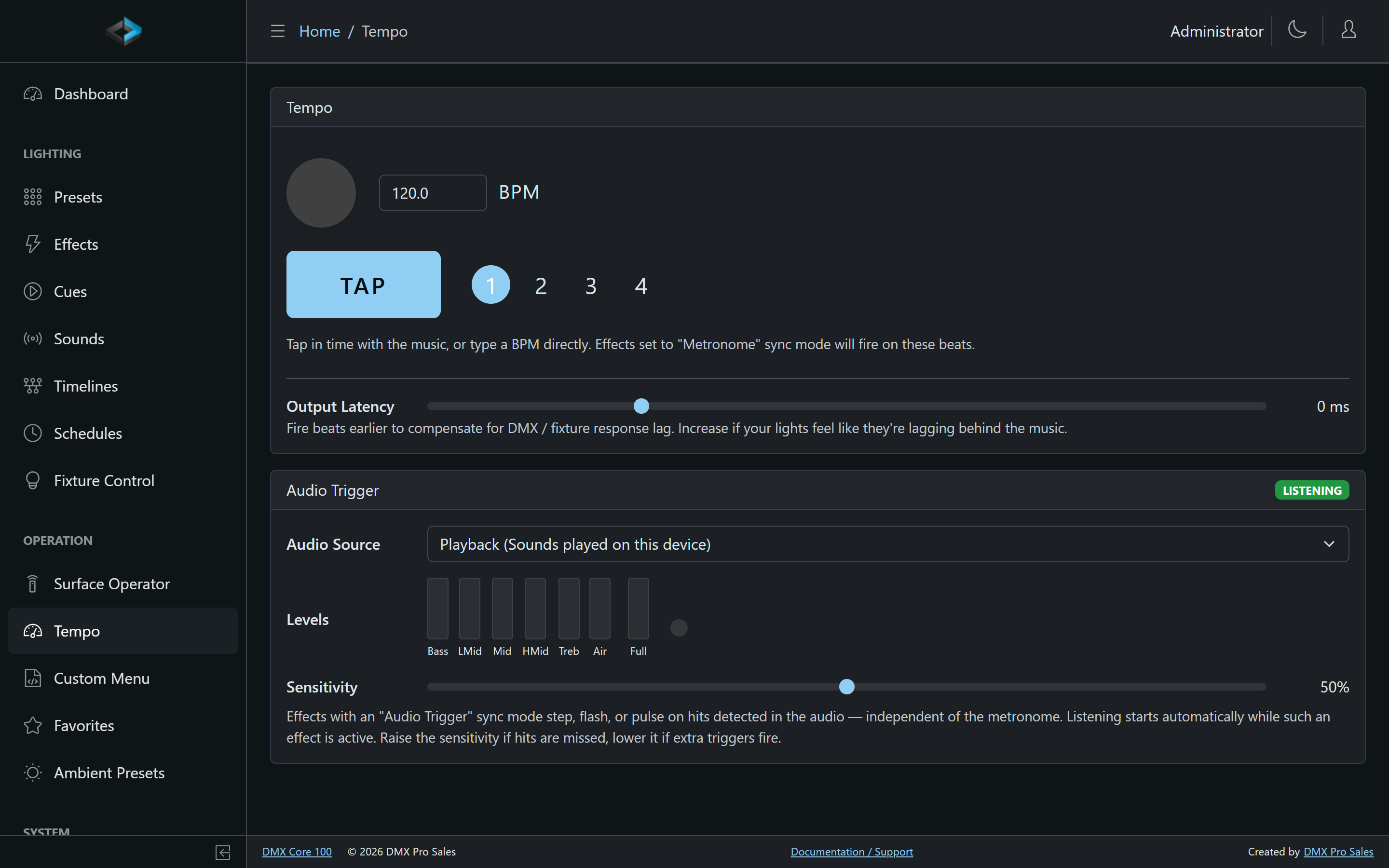
Metronome
Set the tempo by typing a BPM directly or by hitting TAP in time with the music. The beat indicator cycles through beats 1–4 so you can confirm the phase.
Effects with their sync mode set to Metronome - Downbeat fire once per bar, and Metronome - All Beats fire on every beat. Tap Tempo is also available as an action on control surfaces, custom menus, and input triggers, so the operator can retap from wherever they’re working.
Output Latency
The Output Latency slider fires beats early to compensate for DMX and fixture response lag. If the lights feel like they’re behind the music, increase it.
Audio Trigger
Effects with the Audio Trigger sync mode step, flash, or pulse on hits detected in audio - independent of the metronome. Listening starts automatically while such an effect is active.
- Audio Source - analyze the device’s own playback (sounds played on the DMX Core 100) or a live audio input from a USB sound card. The audio board and the ADIO board are output only and have no audio input.
- Levels - live meters for the frequency bands (Bass, LMid, Mid, HMid, Treb, Air, and Full) show what the detector hears
- Sensitivity - raise it if hits are missed, lower it if extra triggers fire
The Sound Reactive effect generator steps on those detected hits, for example advancing a chaser. See Effects.