
Visualizer
The Visualizer (Web UI: Operation > Visualizer) is a 2D live plot of your lighting: place your fixtures on photos of your venue - or on a dark canvas with simple truss and stage shapes - and watch them light up with the color and brightness the rig is actually running. It is built for the moment you are not in the room: trigger a look from a laptop or over the remote tunnel and see that the bar went amber and the booths went magenta.
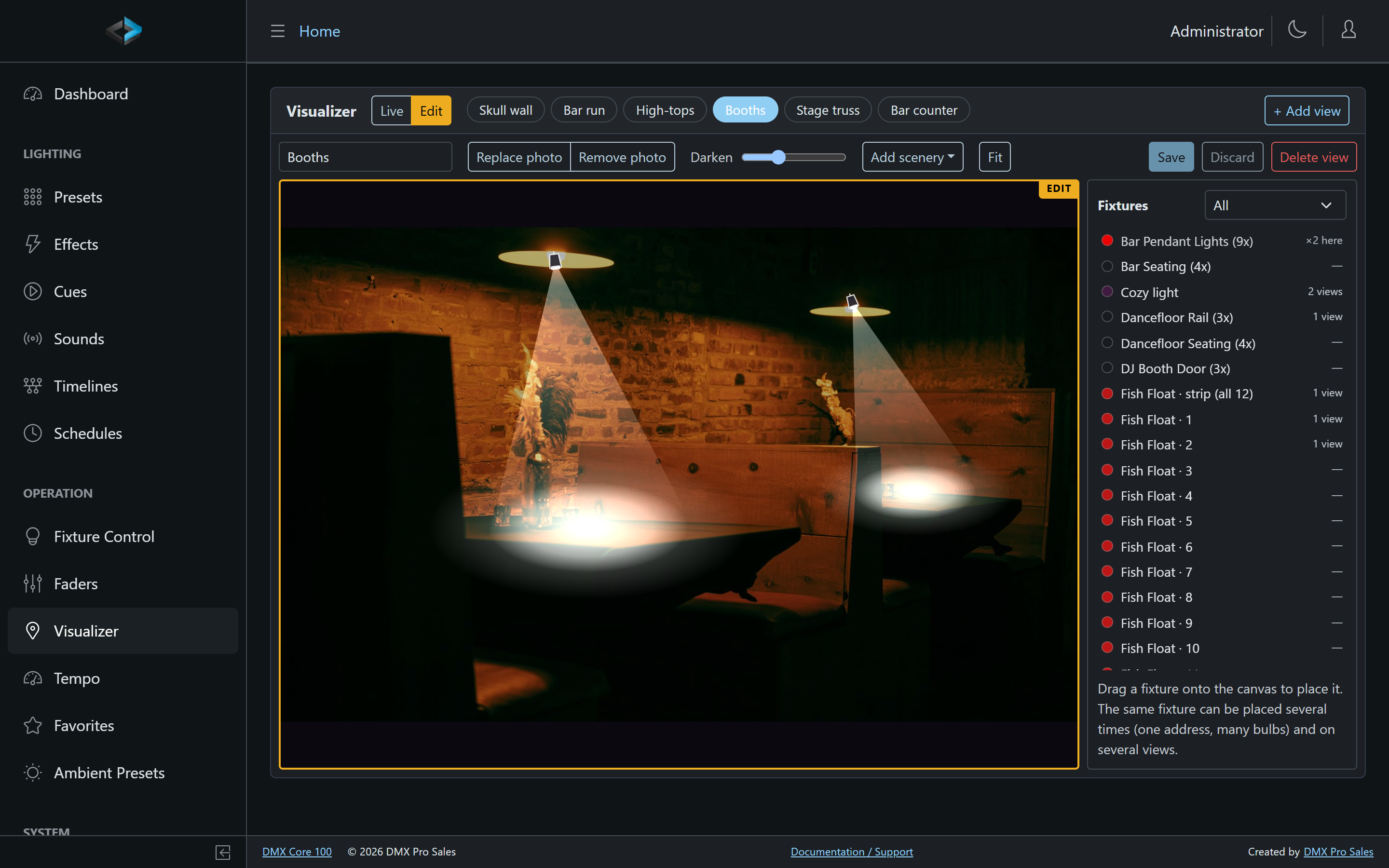
It is intentionally a live picture, not a lighting-design tool - no 3D, no photometry, no beam simulation. If you need pre-visualization of that caliber, DMX Core plays nicely with the dedicated tools; see External visualizers below.
Views
A view is one canvas: a photo of an angle of your venue, or a blank canvas you dress with scenery. Create as many as you need (“Bar”, “Booths”, “Stage”) - the strip at the top switches between them. The same fixture can appear on any number of views: its look is shared everywhere, while position, aim, and size are set per view.
With a photo: upload a phone photo of the area, then drag fixtures from the tray onto the picture. A Darken slider dims the photo so the light overlays read clearly.
Without a photo: the view is a dark canvas. Use Add scenery to sketch the space - straight/arc/tower truss, rectangles (stage, dance floor), text labels, and a person silhouette for scale - then hang fixtures on it.
Edit and Live modes
The Edit / Live toggle switches what the same canvas does:
- Edit is for building: every placement renders with a bright white look so you can see and aim overlays regardless of what the rig is doing, fixture icons are shown, and all editing is enabled. Changes are staged locally until you press Save - Discard returns to the last saved state.
- Live is for operating: overlays follow the real fixture state, and clicking a light selects it and opens quick controls. Fixture markers (subtle icons that keep dark fixtures findable) can be toggled off for a clean picture of the room.
Editing requires the Edit Visualizer permission; everyone with page access gets the Live view.
Placing fixtures
Drag a fixture from the tray onto the canvas. Each placement is an icon plus one overlay shape - pick the Overlay kind that matches how the light reads in the picture:
| Kind | Use for |
|---|---|
| Cone (spot) | Ceiling spots and PARs - a beam with a pool where it lands. Drag the end handle to aim; length and spread are adjustable. |
| Wash | Light on a surface where the fixture itself is hidden - mural backlights, uplit walls. Place the wash where you see the light. |
| Glow | Omnidirectional sources - pendants, lanterns, globes. |
| Strip | LED tape and linear fixtures - a ribbon between two endpoints. |
- The same fixture can be placed several times on one view. One fixture instance is often many physical bulbs on a single DMX address (nine pendants over the bar) - drop it once per bulb; every placement follows the same live state. The tray shows a placement count, and clicking the tray row cycles through the placements.
- Scale (depth) shrinks or grows a placement’s icon and overlay together - smaller means further back in the photo.
- Multi-copy fixtures list one tray row per copy. Place a copy, then use Distribute copies… to spread the remaining copies evenly along a line - or drag the strip (all copies) row to place the whole fixture as one ribbon, ideal for pixel tape.
- Delete (or the Remove button) removes the selected placement; placements on other views are untouched.
Only patched fixtures belong on the plot. Table lamps, signage, and other décor that DMX Core does not control stay in the photograph - an overlay that never changes would only mislead.
Live control
Selecting a fixture in Live mode gives you an intensity slider and color picker right in the panel, and Full Control… opens the same per-function control dialog as Fixture Control.
For a placement of a multi-copy fixture, the panel also shows that copy’s trim slider with a Solo button - “this one pendant is too bright” fixed without leaving the photo. These are the same persisted Copy Trims as everywhere else: a trim is a calibration that scales the copy’s intensity in all presets and faders.
Good to know
- View photos and scenery are included in backups - a restore brings the whole plot back.
- Pan with drag, zoom with the mouse wheel; Fit resets the camera. The camera position is remembered per view.
- Moving heads render with a static aim in this version - live pan/tilt is not animated.
External visualizers
For true pre-visualization - photoreal 3D, beams, haze, moving-head simulation - use a dedicated visualizer such as Capture, Depence, ChamSys MagicVis, or QLC+. They all work the same way: they listen to DMX on the network, and DMX Core already outputs sACN and Art-Net.
- Build (or import) your rig in the visualizer on a PC on the same network.
- Patch it to the same universe numbers DMX Core outputs.
- Point the visualizer at DMX Core’s sACN or Art-Net stream.
The external visualizer then shows everything DMX Core plays - including recorded cues, since it decodes the actual DMX output. This is the industry-standard pairing (it is what lighting consoles recommend too), and it complements the built-in Visualizer rather than replacing it: one is a design-grade simulation, the other is a live picture of your venue on any browser.