
Cloud Tunnel
The cloud tunnel feature provides secure remote access to your DMX Core 100 from anywhere with an internet connection - no VPN, port forwarding, or static IP required.
How It Works
When enabled, the DMX Core 100 establishes a secure outbound connection to the DMX Core cloud service (api.dmxcore.com). This creates a tunnel that lets you access the Web UI remotely through the cloud, as if you were on the same local network.
- No inbound ports required - The connection is initiated from the device, so no firewall or router changes are needed
- Automatic reconnection - If the connection is interrupted, the device automatically reconnects
- Secure - All communication is encrypted
Enabling the Cloud Tunnel
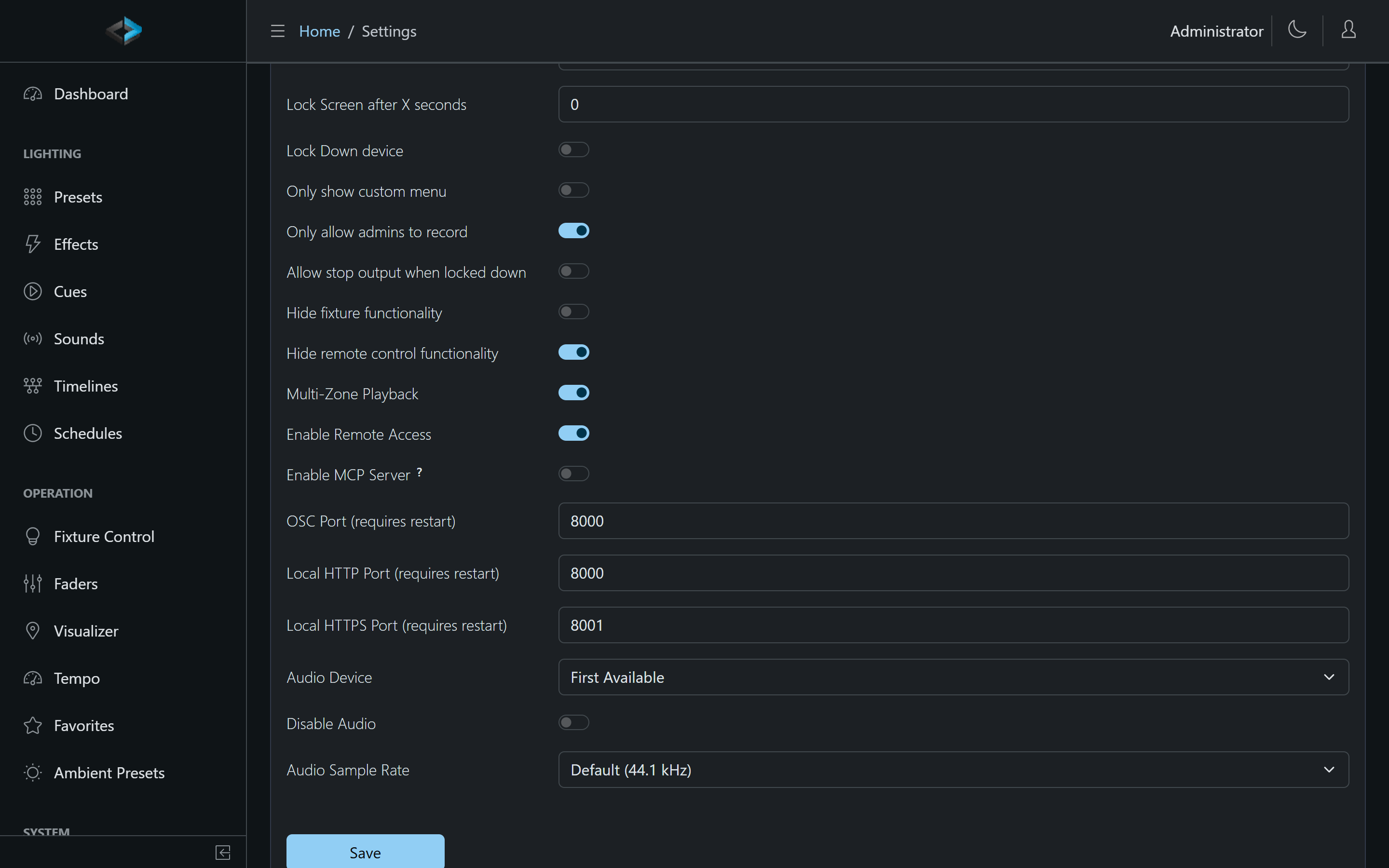
Turn on Enable Remote Access under Device > System in the Web UI. Remote Web UI access also requires an active remote-access subscription - see Remote Management. The tunnel status is shown on the touchscreen’s About screen.
Requirements
- The DMX Core 100 must have internet access
- An active connection to api.dmxcore.com
- An active remote-access subscription on the portal account
Use Cases
- Remote monitoring - Check system status and playback from off-site
- Remote troubleshooting - Diagnose and fix issues without being on-site; Remote Screen shows the touchscreen itself and lets you operate it
- Multi-site management - Manage multiple DMX Core 100 units across different locations from one place
Expose another device’s web UI via tunnel
On Utilities > Device Monitor, an Advatek (and similar) monitored device can have Expose web UI via tunnel turned on. When the portal tunnel to this Core is open, that device’s own web UI becomes reachable through the tunnel - this is not the Core’s Web UI, and it is not on Device > System.