
Home Assistant
The DMX Core 100 integrates natively with Home Assistant in both directions:
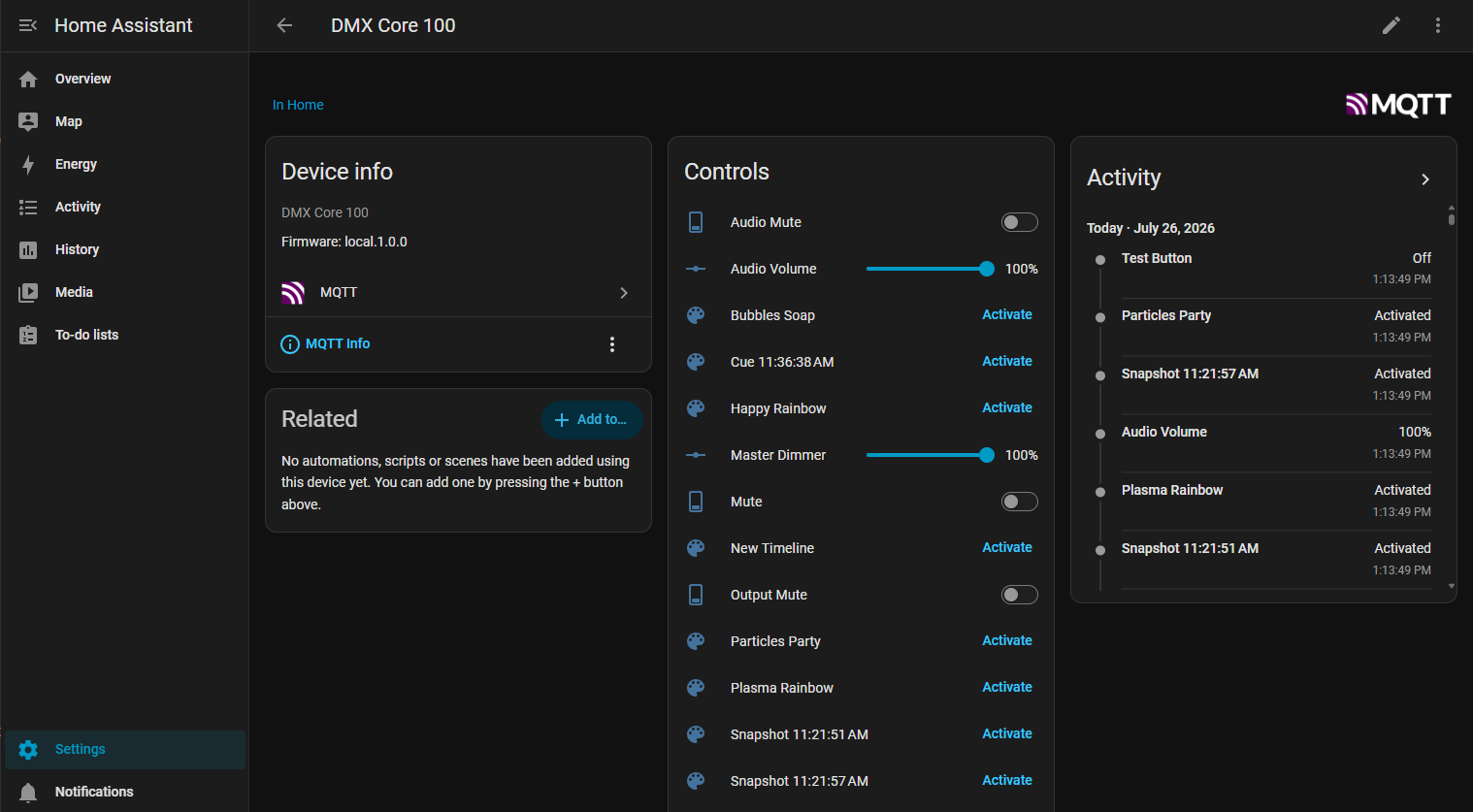
- Home Assistant → DMX Core 100: point both at the same MQTT broker and the device appears in Home Assistant automatically, with all of its presets, cues, dimmers, and switches as ready-to-use entities. No custom component, no YAML - the Home Assistant plugin (installed from Control & Integrations > Plugins > Browse) publishes everything via MQTT Discovery.
- DMX Core 100 → Home Assistant: fire Home Assistant scenes, scripts, and automations from the device - from a Stream Deck key, a touchscreen custom menu, an input trigger, a timeline, or a script - picked from a live list, no entity ids to type. See Triggering Home Assistant from the device.
The same discovery format is understood by openHAB, ioBroker, and Domoticz, so those platforms work the same way.
What You Get
Home Assistant shows one DMX Core 100 device containing:
| In Home Assistant | From the DMX Core 100 |
|---|---|
| Scenes | Presets, cues, and timelines - activate from dashboards, automations, scripts, or voice assistants |
| Number sliders (%) | Master dimmer, zone intensities, level Control Values, and audio volume |
| Switches | Audio mute, output mute, schedules (enable/disable), and toggle Control Values |
| Selects | Selector Control Values, e.g. an audio source picker |
| Number boxes (whole numbers) | Counter Control Values, e.g. a home or away score, with the counter’s minimum, maximum and step |
| Buttons | Stop playback |
| Sensors | Now Playing - the running cue or timeline |
Everything is live in both directions: move a fader on the device and the Home Assistant slider follows; change it in Home Assistant and the device follows. If the device goes offline, its entities show as unavailable until it returns.
And going the other way, the device can trigger Home Assistant:
| On the DMX Core 100 | In Home Assistant |
|---|---|
| An Output Event of type Home Assistant, bound to any button (control surfaces, custom menus), input trigger, timeline event, or script | Activates a scene, runs a script, or triggers an automation |
Setup
You need an MQTT broker that both systems can reach. Most Home Assistant installations use the Mosquitto add-on; any standard broker works.
- Home Assistant: add the MQTT integration (Settings > Devices & Services > Add Integration > MQTT) and connect it to your broker, if you haven’t already.
- DMX Core 100: under Control & Integrations > MQTT, enable the external MQTT server and enter the same broker’s address, port, and credentials. See MQTT.
- That’s it. Within a few seconds the device appears under Settings > Devices & Services > MQTT in Home Assistant.
Triggering Home Assistant from the Device
This direction uses Home Assistant’s REST API, so the device needs Home Assistant’s address and an access token. It is optional - skip it if you only need Home Assistant to control the device.
- Home Assistant: open your profile > Security and create a
Long-lived access token (name it e.g.
DMX Core). Copy it - Home Assistant shows it only once. - DMX Core 100: under Control & Integrations > Plugins, install the
Home Assistant plugin from the Browse tab if you haven’t yet, then open its settings and enter the Home Assistant URL
(e.g.
http://homeassistant.local:8123) and paste the token into Long-lived access token. Save. The plugin’s status shows HA API ok once the token is accepted; a bad URL or token is reported there too. - Control & Integrations > Output Events > Add: set the type to Home Assistant and pick the scene, script, or automation from the Target list, which is loaded live from Home Assistant. Save, then press Test to fire it once and confirm it works.
- Bind it wherever actions are configured - a control surface button, a
custom menu item, an input trigger, a timeline event, or
dmx.fireOutputEvent("<code>")in a script - using the Fire Output Event action.
If Home Assistant is unreachable when an event fires, the rest of the button’s work (playing a cue, applying a preset) still happens; the failure is logged and reported by the Test button and the plugin’s status.
Ideas
- Sunset ambiance - a Home Assistant automation at sunset activates your Evening preset. (Or use the DMX Core 100’s own sunrise/sunset schedules and just flip the schedule’s switch from Home Assistant when you’re away.)
- Movie night - one script dims your other smart lights and pulls the DMX Core 100 master dimmer to 20%.
- Party button - a dashboard button that fires a cue, sets the bar zone to full, and switches the audio source Control Value to the streaming input.
- Presence - when the alarm arms, stop playback and disable the schedules.
- Status - use the Now Playing sensor as an automation trigger, or show it on a wall tablet dashboard.
- Movie night, from the wall - a Stream Deck key or touchscreen menu item that applies the Movie preset and fires the Home Assistant scene that closes the blinds and dims the other lights (two actions on one button, or one Home Assistant script that does both).
Troubleshooting
- No device appears in Home Assistant - confirm both systems talk to the same broker, and that the plugin shows as connected under Control & Integrations > Plugins.
- Entities show unavailable - the broker lost the device; check the network and the MQTT settings. The DMX Core 100 reconnects automatically.
- A deleted preset lingers in Home Assistant - it is removed on the next catalog change; if Home Assistant cached it, reload the MQTT integration.
- Plugin status says HA API: … rejected the access token - the token was revoked or pasted incompletely; create a new one in your Home Assistant profile.
- The Output Event Target list is empty or shows “Could not load
targets” - the device can’t reach the Home Assistant URL (check it opens
from a browser on the same network, including the port) or the plugin is
disabled. You can still type the entity id (e.g.
scene.movie_night) by hand.