
Forgot Admin PIN
If you have lost the admin PIN (or web password) for your DMX Core 100, there are a few ways to regain access depending on your setup.
Another admin can reset it
If anyone else has an admin account on the device, they can simply log in to the Web UI and set a new PIN for your account under User Management > Users.
Reset from the DMX Core portal
If the device is registered to your account and has internet access, you can reset the admin login from the DMX Core portal:
- Sign in at portal.dmxcore.com
- Open the device and choose Reset admin login
- The portal sets a new PIN for the device’s admin account and shows the result immediately
This resets the first (oldest) admin account back to PIN login and clears any web password on it. The reset is recorded in the device’s audit log, and any active login sessions are signed out.
Desktop software: reset file
If you run the DMX Core 100 software on your own computer (Windows, macOS, or Linux) and the portal option isn’t available - for example on an isolated network - you can reset the admin login with a file in the data folder:
- Quit the DMX Core 100 application
- Create an empty text file named
reset-admin-login.txtin the data folder:- Windows:
%LocalAppData%\DMXCore100\data - macOS / Linux:
~/dmxcore100-data
- Windows:
- Start the application again
On startup the file is removed and the first (oldest) admin account is reset back to PIN login with the factory default PIN 1111. Any web password on that account is cleared and existing login sessions are signed out. The reset is recorded in the audit log.
Offline PIN reset (device without internet access)
If the device is on an isolated network - for example a wall-mounted appliance with no internet connection - you can still reset the admin PIN. The device and the DMX Core portal share a recovery key, so you can prove ownership by relaying two short codes between them. The device itself never needs to go online; you only need portal access on any other device, such as your phone.
- Open the device’s Web UI from a computer on the same network and click Forgot admin PIN? on the login page (white-label devices hide that link; open
/recover-pinon the device URL instead)
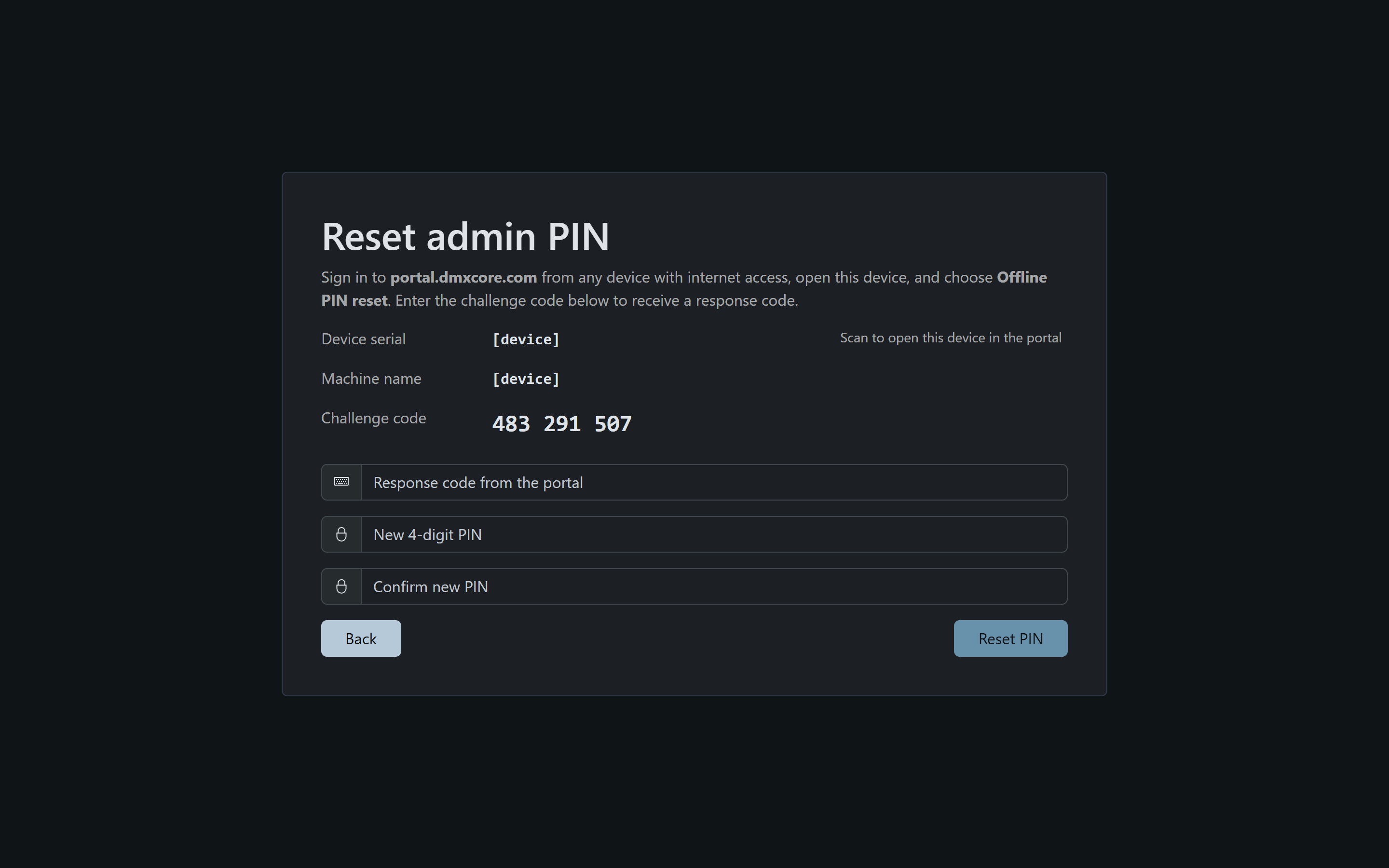
- The page shows the device serial and a 9-digit challenge code, e.g.
483 291 507 - Sign in at portal.dmxcore.com from any device with internet access, open the device, and choose Offline PIN Reset (the device page itself is titled Offline PIN reset)
- Enter the challenge code - the portal displays a 9-digit response code
- Back on the device’s Web UI, enter the response code together with a new 4-digit admin PIN, confirm the PIN, and click Reset PIN. The page also shows a QR code and a Go to login button after a successful reset
- Log in with the new PIN
The codes are numeric so they are easy to read over the phone - if you don’t have portal access yourself, our technical support can verify your ownership and read you the response code.
Notes:
- The reset applies to the device’s first (oldest) admin account, sets it back to PIN login, clears any web password, and signs out existing sessions. It is recorded in both the device’s audit log and the portal account’s audit log.
- The challenge code stays the same until it is used, so it’s fine to write it down and enter it in the portal later.
- After 5 wrong response codes the challenge is invalidated and the device shows a new one - start over with the new challenge.
- The device must have been online at least once (to receive its recovery key from the portal). If the portal reports that the device has no recovery key yet, or the device was never registered to a portal account, please contact our technical support.