
Connecting to the Web UI
The DMX Core 100 includes a built-in Web UI that provides full access to all features from any browser on the same network. The Web UI offers advanced capabilities beyond what is available on the touchscreen, including fixture control, effects, timelines, input triggers, user management, and more.
Finding the Device IP Address
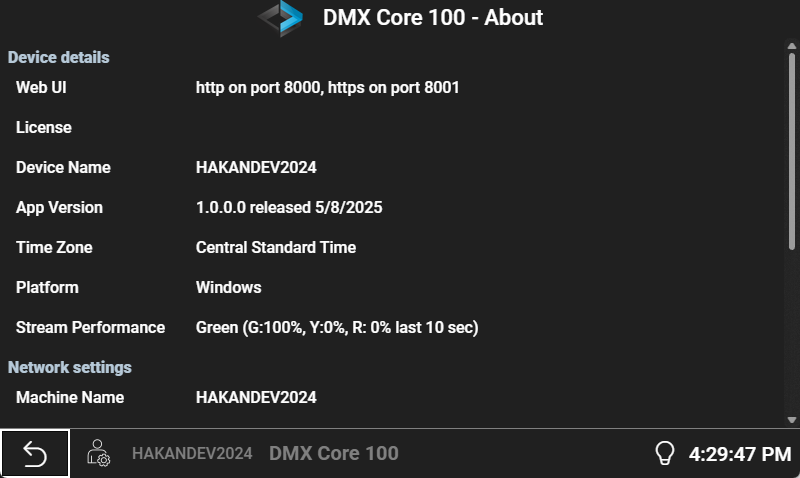
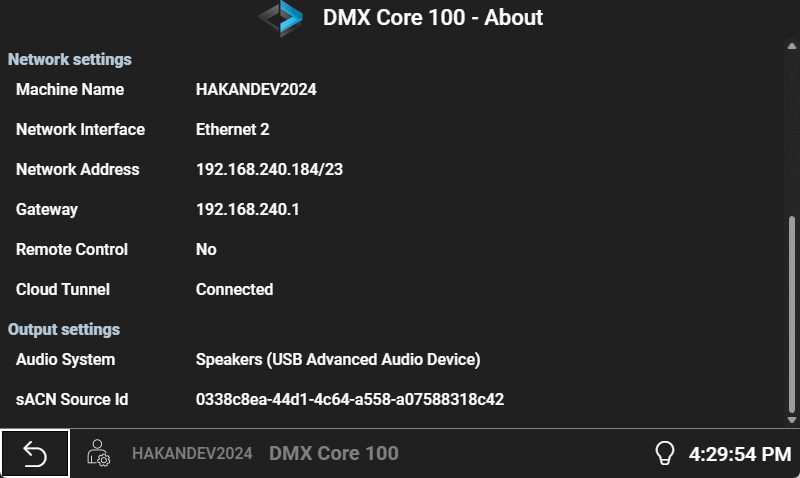
To connect to the Web UI, you need the device’s IP address. You can find it on the touchscreen:
- Navigate to Main Menu > About on the touchscreen
- The IP address is displayed on the About screen
Opening the Web UI
- Open a web browser on any device connected to the same network
- Enter the device IP address in the address bar:
- HTTP:
http://<device-ip>:8000 - HTTPS:
https://<device-ip>:8001(recommended)
- HTTP:
- If using HTTPS, your browser may show a certificate warning for the self-signed certificate — this is expected. Accept the warning to continue.
Logging In
- Enter your PIN (the default admin PIN is
1111) - Click Login
After logging in, you’ll see the Web UI Dashboard.
Auto Log-off
For security, the Web UI will automatically log you out after a period of inactivity. This timeout can be configured in Settings > System on the Web UI, or in Settings on the touchscreen.